
Teams that use Dialpad for calls and Salesforce as their CRM usually hit the same friction within a quarter:
call activity logged in Dialpad never reaches Salesforce records, so reps type up notes after every conversation,
contact details drift out of sync as updates happen in one system but not the other,
and when a prospect calls back, the rep answering has no CRM context on screen because the two platforms don't share data.
However, the two platforms ended up coexisting (a sales team choosing Dialpad for AI-powered calling while the org standardizes on Salesforce, a contact center running Dialpad Support alongside Salesforce Service Cloud, or different departments adopting tools independently), the longer they run without a connection, the more manual work piles up and the less reliable the data in either system becomes.
Connecting Dialpad and Salesforce eliminates that gap.
Calls made or received in Dialpad log automatically to the matching Salesforce Lead, Contact, or Account, so reps stop copying notes by hand. Transcriptions, AI-generated call summaries, and sentiment data flow into Salesforce records so managers can review conversations without switching tools. Inbound callers match to CRM records instantly, giving reps context before they say hello.
Dialpad offers a native Salesforce integration on its Pro and Enterprise plans, with a corresponding app on the Salesforce AppExchange. For teams that need automation beyond the native connector, third-party tools like Zapier can bridge additional workflows. Custom API development is also possible, with both platforms offering full developer APIs. Each method differs in setup complexity, data flow, sync direction, and cost.
There is also one problem no connection method solves: the integration logs calls and syncs activity, but it does not verify whether the contact records behind those calls are accurate, current, or complete.
And that is where ZoomInfo comes in. ZoomInfo integrates natively with Salesforce and connects to Dialpad through Chorus, while its API and MCP access can feed verified, enriched contact and company data into any system in the stack. The result: both platforms work with records that are accurate and complete before a single call is placed.
This article covers the full landscape of the Dialpad-Salesforce integration: which methods are available, what data each one handles, how to set them up, the use cases that justify connecting both platforms, and the limitations to plan for. It also covers how ZoomInfo fits in as a data enrichment and conversation intelligence layer for teams running both platforms.
Let's start with an overview of the integration.
Integration Overview
Does a native integration exist?
Yes. Dialpad offers a native Salesforce integration through the Salesforce AppExchange. The integration embeds Dialpad's calling, messaging, and AI features inside Salesforce, with automatic call logging and real-time transcription synced to CRM records. It is available on Dialpad's Pro and Enterprise plans.
What data can sync?
Calls (inbound and outbound), call recordings, real-time transcriptions, AI-generated call summaries (AI Recaps), voicemails, SMS messages, and contact details. Call activity logs automatically to the matching Salesforce Lead, Contact, Account, or Opportunity. Custom field mapping is supported for specific use cases.
Is the sync bidirectional?
Partially. Call activity flows from Dialpad into Salesforce automatically. Salesforce contact data surfaces inside Dialpad's interface (caller ID matching, contact lookup) so reps see CRM context during calls. However, bulk record synchronization is not a core function of the native integration; it handles activity logging and contextual display, not full CRM data sync.
Is it real-time or batch?
Near real-time. Call logs, transcriptions, and AI Recaps push into Salesforce as calls complete. Caller identification against Salesforce records happens live during inbound calls.
What are the available methods?
Native Dialpad-Salesforce integration (Pro and Enterprise plans), third-party automation (Zapier), and custom API development using both platforms' APIs.
Method | Setup Difficulty | Data Flow | Real-time? | Cost |
|---|---|---|---|---|
Native (Dialpad Pro/Enterprise) | Low | Dialpad to Salesforce (activity); Salesforce to Dialpad (contact context) | Near real-time | Included with Pro ($25/user/mo) and Enterprise plans |
Zapier | Medium | One-way per Zap | Near real-time (1-15 min) | From $19.99/mo |
Custom API | High | Fully customizable | Real-time via webhooks | Developer time + hosting |
One distinction worth settling upfront: the native integration handles ongoing, automatic activity logging as part of daily sales and support workflows. Zapier handles event-triggered automations the native connector does not cover. Custom API development offers the most flexibility but requires dedicated engineering resources to build and maintain.
Integration Methods
Native Dialpad-Salesforce Integration (Pro and Enterprise Plans)
How it works: Dialpad's native Salesforce integration connects the two platforms through a CTI (Computer Telephony Integration) embedded inside Salesforce.
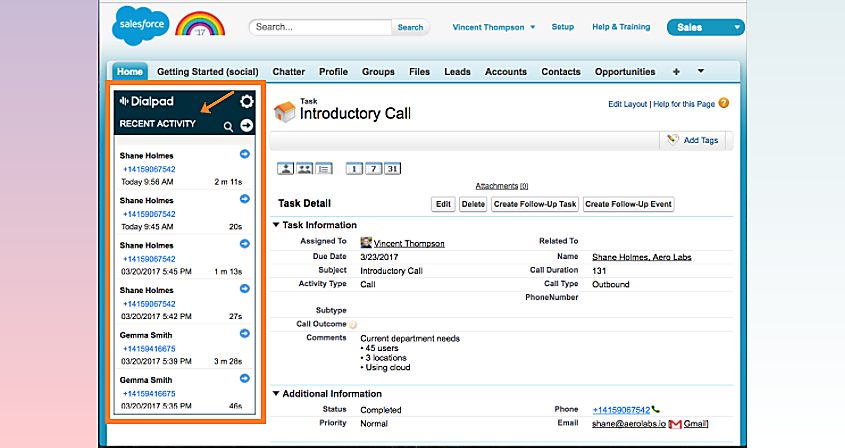
Reps make calls from Salesforce with click-to-dial, and all call activity logs automatically to the associated CRM record. Inbound calls trigger a Salesforce record lookup so the rep sees the caller's account history, open opportunities, and recent activity before picking up. Real-time transcription and AI Recaps generated by Dialpad's DialpadGPT model push into Salesforce after each call.
Source: Dialpad
What it syncs: Outbound and inbound call logs, call recordings, voicemails, real-time transcriptions, AI Recaps (post-call summaries with action items), SMS messages, and caller identification data. Dialpad surfaces Salesforce contact, lead, and account information inside its interface during live calls.
Fits: ongoing sync of call activity and AI-generated insights into Salesforce as part of sales, support, or contact center workflows; not a data migration tool.
Setup process:
Confirm your Dialpad workspace is on the Pro plan ($25/user/month billed annually) or higher. The Salesforce integration is not available on the Standard plan.
Install the Dialpad app from the Salesforce AppExchange into your Salesforce org. System Administrator access in Salesforce is required.
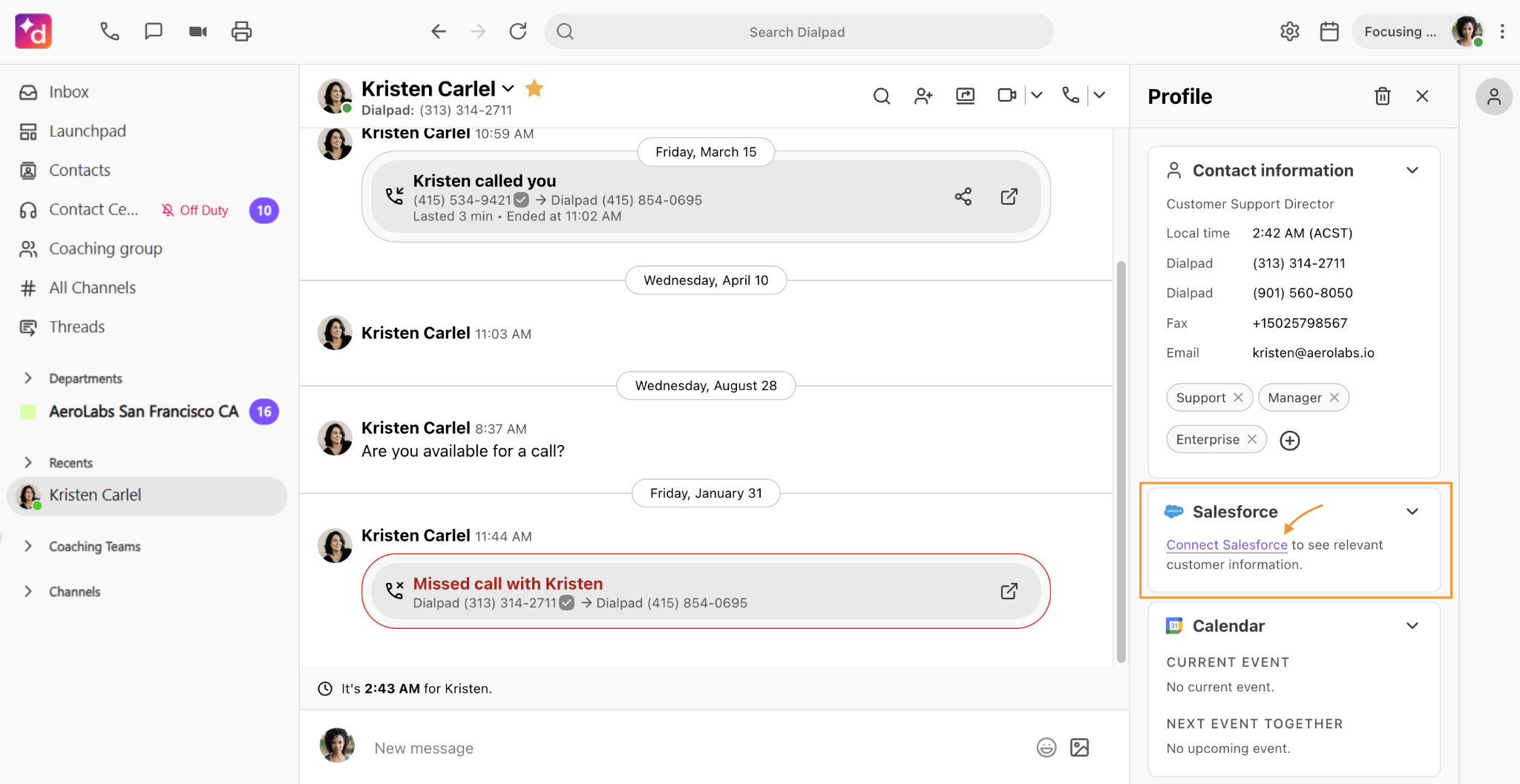
In Dialpad, navigate to Admin Settings > Integrations > Salesforce. Authenticate with Salesforce using OAuth, granting Dialpad permission to read contact data and write activity records.
Configure which call events log to Salesforce (inbound calls, outbound calls, voicemails, SMS) and how Dialpad matches callers to Salesforce records (by phone number, email, or both). Set rules for logging calls as Salesforce Tasks or Activities.
Enable the Dialpad CTI panel inside Salesforce Lightning so reps can make and receive calls without leaving the CRM.
Test by placing a call from Salesforce to a known contact and verifying the call log, transcription, and AI Recap appear on the contact's record.
Source: Dialpad
Strengths: First-party integration maintained by Dialpad and distributed through the Salesforce AppExchange. No third-party tool to configure or pay for separately. Click-to-dial from inside Salesforce eliminates app-switching. Transcriptions and call summaries flow into CRM records automatically, giving managers visibility without listening to recordings. Real-time caller identification surfaces CRM context during inbound calls.
Limitations: Available only on Dialpad Pro ($25/user/month billed annually) and Enterprise (custom pricing) plans. The Standard plan ($15/user/month) does not include Salesforce integration. The sync is activity-focused (calls, transcriptions, AI Recaps), not a full bidirectional CRM data sync. Custom fields and complex object mapping may require additional configuration. Dialpad Support and Dialpad Sell have per-minute call rates ($0.01/min inbound, $0.02/min outbound in the US) that are separate from the integration itself.
Best for: Sales and support teams already on Dialpad Pro or Enterprise that use Salesforce as their CRM and want automatic call logging, AI-generated call summaries, and click-to-dial without leaving Salesforce.
Zapier
How it works: Zapier connects Dialpad and Salesforce through event-driven automations called Zaps. Each Zap pairs a trigger in one app with an action in the other. Dialpad is listed in Zapier's marketplace as a connector, enabling workflows that go beyond what the native Dialpad-Salesforce integration covers.
What it syncs: Depending on available triggers, Zapier can capture events like new calls, missed calls, voicemails, or new contacts in Dialpad and push them into Salesforce as Tasks, Leads, or custom object records. In the reverse direction, new Salesforce records can trigger actions in Dialpad (such as adding a contact). Field mapping is manual and configurable per Zap.
Fits: ongoing sync for specific event-triggered workflows the native integration does not cover; not a replacement for the native CTI integration.
Setup process:
Create a Zapier account and connect both your Dialpad and Salesforce accounts using OAuth.
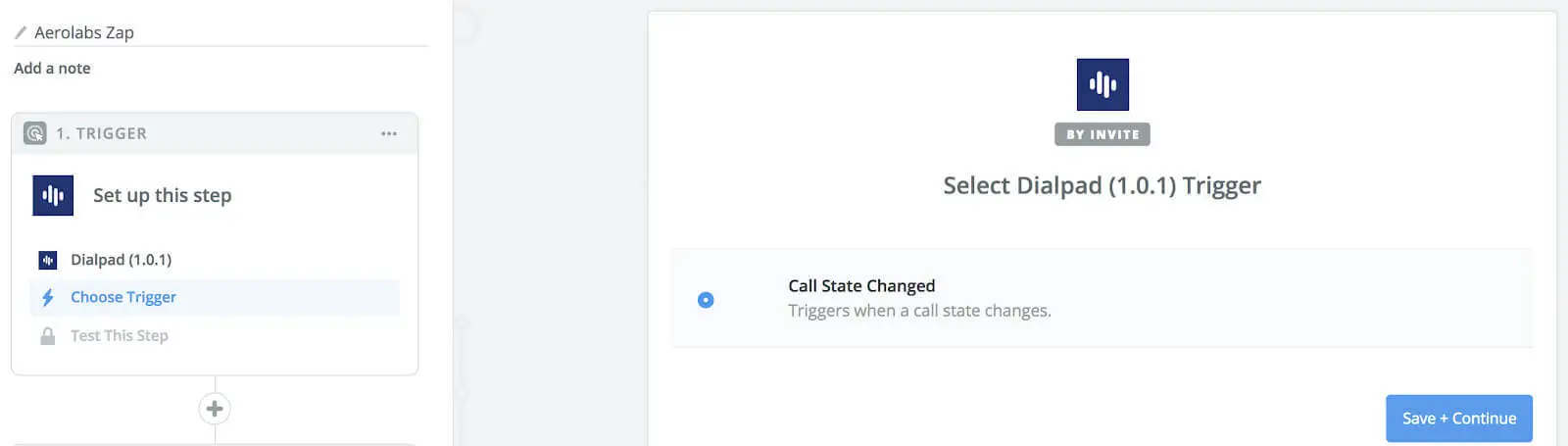
Choose a trigger app (e.g., Dialpad) and select the trigger event (e.g., "New Call" or "New Missed Call").
Choose the action app (Salesforce) and select the action (e.g., "Create Task" or "Create Lead").
Map the available fields from the Dialpad trigger (caller name, phone number, call duration, recording URL) into the corresponding Salesforce fields.
Test the Zap with a sample event to verify the data flows correctly into Salesforce.
Turn the Zap on. Each qualifying event triggers the configured action automatically.
Source: Dialpad
Strengths: Extends the integration beyond the native connector's scope. No engineering resources required. Useful for workflows like creating Salesforce Leads from missed Dialpad calls, triggering Slack notifications on specific call events, or syncing Dialpad data to Salesforce objects the native integration doesn't write to. Available to teams on any Dialpad plan with Zapier access.
Limitations: Each Zap handles one trigger-action pair, so multiple workflows require separate Zaps (each counting against your Zapier plan's task allocation). Does not provide the CTI panel, click-to-dial, or real-time caller identification that the native integration offers. Events created before the Zap was activated do not sync. Zapier processes triggers within 1 to 15 minutes depending on plan tier.
Best for: Teams that need specific automated workflows between Dialpad and Salesforce beyond what the native integration handles, such as creating CRM records from missed calls or routing voicemail data to custom Salesforce objects.
Custom API Integration
How it works: Both platforms provide full developer APIs. Dialpad exposes a REST API (base URL: https://dialpad.com/api/v2/) covering phone, SMS, user management, analytics, contact center operations, and AI capabilities, with webhook support for real-time event notifications across call events, SMS events, contact events, and agent status events.
Salesforce provides REST, SOAP, and Bulk APIs, plus Pub/Sub APIs covering all standard and custom objects, Platform Events, and Change Data Capture for event-driven sync. A custom integration connects these APIs directly, with your own middleware handling authentication, data mapping, and sync logic.
What it syncs: Anything both APIs expose. On Dialpad's side: calls, SMS, transcriptions, contact center analytics, user and agent data. On Salesforce's side: any standard or custom object. This is the only method that supports complex scenarios like syncing Dialpad's AI-generated analytics into custom Salesforce dashboards or triggering Dialpad call workflows based on Salesforce Platform Events.
Fits: specific use cases where neither the native integration nor Zapier provides the required data flow or business logic; the only method with no ceiling on customization.
Setup process:
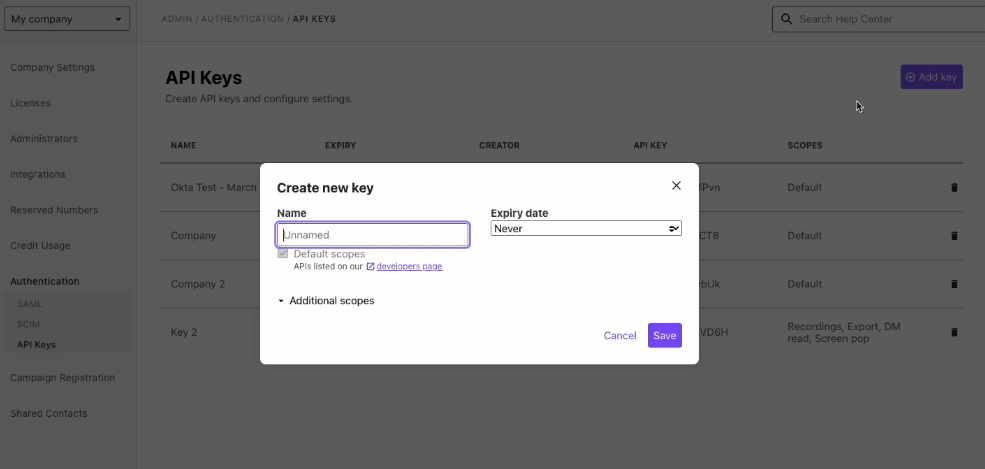
Generate API credentials for both platforms: a Dialpad API key or OAuth app from the admin portal, and a Salesforce External Client App with OAuth 2.0 credentials.
Design the data model mapping between Dialpad and Salesforce objects, including field-level transformations and a cross-reference table for matching record IDs.
Build the sync service: a server-side application that listens for Dialpad webhooks (call events, SMS events, contact events) and writes transformed data to Salesforce via the REST API, or vice versa.
Implement error handling and retry logic. Dialpad enforces 20 requests per second per company with per-endpoint limits (e.g., 5 calls initiated per minute per user). Salesforce's daily API allocation starts at 100,000 requests for Professional and Enterprise editions.
Add monitoring, logging, and alerting for sync failures. Dialpad webhook events are delivered in JWT format for verification.
Deploy, monitor, and maintain the integration over time.
Source: Dialpad
Strengths: Full control over what syncs, when, and how. Real-time sync via Dialpad webhooks and Salesforce Platform Events. Can implement business logic that neither the native integration nor third-party tools support. No per-operation fees from a connector.
Limitations: Requires development resources to build and maintain. Both APIs have rate limits that must be respected. Dialpad's API is versioned at v2 with a changelog tracking updates; Salesforce versions its API with each seasonal release (current: Summer '26, API version 67.0). The initial build takes weeks, not hours.
Best for: Teams with sync requirements that neither the native integration nor Zapier can satisfy, such as custom analytics pipelines, complex multi-object sync logic, or integration with internal systems that bridge both platforms.
Key Use Cases
1. Automatic Call Logging for Sales Teams
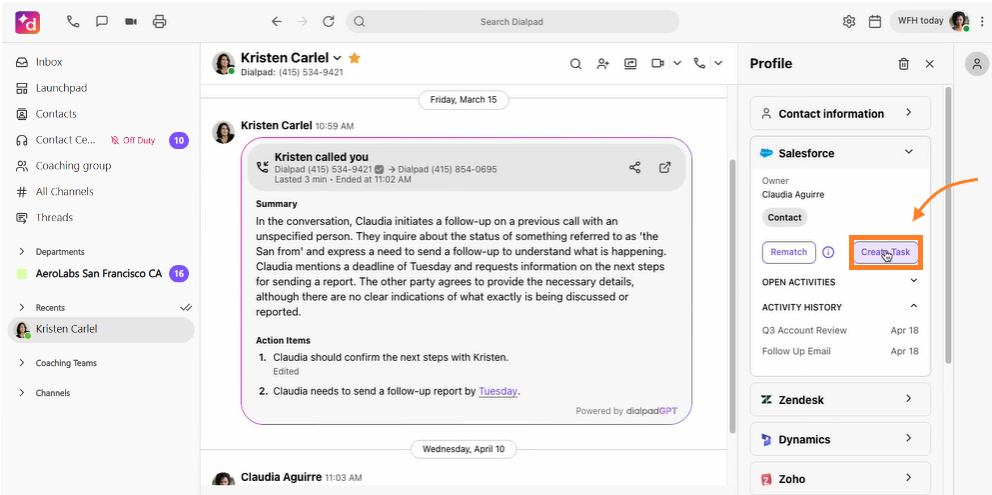
Sales reps make outbound prospecting calls through Dialpad and need every call logged in Salesforce without manual data entry. The native integration automatically creates a Salesforce Task on the matching Contact or Lead record with call duration, outcome, recording link, and AI-generated recap. Managers can review call activity in Salesforce reports without asking reps to log notes.
Source: Dialpad
Best integration method: Native Dialpad-Salesforce integration.
2. Inbound Call Routing with CRM Context
A support team receives inbound calls through Dialpad Support. When a caller's number matches a Salesforce Contact or Account, the native integration surfaces the CRM record on screen before the agent answers. The agent sees open cases, recent opportunities, and account tier, and can have a better-informed conversation without toggling between systems.
Best integration method: Native Dialpad-Salesforce integration.
3. Missed Call Lead Capture
SDR teams running outbound campaigns through Dialpad receive callbacks from prospects. When a call is missed, a Zapier Zap can automatically create a Salesforce Lead or Task with the caller's number, the time of the call, and any voicemail data, so no prospect falls through the cracks during high-volume campaigns.
Best integration method: Zapier (event-triggered, covers missed call scenarios the native integration may not log as leads).
4. AI Conversation Analytics in Salesforce Dashboards
Sales managers want to track call quality metrics, sentiment trends, and AI Playbook adherence across the team, all visible inside Salesforce. A custom API integration can pull Dialpad's Stats API data (AI-generated transcriptions, call analytics, and agent performance metrics) into Salesforce custom objects, powering dashboards that combine CRM pipeline data with conversation intelligence.
Best integration method: Custom API integration.
5. Contact Center Performance Monitoring
Organizations running Dialpad Support as their contact center with Salesforce Service Cloud for case management can use the native integration to log every customer interaction as a Salesforce Activity. Supervisors monitor call volumes, handle times, and resolution patterns in Salesforce without switching to Dialpad's analytics dashboard, keeping all service metrics in one reporting layer.
Best integration method: Native Dialpad-Salesforce integration.
Limitations and Considerations
Plan-Gated Access
The native Salesforce integration requires Dialpad's Pro plan ($25/user/month billed annually, or $35 billed monthly) or Enterprise plan (custom pricing). Teams on the Standard plan ($15/user/month) cannot access it. Since the Standard plan also excludes CRM app integrations more broadly, connecting Dialpad to Salesforce at any level requires upgrading to Pro at minimum.
Activity-Focused, Not Full CRM Sync
The native integration logs call activity (calls, recordings, transcriptions, AI Recaps) and surfaces CRM context during calls. It is not a bidirectional CRM data sync tool. Contacts created in Dialpad do not automatically appear in Salesforce as Leads or Contacts, and Salesforce record updates do not push field changes back into Dialpad. Teams needing full record synchronization require Zapier workflows or custom API development.
Per-Minute Call Costs
Dialpad Connect plans include free domestic calling, but Dialpad Support and Dialpad Sell charge per-minute rates: $0.01/min for inbound and $0.02/min for outbound calls in the United States. International calls are charged at country-specific rates. These costs are separate from the integration but affect the total cost of running both platforms together.
API Rate Limits
Both platforms enforce rate limits that affect custom integrations. Dialpad allows 20 requests per second per company, with per-endpoint limits (e.g., 100 SMS sends per minute, 5 call initiations per minute per user). Salesforce's daily API allocation starts at 100,000 requests per 24-hour period for Professional and Enterprise editions, plus per-license allocations. High-volume contact centers may need to throttle custom integrations or upgrade plan tiers to increase limits.
Permissions and Access
Setting up the native integration requires admin access on both sides. In Dialpad, account admin rights are needed to configure the Salesforce integration and generate API tokens. In Salesforce, System Administrator access is required to install the AppExchange app and configure API-enabled profiles. Salesforce orgs using field-level security or sharing rules must ensure the integration user's profile has access to every object and field the integration needs to write to.
Maintenance
Both platforms release updates regularly. Dialpad ships product improvements on the first Thursday of every month and maintains an API changelog. Salesforce versions its API with each seasonal release. Custom fields, objects, or automation rules added after the initial setup may not be covered by the integration without reconfiguration. Periodic reviews of the integration's health are warranted, particularly after major platform updates on either side.
What No Method Fixes: The Data Itself
Every method above connects Dialpad and Salesforce so call activity flows between them. None of them checks whether the contact records in Salesforce are accurate, current, or complete.
A rep calling a prospect whose phone number changed two months ago wastes time on a dead line. A contact record with the wrong job title gets a pitch that misses entirely. The integration faithfully logs calls against records that may have been stale before the first ring.
Where ZoomInfo Fits In
Every method in this guide connects Dialpad and Salesforce so call activity flows between them. None of them improves the contact data that determines whether those calls reach the right person, at the right number, with the right context. When the integration is live but reps are still calling dead numbers, pitching contacts who changed roles, or working accounts with incomplete company data, the bottleneck is no longer the connector.
That is the gap ZoomInfo closes.
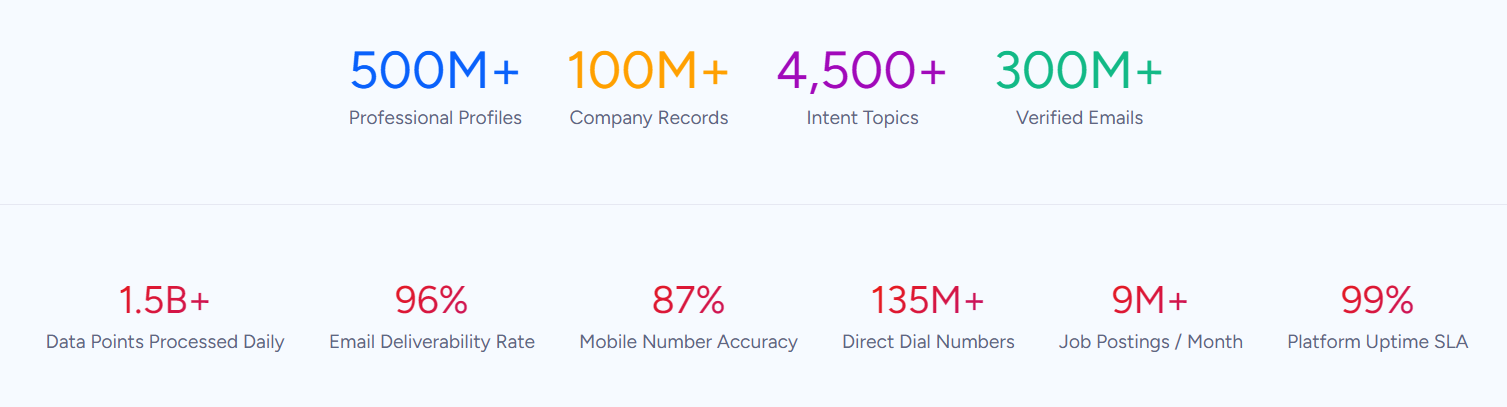
ZoomInfo is a B2B data and go-to-market platform built on 500M contacts, 100M companies, 135M+ verified phone numbers, and 200M+ verified business emails. That data is verified through a multi-source pipeline backed by 300+ human researchers, reaching up to 95% accuracy on first-party data. For teams running Dialpad and Salesforce together, ZoomInfo addresses two layers no connector handles: data quality and conversation intelligence.
Source: ZoomInfo
On the data side, ZoomInfo integrates natively with Salesforce through the AppExchange, providing CRM enrichment, lead routing, and real-time data updates inside Salesforce records. Before a rep picks up the phone in Dialpad, ZoomInfo ensures the Salesforce record they are calling from has a verified direct dial, an accurate job title, and current company details.
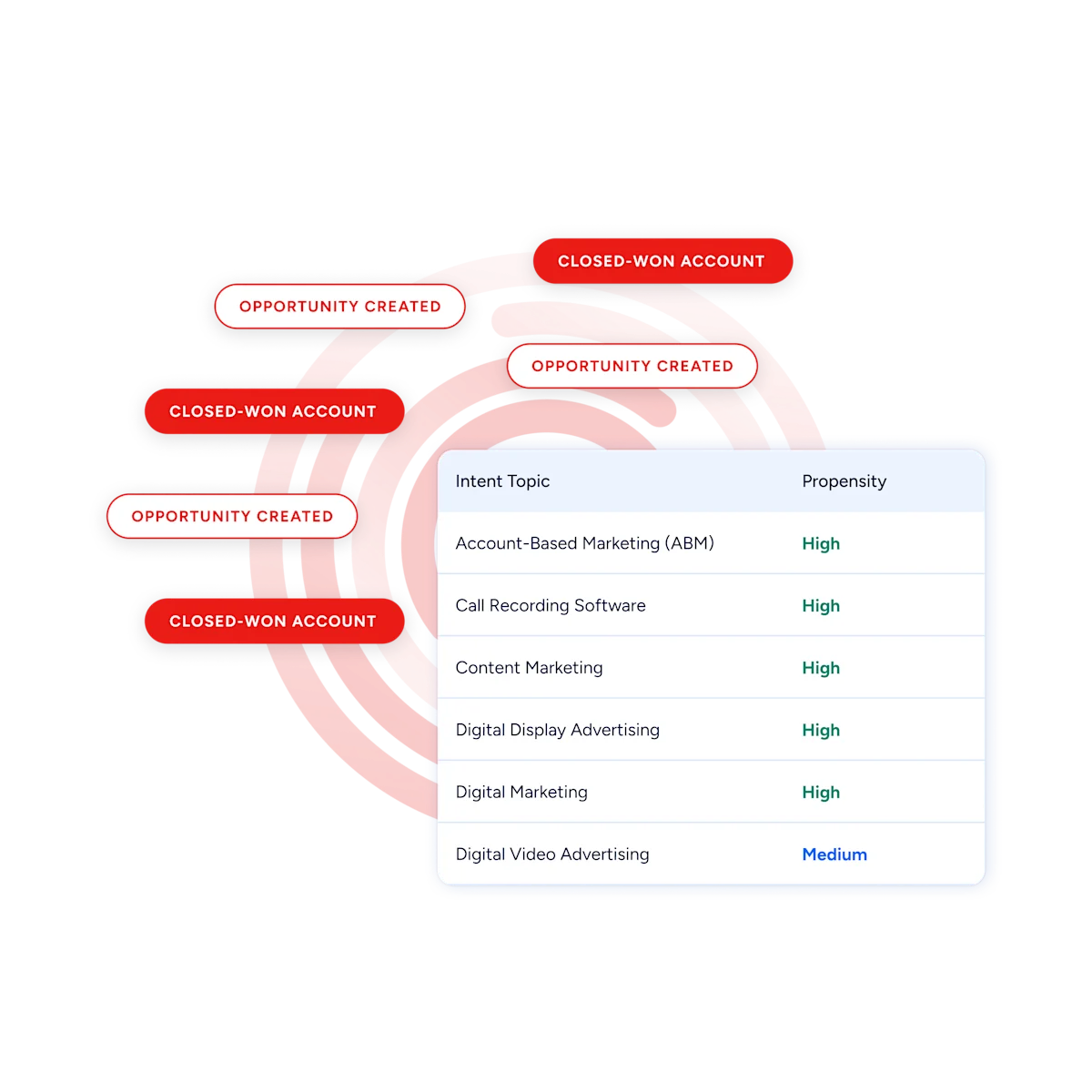
Buyer Intent data, tracking signals from 210 million IP-to-Organization pairings, can prioritize which accounts should receive outbound calls in the first place, so reps spend their time on prospects actively researching relevant solutions. With Agent Teams, a signal like that can kick off the full play, from research straight through to the call itself, rather than ending as a task in Salesforce.
Source: ZoomInfo
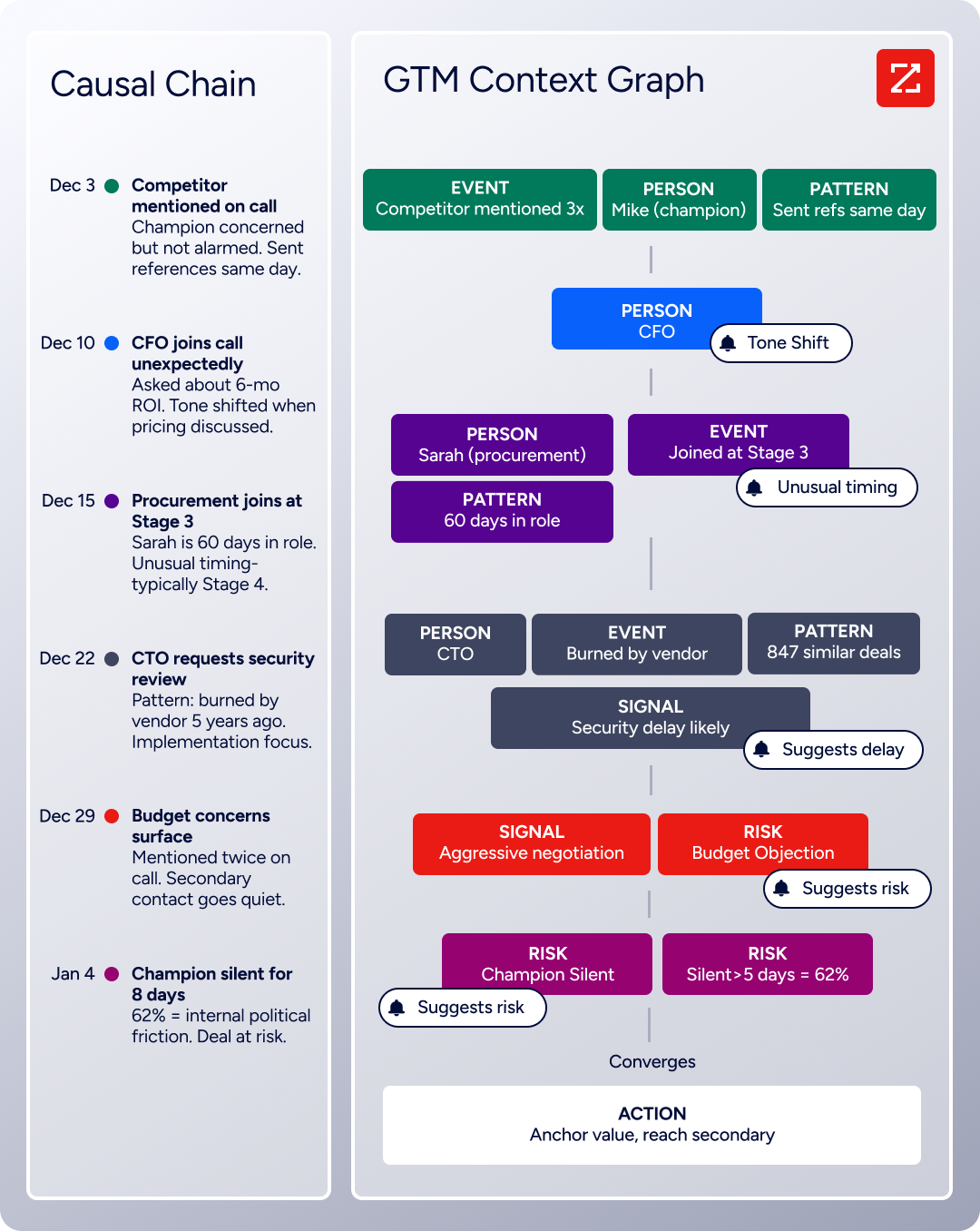
On the conversation intelligence side, ZoomInfo's Chorus integrates with Dialpad to capture, transcribe, and analyze calls. Chorus goes beyond basic transcription: it extracts deal signals, identifies competitive mentions, tracks objection patterns, and feeds all of this into ZoomInfo's GTM Context Graph. The Context Graph processes 1.5B+ data points daily and unifies third-party intelligence with CRM records, conversation transcripts, and behavioral signals.
The result is not just a log of what happened on a call, but context about why a deal is moving or stalling, surfaced through ZoomInfo's GTM Workspace or available via API and MCP access for any tool in the stack.
Source: ZoomInfo
In practice, a team running Dialpad for calls and Salesforce for CRM can use ZoomInfo to enrich Salesforce records so every call goes to a verified number with full buyer context. Chorus captures the conversation and extracts intelligence. The native Dialpad-Salesforce integration logs the activity.
Together, the three platforms create a closed loop: accurate data feeds informed calls, calls generate conversation intelligence, and that intelligence feeds back into the CRM record for the next interaction.
Seismic attributed 39% of active pipeline to opportunities identified or influenced by ZoomInfo signals, while becoming 54% more productive. (Seismic)
Final Verdict
A native Dialpad-Salesforce integration exists, and for most teams it is the starting point. It is first-party, well-maintained, and handles the core job: logging call activity and surfacing CRM context during calls. The right choice depends on plan tier and workflow complexity.
Sales teams on Dialpad Pro or Enterprise that use Salesforce as their CRM should activate the native integration immediately. It handles automatic call logging, AI Recaps, click-to-dial, and inbound caller identification with no additional tools or engineering resources.
Teams that need event-triggered workflows beyond the native connector's scope (such as creating Leads from missed calls or routing voicemail data to custom objects) should add Zapier. It extends the integration without replacing it.
Organizations with complex analytics requirements, custom object sync needs, or internal systems that must bridge both platforms should invest in a custom API integration, with the understanding that it requires dedicated development and ongoing maintenance.
Before investing in the integration, clarify what value you need from connecting the two platforms.
If the goal is eliminating manual call logging and giving reps CRM context during calls, the native integration on a Pro plan handles it. If the goal is building a conversation intelligence pipeline with verified data flowing in both directions, the combination of ZoomInfo's Salesforce integration, Chorus for Dialpad, and the native Dialpad-Salesforce connector creates a stack where every call is informed by accurate data and every conversation generates intelligence.
FAQ
Does Dialpad integrate natively with Salesforce?
Yes. Dialpad offers a native Salesforce integration through the Salesforce AppExchange. It embeds a CTI panel inside Salesforce for click-to-dial, logs calls automatically as Tasks, and syncs real-time transcriptions and AI-generated call summaries to CRM records. The integration requires Dialpad's Pro plan ($25/user/month billed annually) or Enterprise plan. It is not available on the Standard plan.
What Dialpad plan do I need for the Salesforce integration?
The Pro plan at minimum. Dialpad's Standard plan ($15/user/month) does not include Salesforce or other CRM integrations. The Pro plan ($25/user/month billed annually, or $35 billed monthly) unlocks Salesforce integration along with other CRM connectors. The Enterprise plan (custom pricing) includes all Pro features plus advanced capabilities and a dedicated customer success manager.
Does the integration sync contacts between Dialpad and Salesforce?
Not in the traditional sense. The native integration is activity-focused: it logs call data (recordings, transcriptions, AI Recaps) to existing Salesforce records and surfaces Salesforce contact information inside Dialpad during calls.
It does not create new Salesforce Leads or Contacts from Dialpad contacts, nor does it push Salesforce field updates into Dialpad. Teams needing that level of record synchronization should use Zapier or a custom API integration.
Can I use Dialpad's AI features inside Salesforce?
Partially. When the native integration is active, Dialpad's AI-generated content (real-time transcriptions, AI Recaps with action items, and call summaries) logs automatically to the associated Salesforce record. Reps and managers can review AI-generated insights in Salesforce without opening Dialpad.
However, real-time AI coaching features (AI Live Coach Cards, AI Playbooks) appear only inside the Dialpad interface during the call and do not surface in Salesforce.
What Salesforce permissions are needed to set up the integration?
System Administrator access in Salesforce is required to install the Dialpad app from the AppExchange and authorize the OAuth connection.
If your Salesforce org uses field-level security or sharing rules, the integration user's profile must have write access to every object and field where call activity data will be stored. On the Dialpad side, account admin rights are needed to configure the integration settings and authorize the Salesforce connection.
Is there a cost beyond the Dialpad subscription for the integration?
The native Salesforce integration is included with Dialpad Pro and Enterprise plans at no additional cost.
However, Dialpad Support and Dialpad Sell charge per-minute call rates ($0.01/min inbound, $0.02/min outbound in the US) that are separate from the integration. If using Zapier as a supplemental connector, Zapier's subscription starts at $19.99/month and charges by task count. Custom API integrations incur developer time and hosting costs.
How does ZoomInfo improve a Dialpad-Salesforce setup?
ZoomInfo solves two problems no connector addresses.
First, data quality: ZoomInfo enriches Salesforce records with verified direct dials, accurate job titles, company attributes, and intent signals before reps make calls through Dialpad, so every dial reaches a real person at the right number. Second, conversation intelligence: ZoomInfo's Chorus integrates with Dialpad to capture and analyze calls, extracting deal signals, competitive mentions, and objection patterns that feed into the GTM Context Graph.
The native Dialpad-Salesforce integration logs the activity; ZoomInfo ensures the data behind the calls is accurate and the conversations generate intelligence. From there, Agent Teams can pick up that intelligence and run the next steps of the play, from updating the account record to launching follow-up outreach, within the approvals you set.
Can I try the Dialpad-Salesforce integration before committing?
Yes. Dialpad offers a 14-day free trial that includes access to the platform's core features. If the trial provides access to the Pro-tier Salesforce integration, you can test the connection during that period. Salesforce offers a free Developer Edition for testing integrations. Verify with Dialpad's sales team whether the trial includes the Salesforce connector, as trial access to specific integrations may vary.
See what else plugs into Salesforce:
