
Teams that run HubSpot and Dynamics 365 side by side discover the same problems within a quarter:
Contacts and leads exist in both systems with conflicting details, and no one knows which record is current.
Deals closed in HubSpot never appear in Dynamics 365 reports (or vice versa), so pipeline forecasts tell different stories depending on which system you open.
Marketing qualified leads generated in HubSpot sit in a spreadsheet waiting for someone to manually enter them into Dynamics 365 before sales can act.
However the two platforms ended up coexisting (a marketing team that adopted HubSpot while the rest of the organization runs on Dynamics 365, an acquisition that brought a second CRM into the stack, or departments choosing the tool that fits their workflow), the longer both operate independently, the wider the gap between them grows and the harder it becomes to trust either system as a source of truth.
Connecting HubSpot and Dynamics 365 closes that gap.
Contacts created in HubSpot flow into Dynamics 365 as Leads or Contacts so sales teams work from current records without re-entering data. Deals and Opportunities stay aligned across both platforms so revenue reporting reflects the same numbers regardless of which system a manager opens.
Activity history, lifecycle stage changes, and custom field updates move between the two so handoffs between marketing and sales carry full context.
HubSpot offers a native Dynamics 365 connector free on all HubSpot plans, supporting near real-time bidirectional sync of core CRM objects.
For teams needing more customization, third-party automation tools (Zapier, Make), dedicated middleware (Skyvia), and custom API development provide alternative paths. Each method differs in setup complexity, sync direction, data coverage, and cost.
One problem no connection method solves: the sync moves records between systems, but it does not verify, complete, or improve the data inside them.
That is where ZoomInfo comes in. ZoomInfo integrates natively with both HubSpot and Microsoft Dynamics 365, and offers API and MCP access that can feed verified, enriched data into either platform, so both systems sync records that are accurate and complete before they travel between them.
This article covers the HubSpot-Dynamics 365 integration landscape: which methods are available, what data each one handles, how to set them up, the use cases that justify connecting both platforms, and the limitations to plan for. It also covers how ZoomInfo fits in as a data enrichment layer for both platforms.
Let's start with an overview of the integration.
Integration Overview
Does a native integration exist?

Source: HubSpot
Yes. HubSpot offers a native Microsoft Dynamics 365 connector through the HubSpot Marketplace. The integration supports bidirectional sync of Contacts, Leads, Accounts, and Deals (mapped to HubSpot Companies and Deals), and is free on all HubSpot plans, including the free tier.
What data can sync?
Contacts, Leads, Accounts/Companies, and Deals/Opportunities are the core objects. Custom field mappings are supported, and activity data (emails, notes) can sync depending on the method.
The native connector handles primary CRM objects; third-party tools and custom API builds can extend this to additional objects and custom entities.
Is the sync bidirectional?
Yes. The native HubSpot connector supports bidirectional sync, meaning changes in either platform propagate to the other. Third-party tools like Zapier default to one-way sync per workflow, but bidirectional sync is achievable with additional configuration.
Is it real-time or batch?
The native connector operates in near real-time, syncing changes within minutes of an update. Zapier triggers fire within 1 to 15 minutes depending on plan tier. Middleware tools like Skyvia run on configurable schedules (as frequent as every five minutes). Custom API integrations can achieve real-time sync through webhooks on both platforms.
What are the available methods?
Native HubSpot-Dynamics 365 connector, third-party automation (Zapier, Make), CRM sync middleware (Skyvia), and custom API development.
Method | Setup Difficulty | Data Flow | Real-time? | Cost |
|---|---|---|---|---|
Native HubSpot Connector | Low | Bidirectional | Near real-time | Free (all HubSpot plans) |
Zapier | Low | One-way per Zap | Near real-time (1-15 min) | From $19.99/mo |
Make (Integromat) | Medium | Configurable per scenario | Near real-time or scheduled | From $10.59/mo |
Skyvia | Medium | Bidirectional | Scheduled (every 5 min+) | From $19/mo |
Custom API | High | Fully customizable | Real-time via webhooks | Developer time + hosting |
One distinction worth settling upfront: the native connector and middleware tools like Skyvia handle both initial historical sync and ongoing updates, making them suitable for migration and continuous sync. Zapier and Make only act on new events after activation, so they serve ongoing sync but cannot migrate existing records.
Integration Methods
Native HubSpot-Dynamics 365 Connector (Recommended Starting Point)
How it works: HubSpot provides a native integration with Microsoft Dynamics 365 through the HubSpot Marketplace. The connector links the two platforms and syncs core CRM objects bidirectionally in near real-time. When a Contact is created or updated in HubSpot, the change appears in Dynamics 365 within minutes, and vice versa.
Source: HubSpot
The integration maps HubSpot Contacts to Dynamics 365 Contacts or Leads, HubSpot Companies to Dynamics 365 Accounts, and HubSpot Deals to Dynamics 365 Opportunities.
What it syncs: Contacts, Leads, Accounts/Companies, and Deals/Opportunities. Field-level mappings are configurable, including custom properties. The connector handles standard CRM fields (name, email, phone, company, deal stage, deal amount) and supports mapping custom fields between the two platforms.
Fits: both ongoing bidirectional sync and initial data migration of existing records.
Setup process:
In HubSpot, navigate to Settings > Integrations > Connected Apps, search for "Microsoft Dynamics 365," and click Connect.
Authenticate with your Dynamics 365 credentials using OAuth. You need System Administrator access in Dynamics 365 to authorize the connection.
Configure object mappings: choose which HubSpot objects map to which Dynamics 365 entities (e.g., HubSpot Contacts to Dynamics 365 Contacts or Leads).
Set up field mappings for each object pair. HubSpot auto-maps standard fields (name, email, phone) and lets you manually map custom fields.
Configure sync rules: choose sync direction (HubSpot to Dynamics, Dynamics to HubSpot, or bidirectional) and conflict resolution behavior for each object type.
Run the initial sync to migrate existing records, then let the connector handle ongoing changes automatically.
Strengths: Free on all HubSpot plans, including the free tier. No third-party tool required. Bidirectional sync with configurable conflict resolution. Setup takes minutes, not hours. Maintained by HubSpot, so updates align with platform releases.
Limitations: Limited to core CRM objects (Contacts, Leads, Accounts, Deals). Custom entities in Dynamics 365 and custom objects in HubSpot may not sync without additional configuration. Complex business logic (conditional routing, multi-step transformations) requires a different method.
The connector handles record-level sync, not workflow automation (e.g., it won't trigger a Dynamics 365 workflow when a HubSpot deal stage changes).
Best for: Teams that need bidirectional sync of core CRM data between HubSpot and Dynamics 365 without engineering resources or extra software costs. The natural first step for any team connecting the two platforms.
Zapier
Source: HubSpot
How it works: Zapier connects HubSpot and Dynamics 365 through event-driven automations called Zaps. Each Zap pairs a trigger (an event in one app) with one or more actions (what happens in the other).
Both platforms are among Zapier's most popular connectors, with trigger-action combinations covering standard CRM operations.
What it syncs: Contacts, Companies/Accounts, Deals/Opportunities, and activities. Each object type requires its own Zap. Custom fields can be mapped manually in the setup flow, though complex field types may need intermediate formatting steps.
Zapier also supports triggering actions based on form submissions, lifecycle stage changes, and deal stage updates in HubSpot.
Fits: ongoing sync of new records and specific event-driven workflows; not a migration tool.
Setup process:
Create a Zapier account and connect both your HubSpot and Dynamics 365 accounts using OAuth.
Choose a trigger app (e.g., HubSpot) and select the trigger event (e.g., "New Contact" or "Updated Deal").
Choose the action app (Dynamics 365) and select the action (e.g., "Create Contact" or "Update Opportunity").
Map fields between the two platforms. Zapier displays all available fields and lets you pull data from the trigger step into the action fields.
Test the Zap with a sample record to verify the field mapping produces the expected result in Dynamics 365.
Turn the Zap on. For bidirectional sync, create a second Zap with the trigger and action apps reversed, and add a filter step to prevent infinite update loops.
Strengths: Fastest path to event-driven automation between the two platforms. No coding required. Supports conditional logic through filters and multi-step Zaps (e.g., only sync deals above a certain value). Large template library with pre-built HubSpot-Dynamics 365 workflows.
Limitations: Each Zap handles one trigger-action pair, so syncing multiple object types requires multiple Zaps (each counting against your plan's task allocation). Bidirectional sync needs duplicate Zaps with careful loop-prevention logic. No built-in deduplication.
Historical records created before the Zap was activated do not sync. Per-task pricing can get expensive at high volumes.
Best for: Teams that need specific event-driven workflows between HubSpot and Dynamics 365 (e.g., a HubSpot form submission creates a Lead in Dynamics 365, or a closed Dynamics 365 Opportunity updates the HubSpot deal).
Also useful for teams already using Zapier for other integrations that want to keep their automation stack in one place.
Make (Formerly Integromat)
How it works: Make uses a visual scenario builder where modules (app actions) connect in a flowchart. Each module represents a step: watch for a trigger, transform data, create or update a record. Scenarios can branch, filter, loop, and handle errors, giving more control over data transformation than Zapier's linear structure.
What it syncs: The same objects as Zapier (Contacts, Companies, Deals, activities), with more flexibility in how data transforms between platforms. Make supports iterators for batch processing, routers for conditional paths, and aggregators for combining records before writing.
This makes it better suited for complex mapping between HubSpot's data model and Dynamics 365's entity structure (e.g., mapping HubSpot lifecycle stages to Dynamics 365 lead qualification statuses).
Fits: ongoing sync with conditional logic and data transformation; not a migration tool.
Setup process:
Create a Make account and add HubSpot and Dynamics 365 as connections via OAuth.
Build a new scenario. Add a HubSpot module and select a trigger (e.g., "Watch Contacts" or "Watch Deals").
Add a Microsoft Dynamics 365 module and select an action (e.g., "Create/Update a Record").
Connect the modules and map fields. Make provides built-in functions for data transformation (e.g., converting HubSpot deal stages to Dynamics 365 opportunity stage values, formatting dates, or splitting name fields).
Add error-handling modules to catch failures (e.g., log to a spreadsheet or send a Slack notification when a sync fails).
Set the scenario to run on each trigger event or on a configurable time-based schedule.
Strengths: Granular control over data transformation and conditional routing. The visual builder makes complex multi-step workflows easier to follow than code. Error handling is built in. Per-operation pricing is lower than Zapier at higher volumes.
Limitations: Steeper learning curve than Zapier's guided setup. Bidirectional sync still requires careful loop-prevention configuration. Both platforms' APIs impose rate limits, and high-volume scenarios may need throttling. \
Make's Dynamics 365 module covers standard entities; custom Dataverse entities may require the HTTP module with manual API calls.
Best for: Teams with conditional sync requirements (e.g., only sync marketing qualified leads to Dynamics 365, or route deals to different Dynamics 365 business units based on HubSpot properties). Mid-size teams whose sync volumes make Zapier's per-task pricing expensive.
CRM Sync Middleware (Skyvia)
Source: HubSpot
How it works: Platforms like Skyvia are built specifically for connecting SaaS data sources. Unlike general-purpose automation tools, they understand CRM data models and offer features designed for the job: scheduled bidirectional sync, field mapping with transformation rules, conflict resolution, and deduplication.
Skyvia offers a dedicated HubSpot-Dynamics 365 connector with pre-built mapping templates.
What it syncs: Full object sync including Contacts, Leads, Accounts/Companies, Deals/Opportunities, activities, and custom fields.
Middleware tools map entire data models rather than reacting to individual events, so they handle relationships between objects (e.g., associating a Contact with an Account and a Deal) more reliably than event-based automation.
Fits: both one-time migration (initial full sync) and ongoing bidirectional sync.
Setup process:
Create a Skyvia account and connect both HubSpot and Dynamics 365 using their respective authentication methods.
Select the objects you want to sync (e.g., Contacts, Deals/Opportunities, Companies/Accounts).
Map fields between the two platforms. Skyvia auto-maps standard fields and lets you manually map custom fields with transformation rules.
Configure sync direction (one-way or bidirectional) and conflict resolution rules (e.g., "most recently updated record wins" or "Dynamics 365 always takes priority").
Set the sync schedule (every 5 minutes, hourly, daily).
Run an initial sync to migrate existing records, then let the scheduled sync handle ongoing changes.
Strengths: Built for CRM data sync rather than general workflow automation. Handles bidirectional sync with conflict resolution out of the box. Can migrate historical data, not just new records. Deduplication logic prevents duplicate records from accumulating. Pre-built HubSpot-Dynamics 365 mapping templates reduce setup time.
Limitations: Less flexible for non-CRM automation (e.g., triggering a Slack message when a deal syncs). Pricing scales with record count and sync frequency. Setup requires a working knowledge of both platforms' data models to map fields correctly.
Best for: Teams running both platforms long-term (marketing in HubSpot, sales and operations in Dynamics 365) that need reliable bidirectional sync with conflict resolution. Organizations migrating historical data between the platforms while maintaining ongoing sync during the transition.
Custom API Integration
How it works: Both HubSpot and Dynamics 365 provide REST APIs. HubSpot's CRM API covers all standard and custom objects with a unified endpoint pattern, plus webhook support for event-driven notifications.
Dynamics 365's Dataverse Web API exposes all standard and custom entities via OData v4.0, with webhooks and Power Automate triggers for real-time event notifications. A custom integration connects these APIs directly, with your own middleware handling authentication, field mapping, transformation, conflict resolution, and error recovery.
What it syncs: Anything both APIs expose. This is the only method that supports complex sync scenarios like mapping HubSpot custom objects to Dynamics 365 custom entities, syncing activity timelines with full context, or enforcing business rules that go beyond field mapping.
Fits: either one-time migration or ongoing sync; the only method with no ceiling on either.
Setup process:
Register API credentials in both platforms: a HubSpot private app with appropriate scopes, and a Dynamics 365 app registration in Microsoft Entra ID with OAuth 2.0 credentials.
Design the data model mapping between HubSpot and Dynamics 365 entities, including field-level transformations and a cross-reference table for matching record IDs between platforms.
Build the sync service: a server-side application that listens for webhooks from both platforms, transforms data according to the mapping, and writes changes to the other side via REST API calls.
Implement conflict resolution logic for bidirectional sync (timestamp-based, source-priority, or field-level rules).
Add logging, error handling, and retry logic. HubSpot's API enforces rate limits of 100-190 requests per 10 seconds depending on plan; Dynamics 365's Dataverse service protection limits throttle with 429 responses when thresholds are exceeded.
Deploy, monitor, and maintain the integration over time.
Strengths: Full control over what syncs, when, and how. Real-time sync via webhooks on both sides. Can implement arbitrarily complex business logic. No per-record or per-operation fees from a third-party connector. Supports custom objects and custom entities that no off-the-shelf connector handles.
Limitations: Requires development resources to build and maintain. You own the infrastructure, monitoring, and error recovery. API changes on either platform (HubSpot releases date-based API versions twice per year; Dynamics 365 versions its Dataverse API with each seasonal release) require ongoing maintenance. The initial build takes weeks, not hours.
Best for: Enterprise teams with sync requirements that no off-the-shelf tool satisfies. Organizations with in-house development teams and a long-term commitment to running both platforms. Companies with complex data models, custom objects, or business logic that must be enforced during sync.
Key Use Cases
1. Marketing Qualified Lead Handoff from HubSpot to Dynamics 365
Marketing teams running campaigns in HubSpot generate leads through forms, landing pages, and email nurture sequences. When a lead reaches a qualifying score or lifecycle stage, it needs to appear in Dynamics 365 where sales reps manage their pipeline.
The native connector or a Zapier Zap triggered by a HubSpot lifecycle stage change can create a Dynamics 365 Lead with the contact details, lead source, and engagement history, giving the sales rep full context without manual data entry.
Best integration method: Native connector (bidirectional, near real-time) or Zapier (one-directional, event-triggered for specific stage changes).
2. Parallel Operation During Platform Migration
Companies migrating from HubSpot to Dynamics 365 (or the reverse) rarely switch overnight. During the transition, both systems need to stay current. Middleware like Skyvia can run bidirectional sync on a schedule, keeping records aligned while teams ramp on the new platform.
Once migration is complete, the sync turns off.
Best integration method: Skyvia or similar middleware (bidirectional, scheduled, with historical data migration).
3. Marketing in HubSpot, Sales and Operations in Dynamics 365
This is the most common long-term coexistence scenario. Marketing uses HubSpot for campaign management, email automation, and lead nurture because of its ease of use and content tools. Sales, finance, and operations use Dynamics 365 for its depth, Microsoft ecosystem integration, and ERP capabilities.
Contacts, Companies, and Deals need to stay aligned across both platforms so marketing attribution connects to closed revenue and sales reps see the full engagement timeline.
Best integration method: Native connector for core objects (bidirectional); custom API for complex data models or workflow automation that spans both platforms.
4. Consolidated Reporting Across Both Platforms
Leadership needs a single view of pipeline, revenue, and customer engagement regardless of which platform generated the data. Syncing closed-won deals and opportunity data from Dynamics 365 into HubSpot (or vice versa) gives teams a unified reporting layer.
HubSpot's reporting dashboards can then display Dynamics 365 deal data alongside marketing campaign metrics, eliminating the spreadsheet reconciliation that typically bridges the two.
Best integration method: Native connector (bidirectional) or Zapier (one-directional from Dynamics 365 to HubSpot, triggered on opportunity stage changes).
5. Customer Service Context Sharing
When a customer contacts the service team (managed in Dynamics 365 Customer Service), reps benefit from seeing the marketing engagement history from HubSpot: which emails the customer opened, which content they downloaded, and which campaigns they responded to.
Syncing HubSpot activity data into Dynamics 365 Contact records gives service reps context that would otherwise require switching between platforms or asking the customer to repeat information.
Best integration method: Custom API (one-directional from HubSpot to Dynamics 365, syncing activity timeline data that the native connector does not cover).
Limitations and Considerations
Data Model Differences
HubSpot and Dynamics 365 model CRM data differently.
HubSpot uses a flat structure with Contacts, Companies, Deals, and Tickets as primary objects, connected through a flexible Associations API.
Dynamics 365 uses a more hierarchical model with Leads (which convert to Contacts upon qualification), Accounts, Opportunities, and Cases, all stored in Microsoft Dataverse with configurable entity relationships.
Deciding whether a HubSpot Contact maps to a Dynamics 365 Lead or Contact requires logic that the native connector handles through configuration, but that simpler tools may not address automatically.
Custom objects in HubSpot and custom entities in Dynamics 365 add complexity. The native connector covers standard objects; syncing custom data models requires Zapier, Make, or a custom API build.
Sync Conflicts
Bidirectional sync creates the risk of conflicting updates. If a marketing team updates a contact's email in HubSpot while a sales rep changes the same contact's email in Dynamics 365, which change wins? The native connector provides configurable conflict resolution rules. Third-party tools default to "last write wins," which may not produce the right answer for every field.
Teams running bidirectional sync should define field-level ownership: which platform is authoritative for which fields.
Pricing Implications
The native HubSpot-Dynamics 365 connector is free on all HubSpot plans.
However, both platforms impose API rate limits that affect third-party tools and custom integrations. HubSpot enforces 100 to 190 requests per 10 seconds depending on plan tier, with daily limits ranging from 250,000 (Free/Starter) to 1,000,000 (Enterprise). Dynamics 365 allocates 40,000 API requests per user per day for Enterprise and Professional licenses.
Third-party tools carry their own costs. Zapier charges by task count (each synced record counts as a task). Make charges by operations. Skyvia charges by records and sync frequency. For teams syncing thousands of records daily, these costs compound.
Permissions and Access
Setting up the native connector requires admin-level access on both sides. In HubSpot, you need Super Admin rights to install marketplace integrations and configure sync settings. In Dynamics 365, System Administrator access is required to authorize the OAuth connection and ensure the integration user's security role has read/write permissions on the entities being synced.
Dynamics 365 organizations using field-level security or business unit restrictions must ensure the integration user's profile has access to every field and business unit involved in the sync.
Maintenance
No integration runs indefinitely without attention. HubSpot releases date-based API versions twice per year (March and September), with each version supported for at least 18 months. Dynamics 365 versions its Dataverse API with each seasonal release.
Custom fields added after the initial setup will not sync unless you update the integration configuration. Third-party tools may change pricing, deprecate connectors, or alter how they authenticate. Plan for periodic reviews of the integration's health and field mappings.
What No Method Fixes: The Data Itself
Every method above moves records between HubSpot and Dynamics 365. None of them checks whether those records are accurate, complete, or current. A contact with an outdated job title in HubSpot syncs as a contact with an outdated job title in Dynamics 365. A lead with a missing phone number travels just as reliably as a clean one. The integration ensures both systems agree; it does not ensure they are right.
Where ZoomInfo Fits In
Every method in this guide moves data between HubSpot and Dynamics 365. None of them improves the data being moved. When the integration is live but pipeline data is still incomplete (wrong titles, missing direct dials, stale company details, dead email addresses), the bottleneck is no longer the connector.
That is the gap ZoomInfo closes.
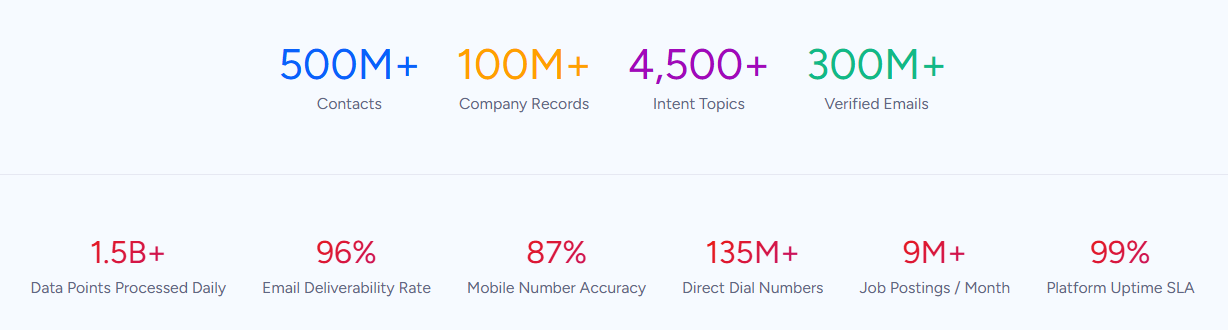
ZoomInfo is an all-in-one go-to-market platform built on 500M contacts, 100M companies, 135M+ verified phone numbers, and 200M+ verified business email addresses. That data is verified through a multi-source pipeline backed by 300+ human researchers, reaching up to 95% accuracy on first-party data.
For teams running a HubSpot-Dynamics 365 integration, ZoomInfo addresses the data quality layer that no connector handles.
ZoomInfo integrates natively with both platforms. The HubSpot integration enables real-time contact enrichment and automatic data sync within HubSpot workflows.
The Microsoft Dynamics 365 integration provides data enrichment and search within Dynamics 365, letting sales teams access ZoomInfo's B2B data, update records, and eliminate data decay without leaving their CRM.
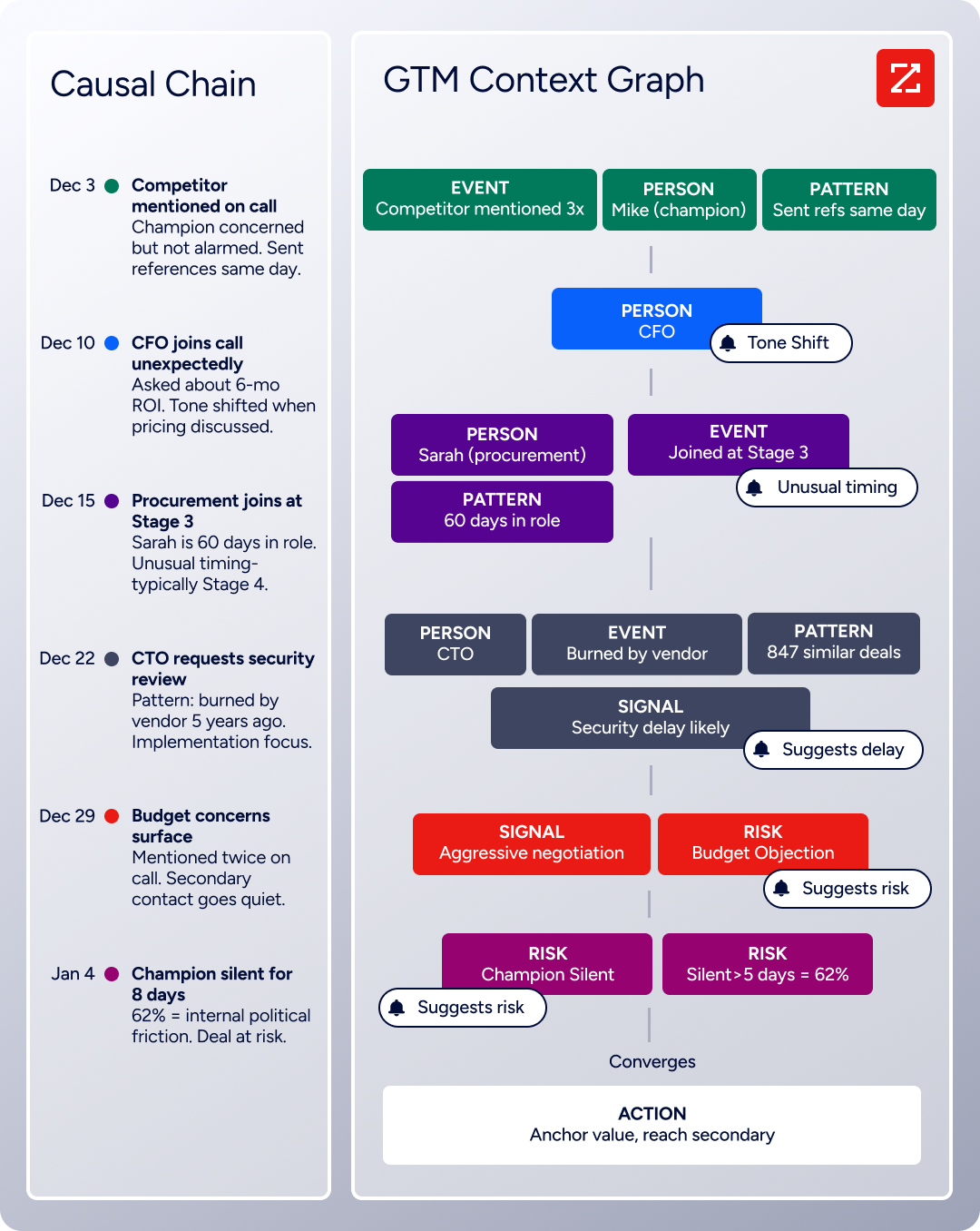
Both integrations draw from the same data foundation, which also powers ZoomInfo's GTM Context Graph, a layer that processes 1.5B+ data points daily by combining ZoomInfo's B2B data with your CRM records, conversation transcripts, and behavioral signals to surface not just what happened in a deal, but why.
In practice, a team running both HubSpot and Dynamics 365 can use ZoomInfo to enrich records in both systems independently. Contacts in HubSpot get verified emails and direct dials before marketing sends a campaign.
Accounts in Dynamics 365 get current company attributes, org charts, and technographic profiles before a sales rep works the opportunity. When those records sync between the two platforms through whichever connector the team has chosen, the data arriving on the other side is already accurate and complete.
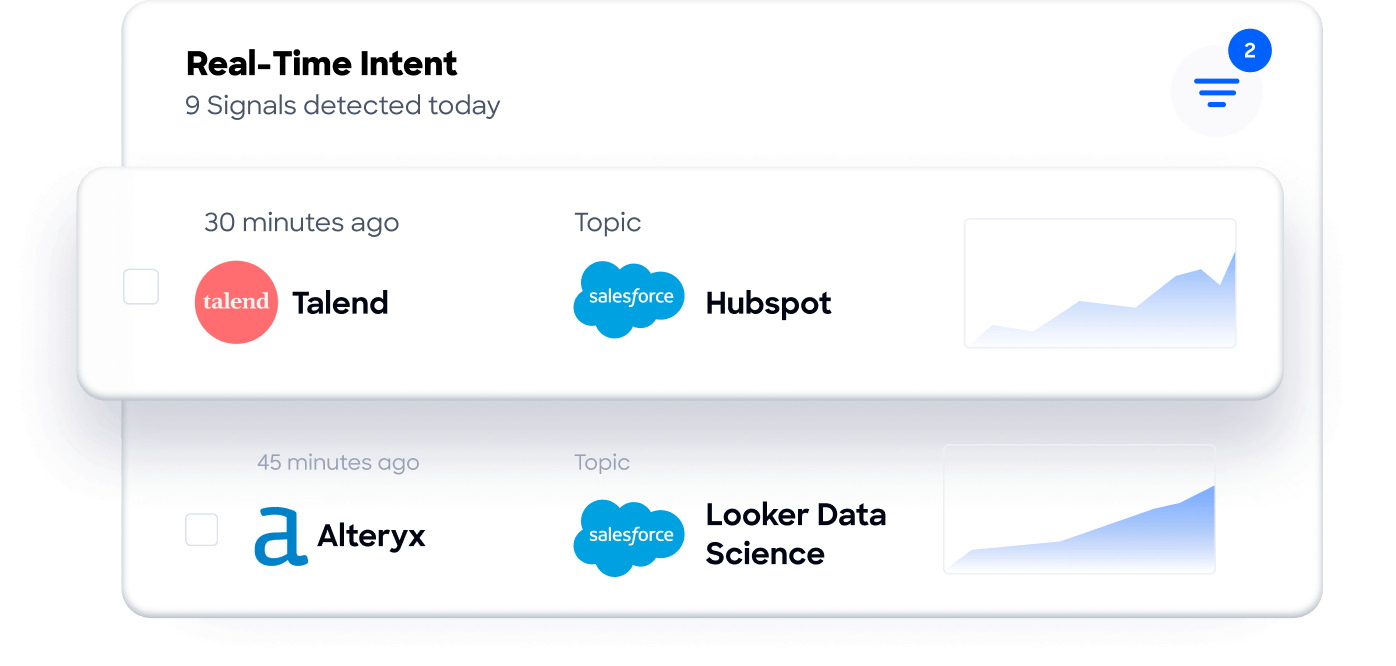
Buyer Intent data from ZoomInfo, tracking signals from 210 million IP-to-Organization pairings, can be routed into either platform to prioritize accounts actively researching relevant solutions.
Enriched records also make the integration itself more reliable. Fewer blank fields mean fewer mismatches during deduplication. Consistent formatting across records reduces the false positives that create duplicates. And intent signals help teams decide which records actually need to exist in both systems, rather than syncing everything indiscriminately.
For teams building beyond ZoomInfo's native integrations, API and MCP access expose the same data to any custom workflow or AI agent.
Seismic's sales team attributed 39% of active pipeline to opportunities identified or influenced by ZoomInfo signals, while boosting productivity by 54% and saving 11.5 hours per week. (Seismic)
Final Verdict
A native HubSpot-Dynamics 365 connector exists, it is free on all HubSpot plans, and it supports bidirectional sync of core CRM objects. Teams also have access to third-party automation tools, dedicated middleware, and custom API development for more complex scenarios. For most teams, the right choice depends on scale and complexity.
Small teams syncing Contacts, Companies, and Deals should start with the native connector. It is free, requires no engineering resources, and handles bidirectional sync with near real-time propagation.
Teams needing event-driven workflows or conditional logic (e.g., syncing only leads that meet specific criteria) should add Zapier or Make on top of the native connector. Both are fast to set up and support filtering, branching, and multi-step automation.
Teams running both platforms long-term with complex data models, custom objects, or historical migration requirements should evaluate middleware like Skyvia or invest in a custom API integration. These methods handle the edge cases that simpler connectors cannot.
Before committing to a method, clarify why both platforms need to coexist.
If the answer is temporary (a migration in progress, a trial period), keep the sync simple with the native connector and plan for eventual consolidation on one platform.
If the answer is structural (marketing in HubSpot, sales and operations in Dynamics 365, each chosen for good reasons), invest in a method that supports bidirectional sync with conflict resolution and covers the full data model both teams depend on.
Either way, the quality of the data in both systems determines whether the integration delivers value or just replicates problems at twice the speed. ZoomInfo, with its native integrations for both HubSpot and Dynamics 365 plus API and MCP access, is the data enrichment layer that keeps both systems accurate while the connector keeps them aligned.
FAQ
Does HubSpot integrate natively with Dynamics 365?
Yes. HubSpot offers a native Microsoft Dynamics 365 connector through the HubSpot Marketplace. The integration supports near real-time bidirectional sync of Contacts, Leads, Accounts, and Deals, and is free on all HubSpot plans. No third-party tool or custom development is required for basic CRM data sync.
Can I sync custom fields between HubSpot and Dynamics 365?
Yes, through the native connector and most third-party tools. The native connector supports custom field mappings during setup, letting you map HubSpot custom properties to Dynamics 365 custom fields. Zapier and Make also support custom field mapping.
Custom entities in Dynamics 365 and custom objects in HubSpot may require a custom API integration or a middleware tool that supports extended entity mapping.
What happens when the same record is updated in both platforms simultaneously?
The native connector includes configurable conflict resolution rules that determine which platform takes priority. Most third-party tools default to "last write wins," which can silently overwrite one change with the other. Teams running bidirectional sync should define field-level ownership: for example, marketing fields (lead source, lifecycle stage) are authoritative in HubSpot, while sales fields (opportunity stage, close date) are authoritative in Dynamics 365.
Can I sync historical data between the two platforms?
The native connector and middleware tools like Skyvia support initial full sync of existing records. Zapier and Make only process records created or updated after the workflow is activated. For large-scale historical migration, middleware or a custom API script using HubSpot's batch endpoints and Dynamics 365's Bulk API is the recommended approach.
Is the native connector really free?
Yes. The HubSpot-Dynamics 365 native connector is available at no additional cost on all HubSpot plans, including the free tier. There are no per-record charges for sync operations through the native connector. API rate limits apply to both platforms, but these are part of the existing subscription limits, not additional charges from the integration.
What Dynamics 365 permissions are needed to set up the integration?
System Administrator access in Dynamics 365 is required to authorize the OAuth connection. If your Dynamics 365 organization uses field-level security, business unit restrictions, or custom security roles, the integration user's profile must have read and write access to every entity and field involved in the sync. On the HubSpot side, Super Admin rights are needed to install the marketplace integration and configure sync settings.
How does ZoomInfo improve a HubSpot-Dynamics 365 integration?
ZoomInfo solves the data quality problem that no sync tool addresses. Contact records decay over time as people change jobs, phone numbers go inactive, and company details shift.
ZoomInfo enriches records with verified contact data, company attributes, technographics, and intent signals. Its native integrations with both HubSpot and Dynamics 365 handle enrichment in each system independently, so the data flowing between both platforms is accurate and complete before it syncs.
The result: fewer blank fields causing deduplication mismatches, fewer stale records wasting sales time, and intent signals that prioritize which records deserve to live in both systems.
Can I use Power Automate instead of Zapier or Make for this integration?
Yes. Microsoft Power Automate includes a HubSpot connector and has native access to Dynamics 365 through the Dataverse connector. For organizations already using Power Automate for other Microsoft integrations, it provides a familiar alternative to Zapier or Make. It supports trigger-based flows, scheduled runs, and conditional logic.
The tradeoff is that Power Automate's HubSpot connector may lag behind Zapier and Make in trigger variety and field coverage, so evaluate the specific triggers and actions you need before committing.
Connect HubSpot elsewhere:
