
Teams that run HubSpot as their CRM and Power BI as their reporting platform usually hit the same problems within a quarter:
marketing and sales data lives in HubSpot while executive dashboards live in Power BI, so leadership works from manually exported snapshots instead of live pipeline numbers,
deal updates and contact changes in HubSpot never reach the Power BI models that inform forecasting, leaving analysts working from yesterday's data,
and someone on the team is always rebuilding a CSV export because the last one aged out before the board meeting.
However, the two platforms ended up coexisting (a data team standardized on Power BI while go-to-market teams chose HubSpot, or a growing company added BI tooling on top of an established CRM), the longer both run without a connection, the wider the gap between CRM reality and the reports that drive decisions.
Connecting HubSpot and Power BI eliminates that gap.
Contacts, deals, tickets, and marketing engagement data flow from HubSpot into Power BI's semantic models so dashboards reflect live pipeline state without manual exports. Campaign performance, deal velocity, and customer lifecycle metrics update on a schedule (or near real-time, depending on method), so every stakeholder works from the same numbers.
No first-party connector exists from either HubSpot or Microsoft. Instead, teams connect the two platforms through certified third-party connectors available in both marketplaces (such as the Datawarehouse.io connector), middleware automation tools (Power Automate, Zapier, Make), or custom API development. Each method differs in setup complexity, data coverage, refresh frequency, and cost.
There is also one problem no connection method solves: the integration moves CRM data into dashboards, but it does not verify or improve the records being reported on.
That is where ZoomInfo comes in. ZoomInfo integrates with HubSpot for real-time CRM enrichment and connects to Power BI through the ZoomInfo GTM MCP connector via Power Automate, as well as through its Enterprise API and MCP server, so the data flowing from CRM to dashboard is accurate and complete before it reaches a chart.
This article covers the HubSpot-Power BI integration: which methods are available, what data each one handles, how to set them up, the use cases that justify connecting both platforms, and the limitations to plan for. It also covers how ZoomInfo fits in as a data enrichment layer that strengthens the records flowing between HubSpot and Power BI.
Let's start with an overview of the integration.
Integration Overview
Does a native integration exist?
Source: HubSpot
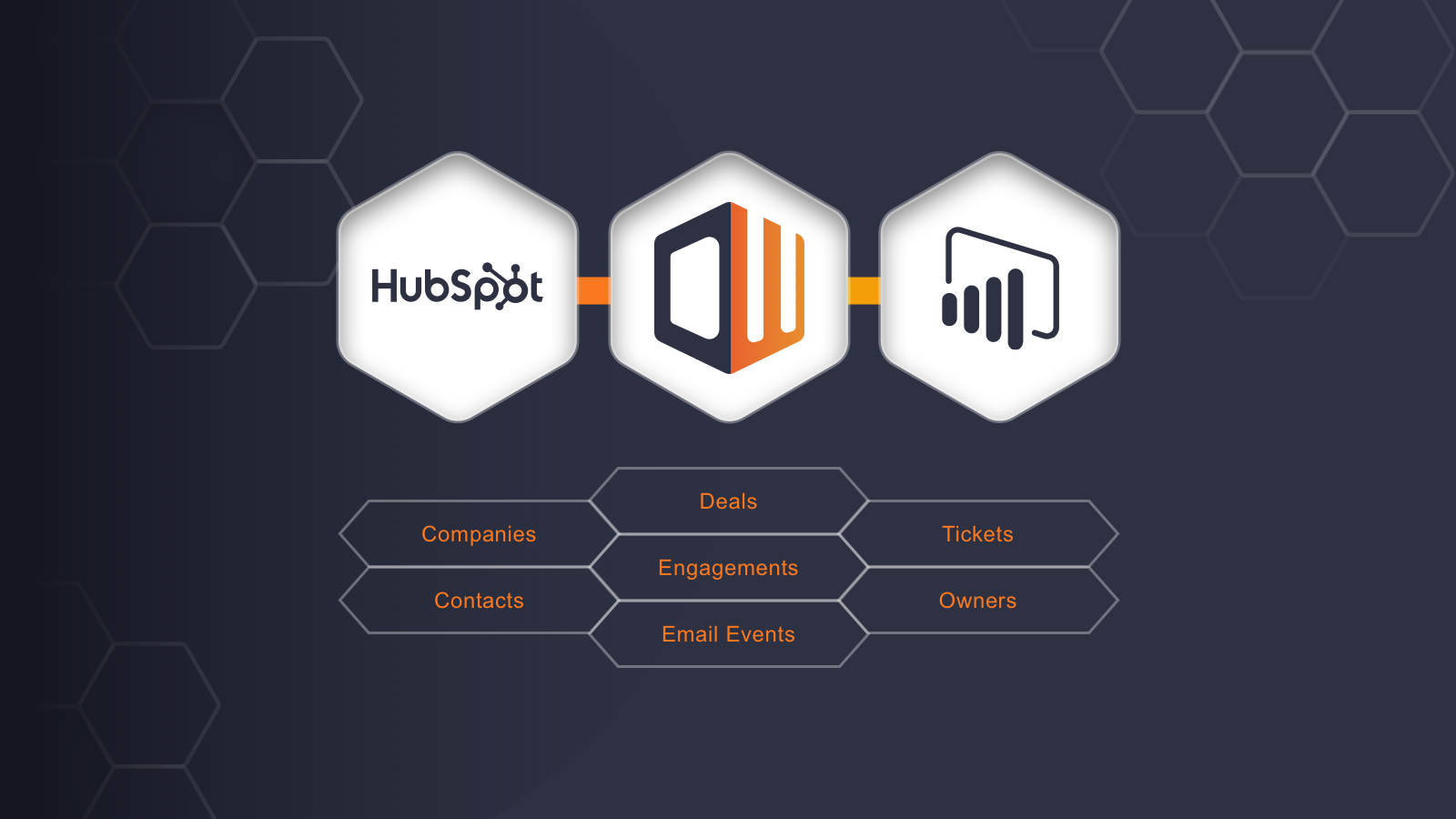
No. Neither HubSpot nor Microsoft has built a direct connector to the other. However, a certified third-party connector by Datawarehouse.io is available in both the HubSpot App Marketplace and the Microsoft commercial marketplace. It syncs HubSpot data through a cloud data warehouse into Power BI, covering 100+ HubSpot tables with automated scheduled refreshes.
What data can sync?
Contacts, companies, deals, tickets, marketing emails, workflows, forms, campaigns, line items, products, and custom objects. The specific tables and fields depend on the method. The Datawarehouse.io connector covers 100+ HubSpot tables. Power Automate and middleware tools handle individual object types per flow. Custom API builds can pull anything HubSpot's REST API exposes.
Is the sync bidirectional?
No. The flow is one-directional by design. Power BI is an analytics and reporting platform, not a data entry system. Data flows from HubSpot into Power BI for visualization and analysis. Power BI does not write data back to HubSpot in any standard configuration.
Is it real-time or batch?
The Datawarehouse.io connector runs on scheduled refreshes (frequency depends on plan tier). Power Automate flows can trigger on HubSpot events for near real-time updates. Custom API integrations can refresh Power BI datasets on a schedule (up to 8 times per day on Power BI Pro, up to 48 on Premium). True real-time streaming into Power BI is possible through push datasets and the Power BI REST API, but requires custom development.
What are the available methods?
Certified third-party connector (Datawarehouse.io), middleware automation (Power Automate, Zapier, Make), and custom API development using HubSpot's REST API and Power BI's REST API or push datasets.
Method | Setup Difficulty | Data Flow | Real-time? | Approximate Cost |
|---|---|---|---|---|
Datawarehouse.io Connector | Low | HubSpot to Power BI | Scheduled refresh | From free tier; paid plans for higher frequency |
Power Automate | Medium | HubSpot to Power BI | Near real-time (trigger-based) | From $15/user/month |
Zapier / Make | Medium | HubSpot to Power BI (via intermediary) | Near real-time | From $19.99/mo (Zapier); from $10.59/mo (Make) |
Custom API | High | HubSpot to Power BI | Configurable | Developer time + hosting |
One distinction worth settling upfront: the Datawarehouse.io connector handles ongoing, scheduled data sync of the full HubSpot data model into Power BI, making it the closest thing to a plug-and-play solution. Middleware tools like Power Automate handle event-driven flows with narrower data coverage per workflow. Custom API builds offer the most flexibility but require development resources to build and maintain.
Integration Methods
Datawarehouse.io Connector (Certified Marketplace App)
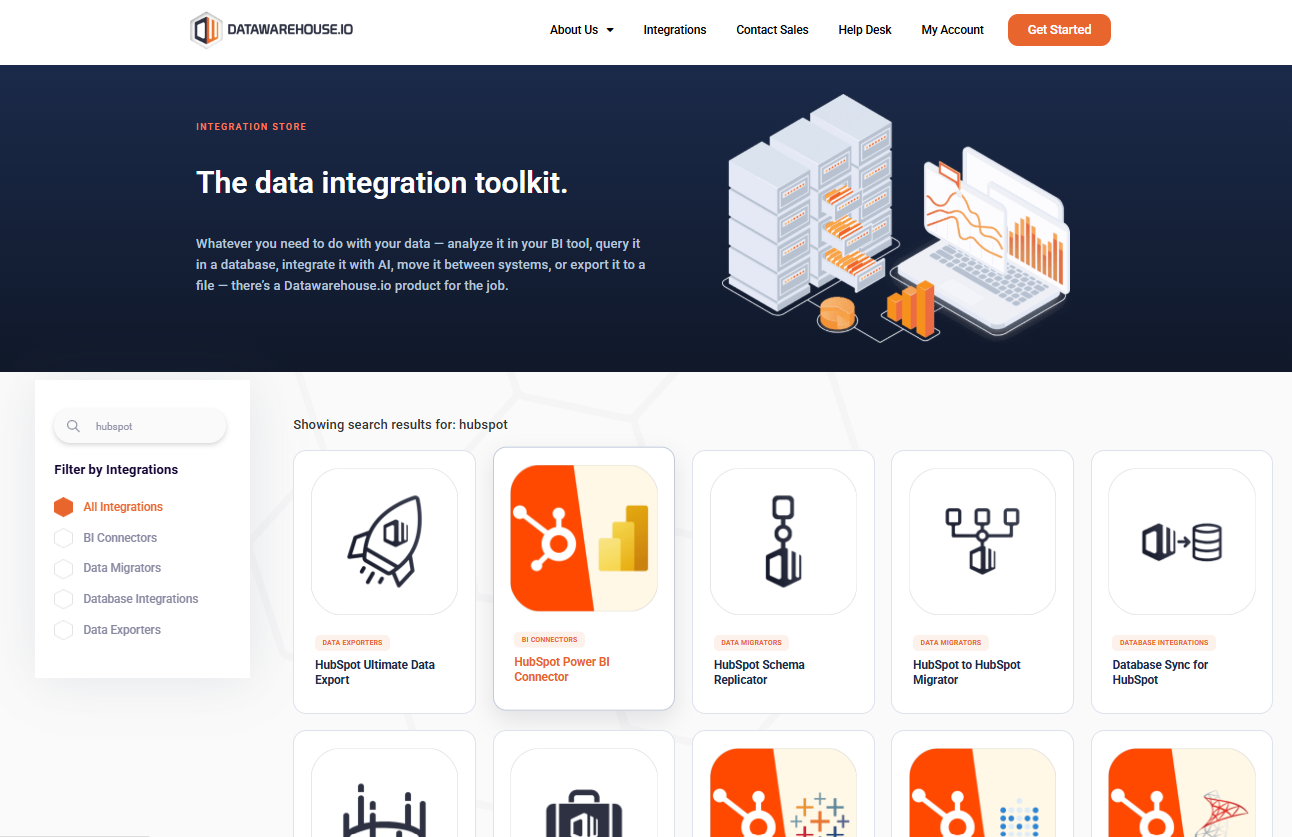
How it works: The Datawarehouse.io connector is a certified integration available in both the HubSpot App Marketplace and the Microsoft commercial marketplace. It syncs HubSpot data through a managed cloud data warehouse into Power BI. The connector handles the ETL pipeline: it extracts data from HubSpot's API, transforms it into a Power BI-compatible schema, and loads it into a cloud warehouse that Power BI connects to as a data source.
Source: Datawarehouse
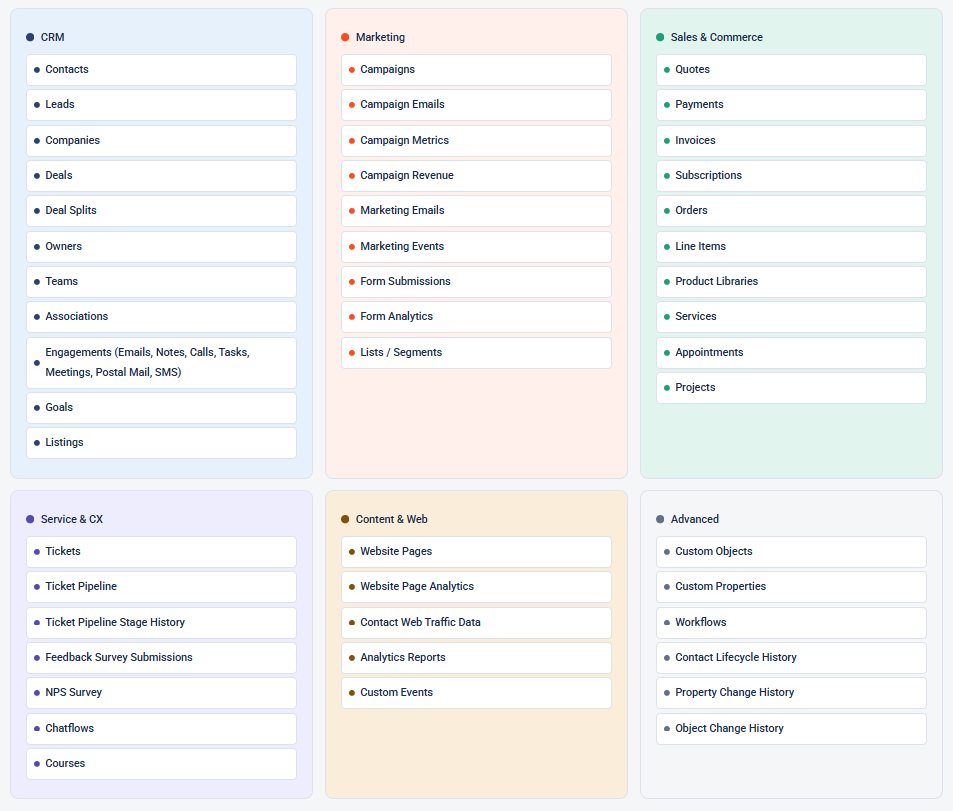
What it syncs: Over 100 HubSpot tables including contacts, companies, deals, tickets, marketing emails, workflows, forms, campaigns, line items, products, engagements, and pipeline stages. Custom properties sync alongside standard fields.
Source: Datawarehouse
Fits: ongoing scheduled sync of the full HubSpot data model into Power BI; the widest data coverage of any available method.
Setup process:
Install the Datawarehouse.io Power BI connector from the HubSpot App Marketplace. Authenticate with your HubSpot account using OAuth.
In the Datawarehouse.io dashboard, select which HubSpot objects and tables to sync to the cloud data warehouse.
Configure the refresh schedule (hourly, daily, or custom intervals depending on your plan tier).
Open Power BI Desktop or the Power BI service and connect to the Datawarehouse.io cloud warehouse using the provided connection credentials.
Build your semantic model in Power BI by selecting the synced HubSpot tables, defining relationships between objects (contacts to companies, deals to line items), and creating DAX measures for the metrics you need.
Publish the report to the Power BI service and configure scheduled refresh to keep the data current.
Strengths: Widest data coverage of any method, with 100+ HubSpot tables available. No custom code required. Certified in both marketplaces. Handles schema changes and new HubSpot objects without manual pipeline maintenance. The cloud data warehouse intermediary means Power BI queries run against an optimized data store rather than hitting HubSpot's API directly.
Limitations: Adds a third-party dependency and a cloud data warehouse layer between HubSpot and Power BI. Refresh frequency depends on plan tier (free tiers may be limited to daily syncs). Paid plans carry additional cost on top of HubSpot and Power BI subscriptions. The intermediary warehouse means data is not real-time.
Best for: Teams that want full HubSpot data coverage in Power BI with minimal technical setup. Organizations building executive dashboards, pipeline analytics, or marketing attribution reports that need the full HubSpot data model.
Power Automate (Microsoft Native Middleware)
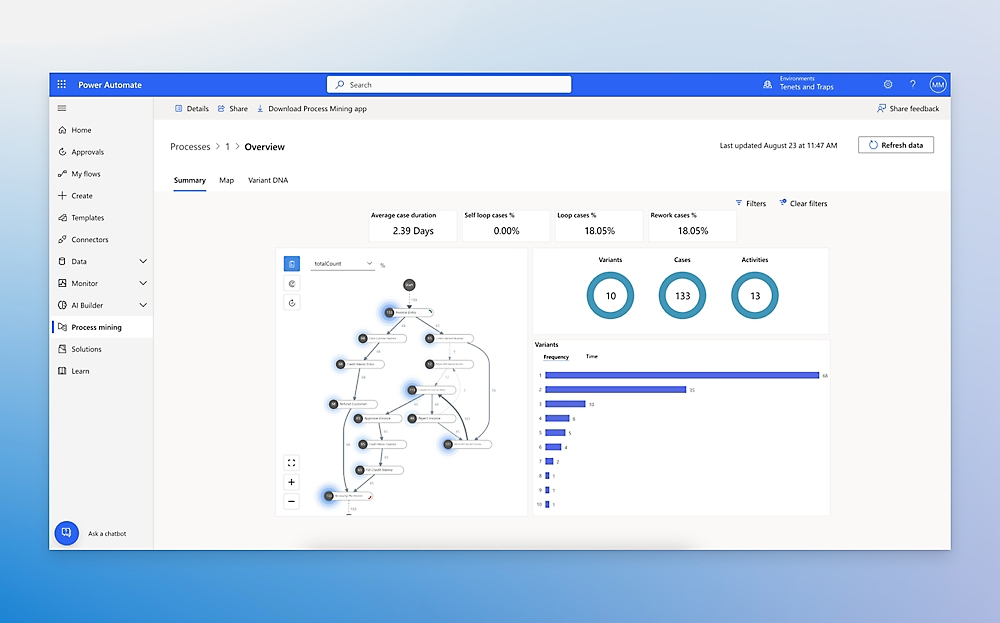
How it works: Power Automate is Microsoft's workflow automation platform. It connects to HubSpot through the HubSpot connector and can push data into Power BI datasets using the Power BI connector. Flows can trigger on HubSpot events (new contact, deal stage change) or run on a schedule, extracting data from HubSpot and writing it to a Power BI push dataset or streaming dataset.
Source: Microsoft
What it syncs: Individual HubSpot objects per flow (contacts, companies, deals, tickets). Each object type requires its own flow. Custom fields can be mapped manually. Power Automate also supports the ZoomInfo GTM connector, letting enriched data flow through the same automation layer.
Fits: event-driven sync of specific HubSpot objects into Power BI; useful for real-time dashboards tracking deal stage changes or new lead volume.
Setup process:
Sign in to Power Automate with your Microsoft account. Ensure you have a Power Automate license (included in many Microsoft 365 plans).
Create a new automated or scheduled flow. Select the HubSpot connector and choose a trigger (e.g., "When a contact is created" or a scheduled recurrence).
Add actions to extract the desired fields from the HubSpot trigger output or use the HubSpot "List" actions to pull records.
Add the Power BI connector action ("Add rows to a dataset" for push datasets, or write to a Dataverse table that Power BI connects to).
Map HubSpot fields to Power BI dataset columns. Configure any data transformations needed (date formatting, field concatenation).
Test the flow with a sample record, verify the data appears in Power BI, and activate the flow.
Strengths: A native Microsoft product, so it integrates tightly with Power BI and Microsoft 365. Supports event-driven triggers for near real-time updates. Can combine HubSpot data with data from other connectors (including the ZoomInfo GTM connector) in a single flow. Included in many Microsoft 365 enterprise licenses at no additional cost.
Limitations: Each HubSpot object type requires a separate flow. Push datasets in Power BI have limited query and DAX capabilities compared to imported models. High-volume data extraction from HubSpot may hit API rate limits (100 to 190 requests per 10 seconds depending on plan tier). Building and maintaining multiple flows adds operational overhead.
Best for: Teams already on the Microsoft stack that want near real-time HubSpot data in Power BI without adding a third-party tool. Operations teams tracking specific metrics (new leads per hour, deal stage changes) that need faster refresh than daily batch syncs.
Zapier / Make (Third-Party Automation)
How it works: Zapier and Make are general-purpose automation platforms that connect HubSpot and Power BI through event-driven workflows. Both offer HubSpot connectors with broad trigger and action support. For Power BI, the data typically flows through an intermediary (a Google Sheet, Excel file in OneDrive, or a database) that Power BI then connects to as a data source, since neither Zapier nor Make offers a direct Power BI push action.
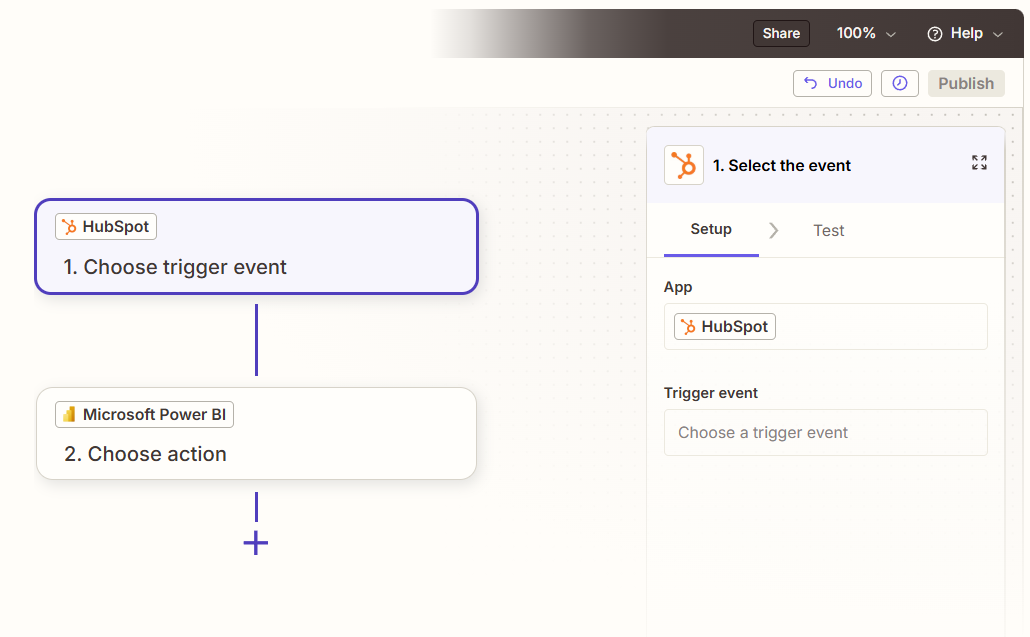
What it syncs: Contacts, companies, deals, tickets, and form submissions from HubSpot. Each object type requires its own automation (Zap or Scenario). The data lands in an intermediary store (spreadsheet, database, or webhook endpoint) that Power BI refreshes from.
Fits: ongoing sync of specific HubSpot events into Power BI via an intermediary data store; practical for teams already using Zapier or Make for other automations.
Setup process:
Create a Zapier or Make account and connect your HubSpot account via OAuth.
Choose a HubSpot trigger (e.g., "New Deal" or "Updated Contact").
Add an action to write the data to an intermediary store: a Google Sheet, an Excel file in OneDrive/SharePoint, or a cloud database.
In Power BI Desktop, connect to the intermediary store as a data source (Excel, Google Sheets via connector, or the database directly).
Build the semantic model and report in Power BI. Configure scheduled refresh in the Power BI service to pull updated data from the intermediary.
Test by triggering a HubSpot event and verifying the data flows through the intermediary into Power BI.
Strengths: No-code setup for the HubSpot-to-intermediary connection. Both platforms have large template libraries. Useful for teams already paying for Zapier or Make that want to extend existing automations. Make's visual scenario builder supports branching, filtering, and data transformation.
Limitations: The intermediary step adds latency and complexity. Data must pass through a spreadsheet or database before reaching Power BI, which creates a potential failure point. Each HubSpot object type requires a separate automation. At high volumes, Zapier's per-task pricing and Make's per-operation pricing can add up. Historical data created before the automation was activated does not sync.
Best for: Small teams already using Zapier or Make that want to add HubSpot data to Power BI dashboards without investing in a dedicated connector or custom development. Teams tracking a handful of specific metrics (new MQLs, closed-won deals) rather than the full HubSpot data model.
Custom API Integration
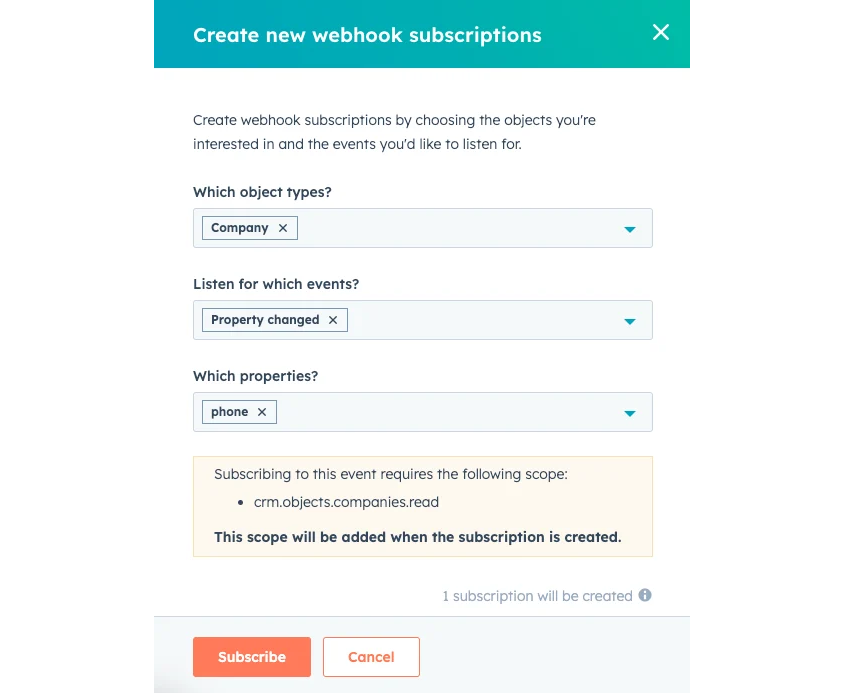
How it works: HubSpot provides a REST API covering all CRM objects, marketing data, and engagement history. Power BI offers a REST API for dataset management, a push datasets feature for streaming data in, and Power Query with a Web connector for pulling data from any REST endpoint. A custom integration connects these APIs with middleware handling authentication, pagination, data transformation, and scheduling.
What it syncs: Anything HubSpot's API exposes. This includes all standard objects (contacts, companies, deals, tickets, products, line items, quotes, marketing events), custom objects, engagement data (emails, calls, meetings, notes), pipeline configurations, and webhook-driven events. On the Power BI side, data can be pushed into streaming datasets, imported via Power Query using custom M scripts, or loaded into a database that Power BI connects to.
Source: HubSpot
Fits: either one-time data migration or ongoing sync; the only method with no ceiling on data coverage or transformation complexity.
Setup process:
Generate HubSpot API credentials: create a private app in your HubSpot account with the necessary scopes for each object type you intend to sync.
Design the data pipeline: decide which HubSpot objects and fields to extract, how to transform them for Power BI's tabular model, and where to stage the data (direct push to Power BI, or a database/data warehouse as an intermediary).
Build the extraction layer: a server-side application or script that authenticates with HubSpot, paginates through records, handles rate limits (100 to 190 requests per 10 seconds depending on plan), and writes the data to your staging layer.
Build the loading layer: use the Power BI REST API to push rows into a dataset, or configure Power BI to connect to your staging database. For Power Query-based approaches, write custom M queries that call HubSpot's API directly from Power BI Desktop.
Schedule and automate: deploy the pipeline on a cron schedule (Azure Functions, AWS Lambda, or a dedicated server). Configure Power BI scheduled refresh to align with the pipeline's extraction cadence.
Add monitoring, error handling, and retry logic. Both APIs have rate limits that must be respected.
Strengths: Full control over what data syncs, how it transforms, and when it refreshes. Can handle complex business logic (custom field mappings, cross-object calculations, data quality rules). No per-record or per-operation fees from a third-party connector. Can implement incremental sync using HubSpot's search API with lastmodifieddate filters to minimize API calls.
Limitations: Requires development resources to build and maintain. Both APIs evolve independently (HubSpot introduced date-based API versioning in March 2026; Power BI's API versions with each Fabric release). You own the infrastructure, monitoring, and error recovery. The initial build takes days to weeks, not hours.
Best for: Enterprise teams with complex reporting requirements that no off-the-shelf connector satisfies. Organizations with in-house development teams that need full control over the data pipeline. Companies with large HubSpot instances where connector pricing at scale becomes cost-prohibitive.
Key Use Cases
1. Executive Pipeline and Revenue Dashboards
Leadership needs a single view of pipeline health, deal velocity, and revenue forecasting across the organization. HubSpot holds the deal data; Power BI provides the visualization layer with drill-through, cross-filtering, and DAX-powered calculations that HubSpot's native reporting cannot match. A scheduled sync (via the Datawarehouse.io connector or a custom pipeline) keeps the Power BI semantic model current so executives access live dashboards in Teams or PowerPoint rather than waiting for exported spreadsheets.
Best integration method: Datawarehouse.io connector (widest data coverage with minimal setup) or custom API (for complex multi-object models).
2. Marketing Attribution and Campaign ROI Analysis
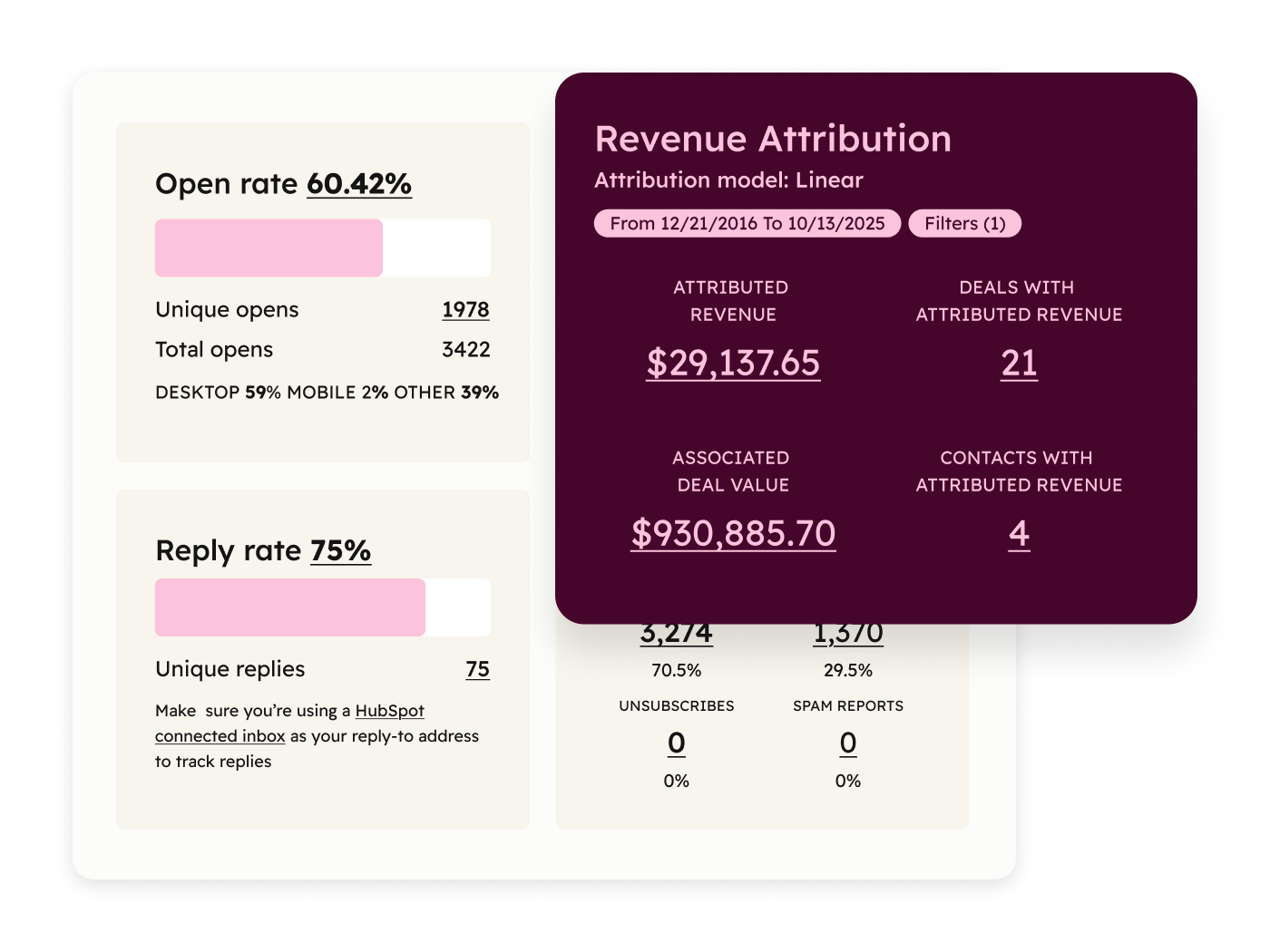
Marketing teams track campaign performance in HubSpot (email opens, form submissions, landing page conversions) but need to connect that data to downstream deal outcomes for multi-touch attribution. Power BI's modeling capabilities let analysts build attribution models that span the full funnel, from first website visit through closed-won deal, using data from multiple HubSpot objects joined in a single semantic model.
Source: HubSpot
Best integration method: Datawarehouse.io connector (covers marketing emails, campaigns, forms, contacts, and deals in a single sync) or custom API (for custom attribution logic).
3. Real-Time Lead Volume Monitoring
SDR managers need to see new inbound leads appearing in near real-time so they can monitor queue depth, response times, and assignment distribution throughout the day. A Power Automate flow triggered by new HubSpot contacts can push lead data into a Power BI streaming dataset, powering a live dashboard that auto-refreshes without manual intervention.
Best integration method: Power Automate (event-driven triggers with near real-time push to Power BI streaming datasets).
4. Customer Service Ticket Analytics
Service teams using HubSpot's Service Hub track tickets, SLAs, and customer satisfaction scores. Power BI allows deeper analysis: ticket volume trends, resolution time distributions, SLA compliance rates by team or tier, and correlation between service quality and retention. Power BI's conditional formatting, alerting, and scheduled email subscriptions turn this data into an operational monitoring system.
Best integration method: Datawarehouse.io connector (covers tickets, contacts, and companies) or custom API (for joining ticket data with custom objects or external data sources).
5. Sales Rep Performance and Coaching
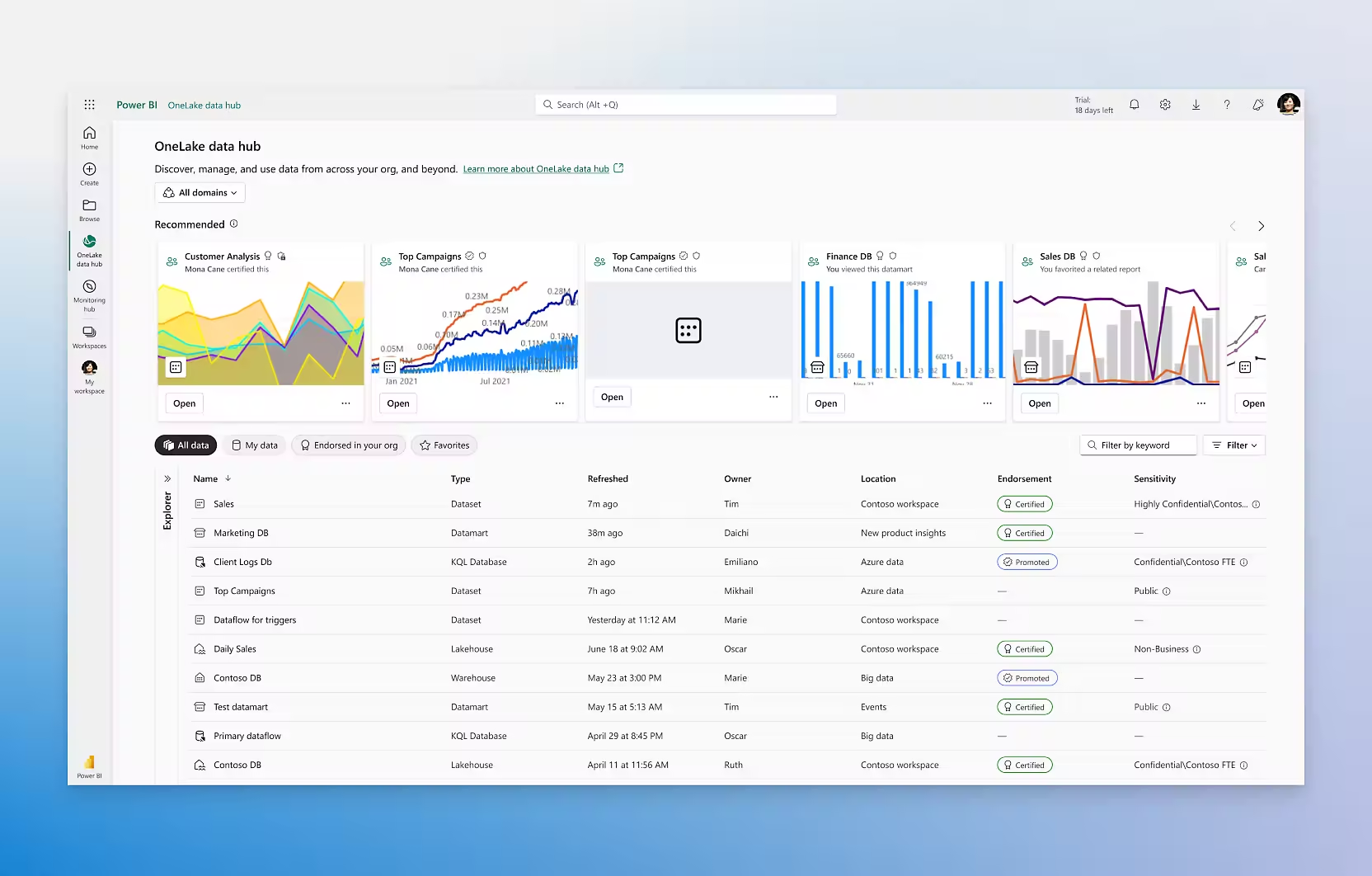
Sales managers need to understand rep-level activity metrics (calls logged, emails sent, meetings booked) alongside outcome metrics (deals created, win rate, average deal size). HubSpot captures the activity data; Power BI enables the comparative analysis, benchmarking, and trend visualization that informs coaching conversations and territory planning.
Source: Microsoft
Best integration method: Datawarehouse.io connector or custom API (for combining engagement data with deal and contact records in a multi-table model).
Limitations and Considerations
One-Directional Data Flow
Every method in this guide moves data in one direction: from HubSpot to Power BI. Power BI is a reporting and analytics platform, not a transactional system. It does not write data back to HubSpot. Teams that need bidirectional workflows (e.g., updating a HubSpot contact based on a Power BI insight) must build that reverse flow separately, typically through Power Automate or a custom integration.
No First-Party Connector
Neither HubSpot nor Microsoft has built a direct connector between the two platforms. Every integration method relies on a third party (Datawarehouse.io, Power Automate, Zapier, Make) or custom development. Connector stability, pricing, and feature set are controlled by parties outside HubSpot and Microsoft.
API Rate Limits on Both Sides
HubSpot enforces rate limits starting at 100 requests per 10 seconds for private apps on Free and Starter plans, scaling to 190 requests per 10 seconds on Professional and Enterprise. Daily limits range from 250,000 to 1,000,000 requests depending on tier. Power BI Pro supports up to 8 scheduled refreshes per day; Premium and Fabric capacity support up to 48. Teams with large HubSpot instances (tens of thousands of contacts and deals) must design extraction pipelines that respect both platforms' limits, or face throttled syncs and stale dashboards.
Data Model Complexity
HubSpot's data model (contacts, companies, deals, tickets, engagements, custom objects) maps to a relational structure, but Power BI's semantic modeling layer works best with star schema designs. Translating HubSpot's many-to-many associations (a contact can belong to multiple companies and multiple deals) into a clean Power BI model requires deliberate design. The Datawarehouse.io connector handles much of this mapping, but custom API builds require modeling expertise to avoid query performance issues and incorrect aggregations.
Pricing at Scale
Costs compound across three layers: HubSpot subscription (API access scales by plan tier), Power BI licensing (Pro at $14/user/month, Premium Per User at $24/user/month, or Fabric capacity for broader distribution), and the connector or middleware tool (Datawarehouse.io plans, Power Automate licenses, or development costs for custom builds). Model total cost of ownership before committing to a method.
Permissions and Access
Setting up the integration requires admin access on both sides. In HubSpot, you need super admin rights to create private apps and authorize OAuth connections. In Power BI, workspace admin or member access is needed to configure datasets and scheduled refresh. For Power Automate, a license with premium connector access may be required depending on the connectors used.
What No Method Fixes: The Data Itself
Every method above moves records from HubSpot into Power BI. None of them checks whether those records are accurate, complete, or current. A contact with a wrong job title in HubSpot shows up with a wrong job title in a Power BI dashboard. A deal tied to a company whose data is stale produces a forecast built on stale assumptions. The integration ensures Power BI reflects what HubSpot contains; it does not ensure HubSpot contains what is true.
Where ZoomInfo Fits In
Every method in this guide moves data from HubSpot into Power BI. None of them improves the data being reported on. When the integration is live but pipeline dashboards rest on contacts with outdated titles, companies with wrong revenue ranges, and deals attached to prospects who left their companies two quarters ago, the bottleneck is no longer the connector. That is the gap ZoomInfo closes.
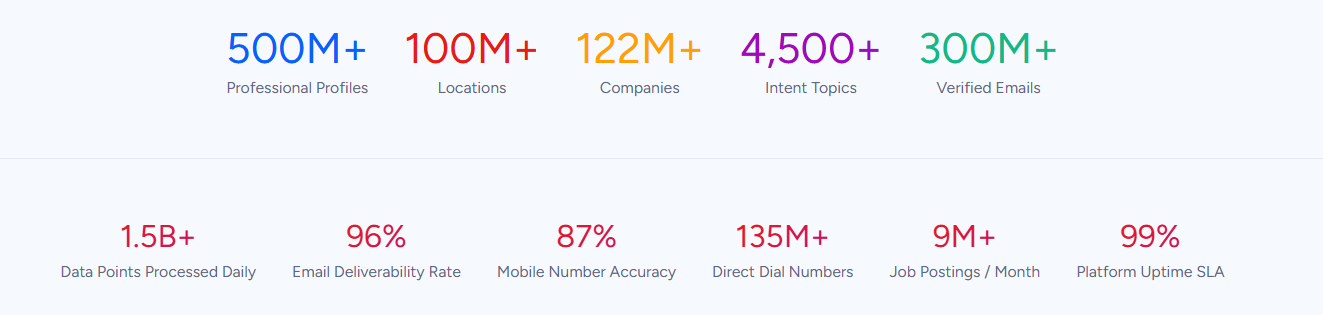
ZoomInfo is a B2B data and go-to-market platform built on 500M contacts, 100M companies, 135M+ verified phone numbers, and 200M+ verified business emails. That data is verified through a multi-source pipeline backed by 300+ human researchers and reaching up to 95% accuracy on first-party data. For teams running a HubSpot-to-Power BI integration, ZoomInfo addresses the data quality layer that no connector handles.
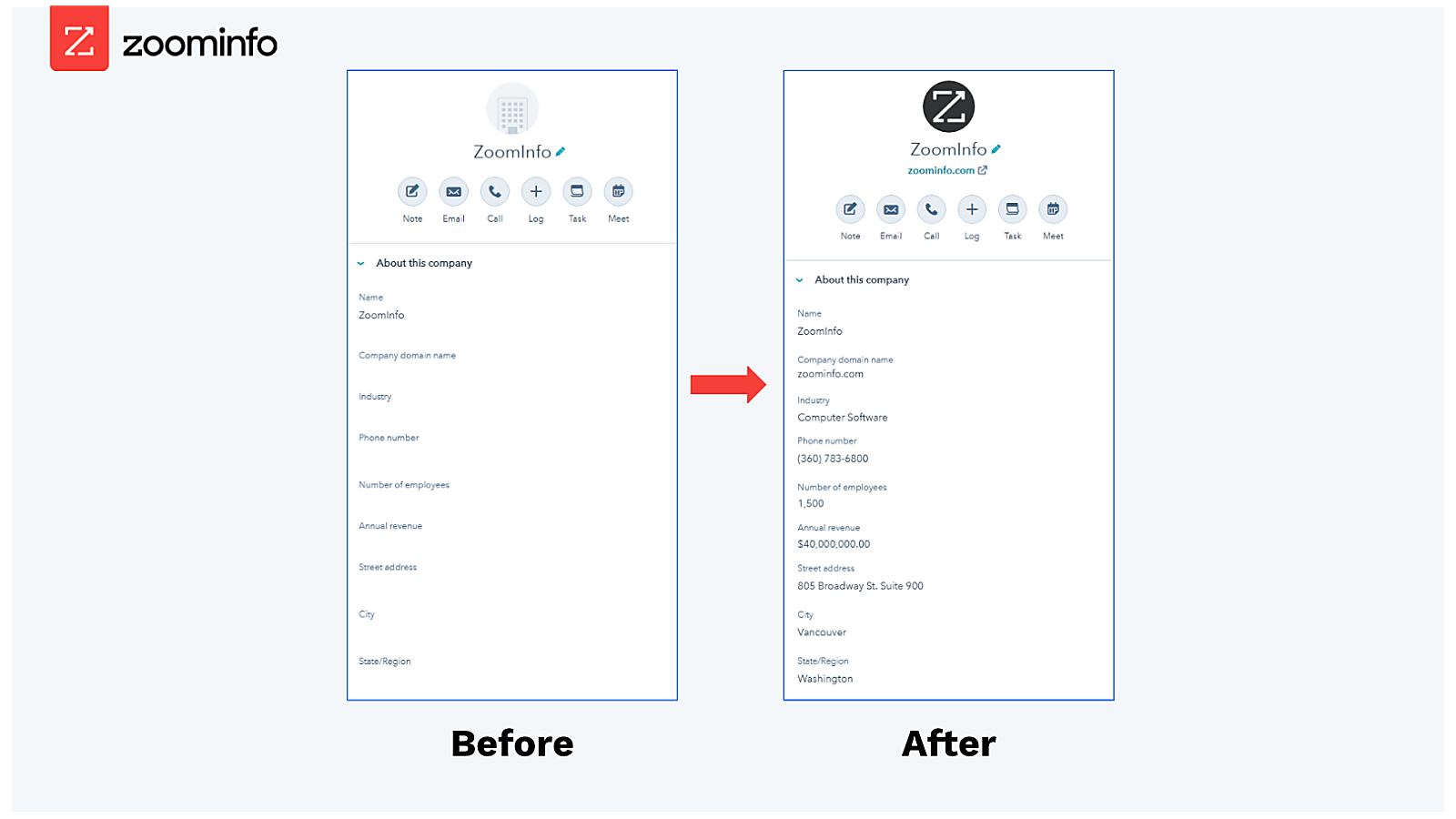
ZoomInfo integrates with HubSpot through the ZoomInfo Inbound Enrich app, providing real-time contact enrichment, automated database refresh, and lead scoring workflows inside HubSpot CRM. New leads captured through HubSpot forms are automatically enriched with verified business emails, direct dials, job titles, company attributes, and technographic data before a rep touches the record.
Source: HubSpot
On the Power BI side, ZoomInfo connects through the ZoomInfo GTM MCP connector via Power Automate, letting enriched company and contact data flow into Power BI dashboards through the same automation layer. ZoomInfo's Enterprise API and MCP server extend this access to any custom pipeline or AI agent.
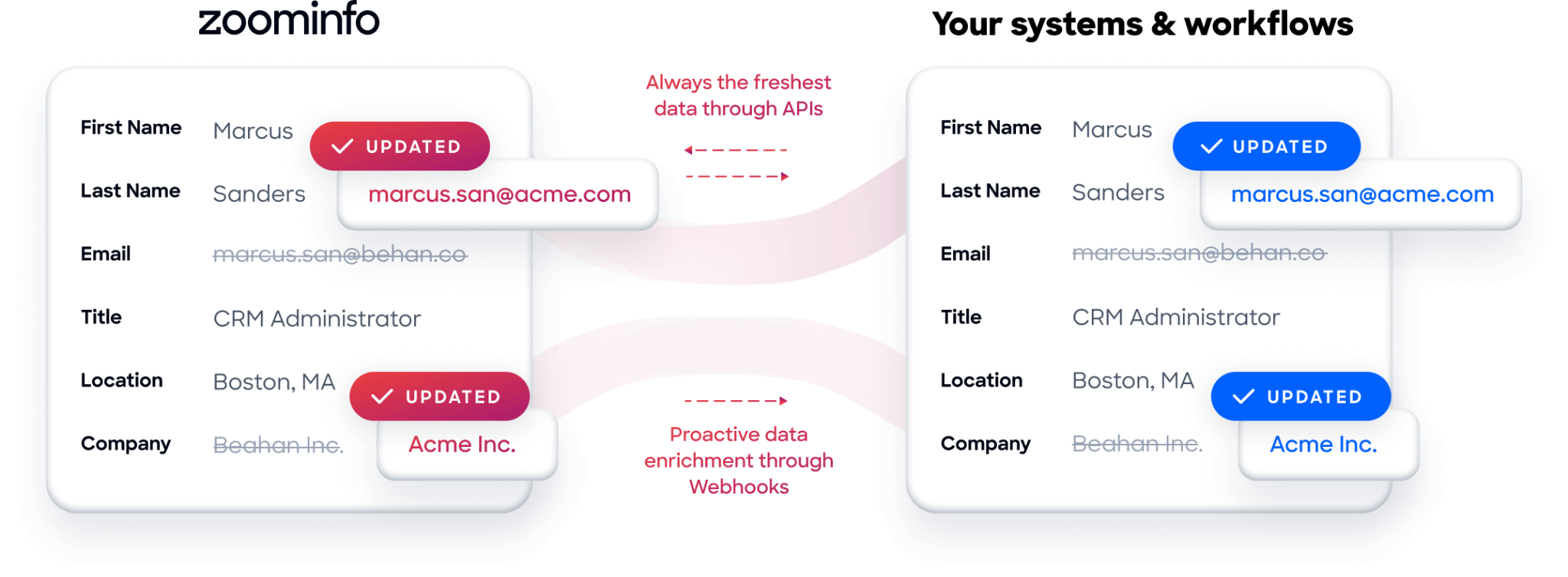
The same data feeds ZoomInfo's GTM Context Graph, an intelligence layer that processes 1.5B+ data points daily by combining third-party intelligence with CRM records, conversation transcripts, and behavioral signals to surface not just what happened in a deal, but why. Buyer Intent data from ZoomInfo, tracking signals from 210 million IP-to-Organization pairings, can be routed into HubSpot and then into Power BI, adding a layer of buying signal data that neither platform generates on its own.
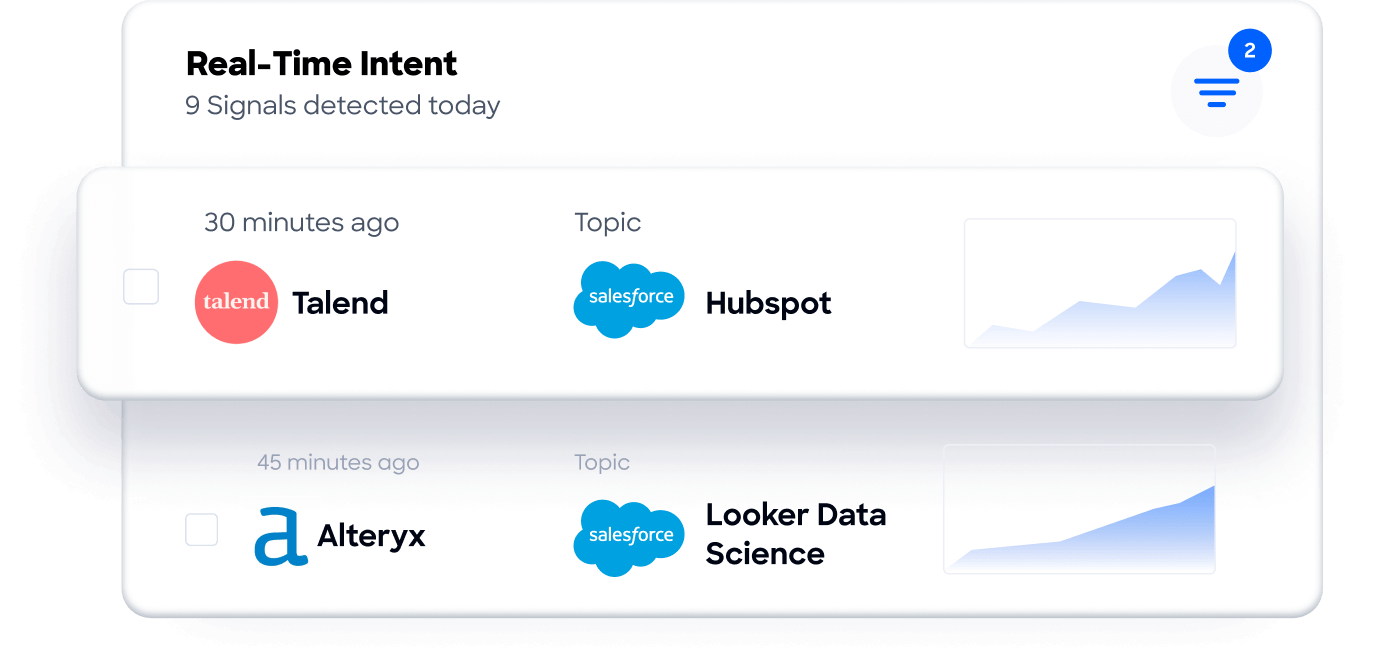
In practice, a team running both platforms can use ZoomInfo to enrich HubSpot records continuously (keeping the CRM accurate), then sync those enriched records to Power BI through whatever connector they have chosen. The result: Power BI dashboards built on verified contacts, current company attributes, and accurate deal context rather than decaying CRM data. Fewer blank fields mean more complete reports. Consistent formatting across records reduces noise in segmentation analysis. And intent signals give analysts a dimension of data (which accounts are actively researching solutions) that makes pipeline dashboards predictive rather than historical.
Seismic's sales team attributed 39% of active pipeline to opportunities identified or influenced by ZoomInfo signals, while boosting productivity by 54% and saving 11.5 hours per week. (Seismic)
Final Verdict
No first-party connector exists between HubSpot and Power BI. Every connection method runs through a third-party tool, Microsoft's automation layer, or custom development. For most teams, the right choice depends on data coverage needs and technical resources.
Small teams that need the full HubSpot data model in Power BI without writing code should start with the Datawarehouse.io connector. It covers 100+ HubSpot tables, handles the ETL pipeline, and is certified in both marketplaces.
Teams on the Microsoft stack that need near real-time event-driven sync for specific metrics should look at Power Automate. It integrates with Power BI and can trigger on HubSpot events, though each object type requires a separate flow.
Organizations with complex data models, custom objects, or reporting logic that no off-the-shelf tool satisfies should invest in a custom API integration using HubSpot's REST API and Power BI's dataset APIs.
Before committing to a method, clarify what the dashboards need to answer.
If the goal is operational monitoring (lead volume, deal stage changes, ticket response times), event-driven methods like Power Automate deliver the freshest data. If the goal is strategic analysis (pipeline forecasting, marketing attribution, customer lifecycle reporting), batch-sync methods like the Datawarehouse.io connector provide the breadth of data that complex models require. Either way, the quality of the records in HubSpot determines whether the dashboards tell an accurate story or just a detailed one.
ZoomInfo, with its HubSpot integration, Power Automate connector, and API and MCP access, is the data enrichment layer that keeps HubSpot accurate so Power BI can report on reality.
FAQ
Can I connect HubSpot to Power BI without writing code?
Yes. The Datawarehouse.io connector, available in both the HubSpot App Marketplace and the Microsoft commercial marketplace, provides a no-code connection that syncs 100+ HubSpot tables into Power BI through a managed cloud data warehouse. Power Automate also offers a no-code option for event-driven flows, though each HubSpot object type requires a separate workflow.
Does HubSpot or Power BI offer a native connector to the other?
No. Neither HubSpot nor Microsoft has built a first-party connector between the two platforms. All integration methods rely on third-party connectors (Datawarehouse.io), Microsoft's automation platform (Power Automate), general-purpose middleware (Zapier, Make), or custom API development.
How often can Power BI refresh data from HubSpot?
Refresh frequency depends on the method and Power BI license. Power BI Pro supports up to 8 scheduled dataset refreshes per day. Power BI Premium Per User and Fabric capacity support up to 48 refreshes per day. Push datasets and streaming datasets (used with Power Automate) can update in near real-time. The Datawarehouse.io connector's refresh frequency depends on plan tier.
Can I pull custom objects and custom properties from HubSpot into Power BI?
Yes, but support varies by method. The Datawarehouse.io connector supports custom properties on standard objects. Custom API integrations can access any custom object or property that HubSpot's API exposes (custom objects require the Schemas and Objects APIs). Power Automate and Zapier can access custom properties on standard objects but may have limited support for custom object types.
What HubSpot plan do I need for the integration?
HubSpot's API is available on all plans, including Free, though rate limits and daily call quotas scale by tier. Free and Starter plans are limited to 100 requests per 10 seconds and 250,000 requests per day. Professional plans allow 190 requests per 10 seconds and 625,000 per day. Enterprise plans allow 190 requests per 10 seconds and 1,000,000 per day. The Datawarehouse.io connector works with any HubSpot plan that grants API access.
What Power BI license do I need?
Power BI Desktop (free) is sufficient for building reports locally. To publish, share, and schedule refresh in the Power BI service, you need at least Power BI Pro ($14/user/month). Premium Per User ($24/user/month) adds higher refresh frequency, larger model sizes, and advanced AI features. For distributing dashboards to a broad audience without requiring each viewer to hold a Pro license, Fabric capacity (F64 or higher) is required.
How does ZoomInfo improve a HubSpot-to-Power BI workflow?
ZoomInfo solves the data quality problem upstream of the reporting. Before data flows from HubSpot to Power BI, ZoomInfo's HubSpot integration enriches CRM records with verified business emails, direct dials, job titles, company attributes, and technographic data. The contacts, companies, and deals that reach Power BI dashboards carry accurate, current information rather than decaying CRM entries. ZoomInfo's Buyer Intent data adds buying signal intelligence that makes pipeline dashboards predictive, not just historical.
Is real-time sync possible between HubSpot and Power BI?
Near real-time sync is achievable through Power Automate flows triggered by HubSpot events, pushing data into Power BI streaming or push datasets. True sub-second real-time sync requires a custom integration using HubSpot webhooks and the Power BI REST API's push dataset endpoints. Most teams find that scheduled refresh (every 15 minutes to every few hours) is sufficient for their reporting needs.
See HubSpot with your other tools:
