
Teams that run PandaDoc for document automation and Salesforce as their CRM usually hit the same friction within a quarter:
proposals and contracts created in PandaDoc carry deal data that drifts out of sync with Salesforce Opportunities,
reps toggle between both platforms to check document status, copy pricing, or update deal stages by hand,
and when a prospect signs a contract in PandaDoc, someone still has to go into Salesforce to move the Opportunity to Closed-Won.
However the two platforms ended up coexisting (a sales team that adopted PandaDoc for faster proposals while the org runs on Salesforce, different departments choosing tools independently, or a RevOps team adding document automation to an established CRM), the longer they operate without a connection, the wider the gap between what the CRM says about a deal and what the document trail shows.
Connecting PandaDoc and Salesforce closes that gap.
Documents created in PandaDoc pull contact, account, and opportunity data from Salesforce so reps never retype customer details. When a document's status changes (sent, viewed, signed), that status writes back to the Salesforce record so pipeline reports reflect reality without manual updates.
Pricing and line items flow between PandaDoc's quoting engine and Salesforce Opportunities, so the quote the buyer sees and the deal the CRM tracks are always the same document.
PandaDoc offers a native Salesforce integration built on Salesforce Lightning, available on the Business plan ($49/seat/month) and above. The integration supports two-way synchronization and is also available through the Salesforce AppExchange as PandaDoc for Salesforce CPQ.
For teams that need lighter automation or custom workflows, Zapier and PandaDoc's own REST API offer alternative connection methods. Each differs in setup complexity, sync direction, data coverage, and cost.
One problem no connection method solves: the integration moves documents and deal data between systems, but it does not verify whether the contact records behind those documents are accurate, current, or complete.
That is where ZoomInfo comes in. ZoomInfo integrates natively with Salesforce through the AppExchange and offers API and MCP access that feeds verified contact and company data into any CRM workflow, so the records behind every PandaDoc proposal are accurate before the document is created.
This article covers the full landscape of the PandaDoc-Salesforce integration: which methods are available, what data each one handles, how to set them up, the use cases that justify connecting both platforms, and the limitations to plan for. It also covers how ZoomInfo fits in as a data enrichment layer that strengthens the records flowing between PandaDoc and Salesforce.
Let's start with an overview of the integration.
Integration Overview
Source: PandaDoc
Does a native integration exist?
Yes. PandaDoc offers a native Salesforce Lightning integration that embeds document creation, sending, and tracking inside Salesforce records. It is available on PandaDoc's Business plan and above, and a separate PandaDoc for Salesforce CPQ package is available on the Enterprise plan.
What data can sync?
Contact, account, and opportunity data flows from Salesforce into PandaDoc to auto-populate document fields. Document status (draft, sent, viewed, completed, expired), line items, and pricing data flow back from PandaDoc into Salesforce. Custom fields can be mapped bidirectionally.
Is the sync bidirectional?
Yes. PandaDoc supports two-way synchronization with Salesforce: Salesforce data populates PandaDoc documents, and PandaDoc writes document status, deal values, and line items back into Salesforce records.
Is it real-time or batch?
The native integration operates in near real-time. Document status changes in PandaDoc (sent, viewed, completed) update the corresponding Salesforce record within minutes. Data pulled from Salesforce into PandaDoc reflects the record's state at the time of document creation.
What are the available methods?
Native PandaDoc-Salesforce integration (Business plan and above), PandaDoc for Salesforce CPQ (Enterprise plan), Zapier, and custom API development using PandaDoc's REST API alongside the Salesforce API.
Method | Setup Difficulty | Data Flow | Real-time? | Cost |
|---|---|---|---|---|
Native Integration | Low | Bidirectional | Near real-time | Included with PandaDoc Business ($49/seat/mo) |
PandaDoc for Salesforce CPQ | Low | Bidirectional | Near real-time | Included with PandaDoc Enterprise (custom pricing) |
Zapier | Medium | One-way per Zap | Near real-time (1-15 min) | From $19.99/mo |
Custom API | High | Fully customizable | Real-time via webhooks | Developer time + hosting |
One distinction worth settling upfront: the native integration and CPQ package handle ongoing, bidirectional sync as part of daily sales workflows. Zapier handles event-triggered flows with narrower data coverage and no document-level engagement tracking. Custom API development offers the most flexibility but requires engineering resources to build and maintain.
Integration Methods
Native PandaDoc-Salesforce Integration (Business Plan and Above)
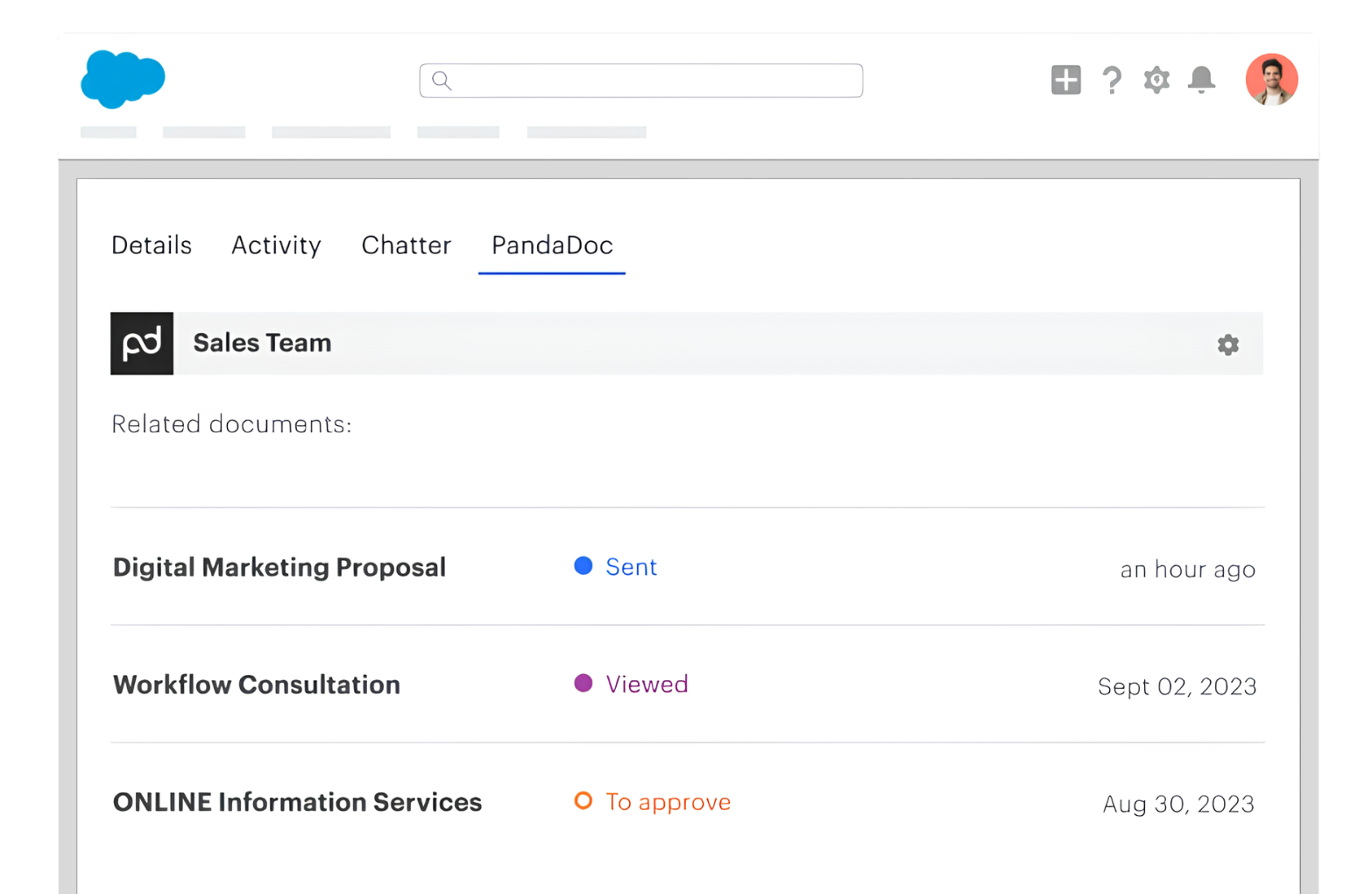
How it works: PandaDoc's native Salesforce integration connects the two platforms through Salesforce Lightning. PandaDoc embeds inside Salesforce records (Opportunities, Accounts, Contacts), letting reps create, send, and track documents without leaving the CRM.
Source: PandaDoc
Salesforce field data auto-populates PandaDoc templates through variables, and document status changes write back to Salesforce automatically via two-way synchronization.
What it syncs: Contact details, account information, and opportunity data flow from Salesforce into PandaDoc documents. Document status (draft, sent, viewed, completed, expired), document links, and completion timestamps flow back into Salesforce.
Custom Salesforce fields can be mapped to PandaDoc variables for auto-population. Line items and pricing from PandaDoc's pricing tables can sync with Salesforce Opportunity products.
Fits: ongoing bidirectional sync for document-driven sales workflows; not a migration tool.
Setup process:
Confirm your PandaDoc workspace is on the Business plan ($49/seat/month) or higher. The Salesforce integration is not available on Free or Starter plans.
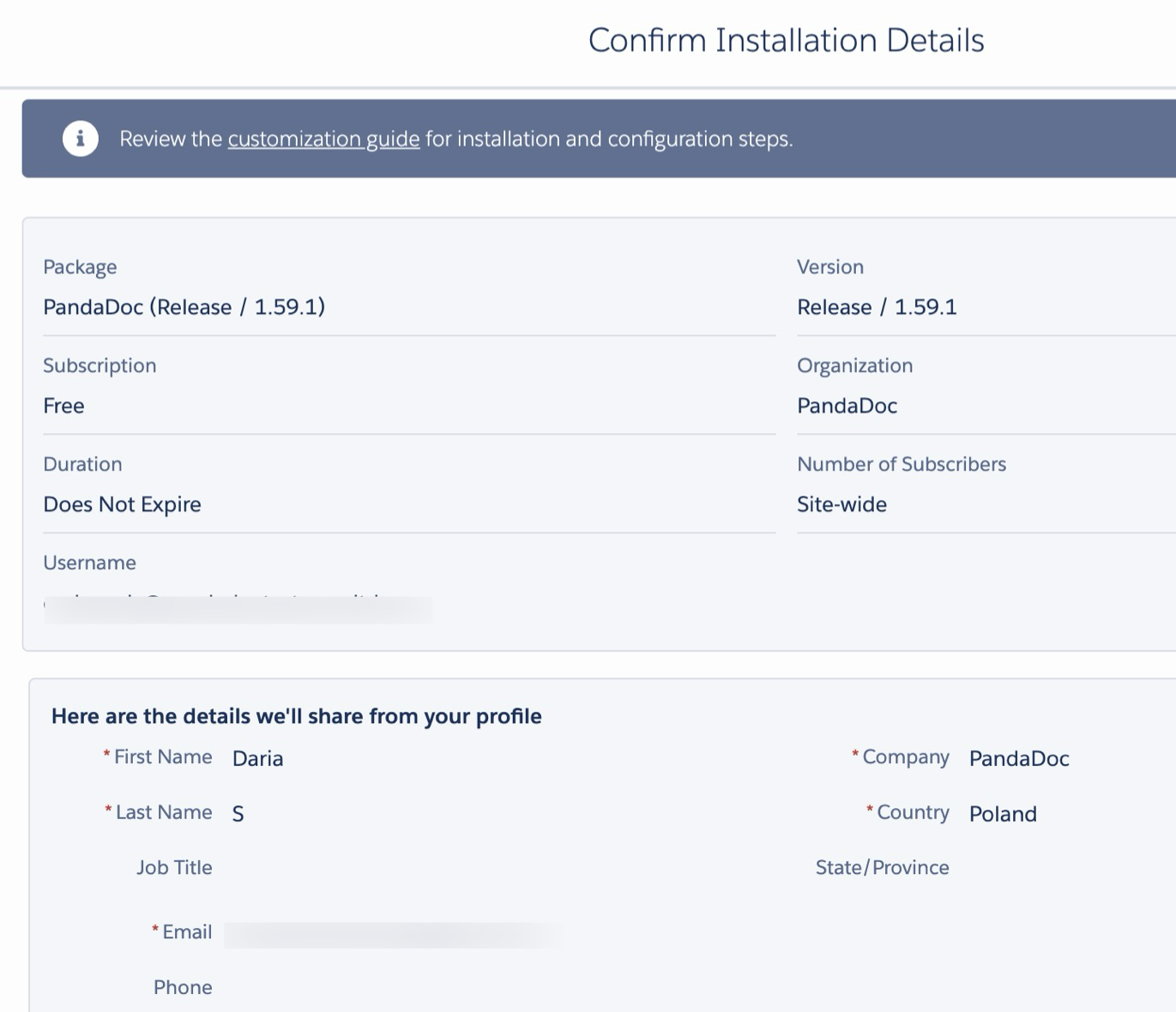
In Salesforce, navigate to Setup and search for "PandaDoc" in the AppExchange, or install the PandaDoc for Salesforce package directly. You need System Administrator access in Salesforce.
In PandaDoc, go to Settings > Integrations > Salesforce and authenticate with your Salesforce credentials using OAuth, granting PandaDoc read and write access to your Salesforce org.
Configure field mapping between Salesforce objects (Contacts, Accounts, Opportunities) and PandaDoc variables. Map standard fields (name, email, company) and any custom fields your templates use.
Set up document status sync rules: choose which PandaDoc status changes update Salesforce Opportunity stages (for example, "Completed" in PandaDoc moves the Opportunity to "Closed-Won").
Test by creating a PandaDoc document from a Salesforce Opportunity record and verifying that fields auto-populate and status changes write back correctly.
Source: PandaDoc
Strengths: First-party integration maintained by PandaDoc. Reps create, send, and track documents without leaving Salesforce. Bidirectional data sync eliminates manual CRM updates.
Template variables pull live Salesforce data, reducing data entry errors. Document analytics (page-by-page engagement data) are accessible from within Salesforce. Approval workflows can trigger based on Salesforce deal values or discount thresholds.
Limitations: Requires PandaDoc Business plan at minimum ($49/seat/month). Setup requires both PandaDoc admin rights and Salesforce System Administrator access. Complex field mappings (multi-select picklists, formula fields, lookup relationships) may need additional configuration.
The integration surfaces documents at the Opportunity level; syncing documents to custom Salesforce objects requires additional setup or API work.
Best for: Sales teams that create proposals, quotes, and contracts from within Salesforce and need document status to flow back into the CRM automatically. Organizations where Salesforce is the system of record and PandaDoc handles the document lifecycle from quote to signature.
PandaDoc for Salesforce CPQ (Enterprise Plan)
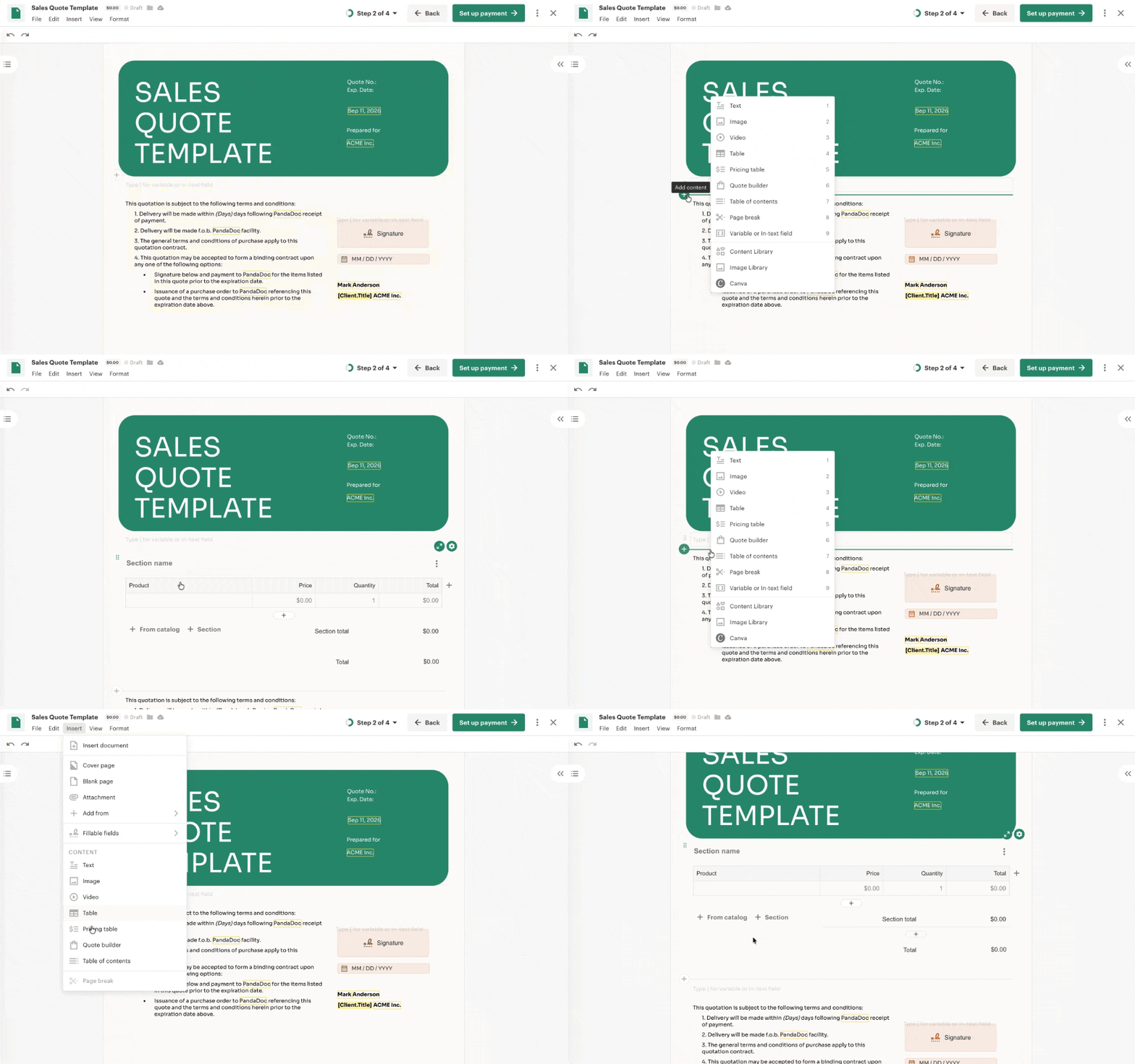
How it works: PandaDoc CPQ for Salesforce is a quoting solution that embeds PandaDoc's configure-price-quote engine inside Salesforce. Reps configure products, apply pricing rules, generate quotes, and send for signature without leaving the CRM. The CPQ layer adds guided selling workflows, conditional pricing logic, and approval routing on top of the standard document integration.
What it syncs: Everything the native integration syncs, plus CPQ-specific data: product catalog items, pricing rules, discount thresholds, configured quotes, and approval chain status. PandaDoc's Quote Builder pulls products and pricing from a centralized catalog and writes the final quote values back to Salesforce Opportunity line items.
Source: PandaDoc
Fits: ongoing bidirectional sync for teams with complex quoting workflows; extends the native integration with CPQ capabilities.
Setup process:
Confirm your PandaDoc workspace is on the Enterprise plan (custom pricing). CPQ features are not available on Business or lower plans.
Install the PandaDoc for Salesforce CPQ package from the Salesforce AppExchange. You need System Administrator access in Salesforce.
Configure the PandaDoc Product Catalog with your SKUs, pricing tiers, and discount rules. Import products via CSV or sync from an existing Salesforce product catalog.
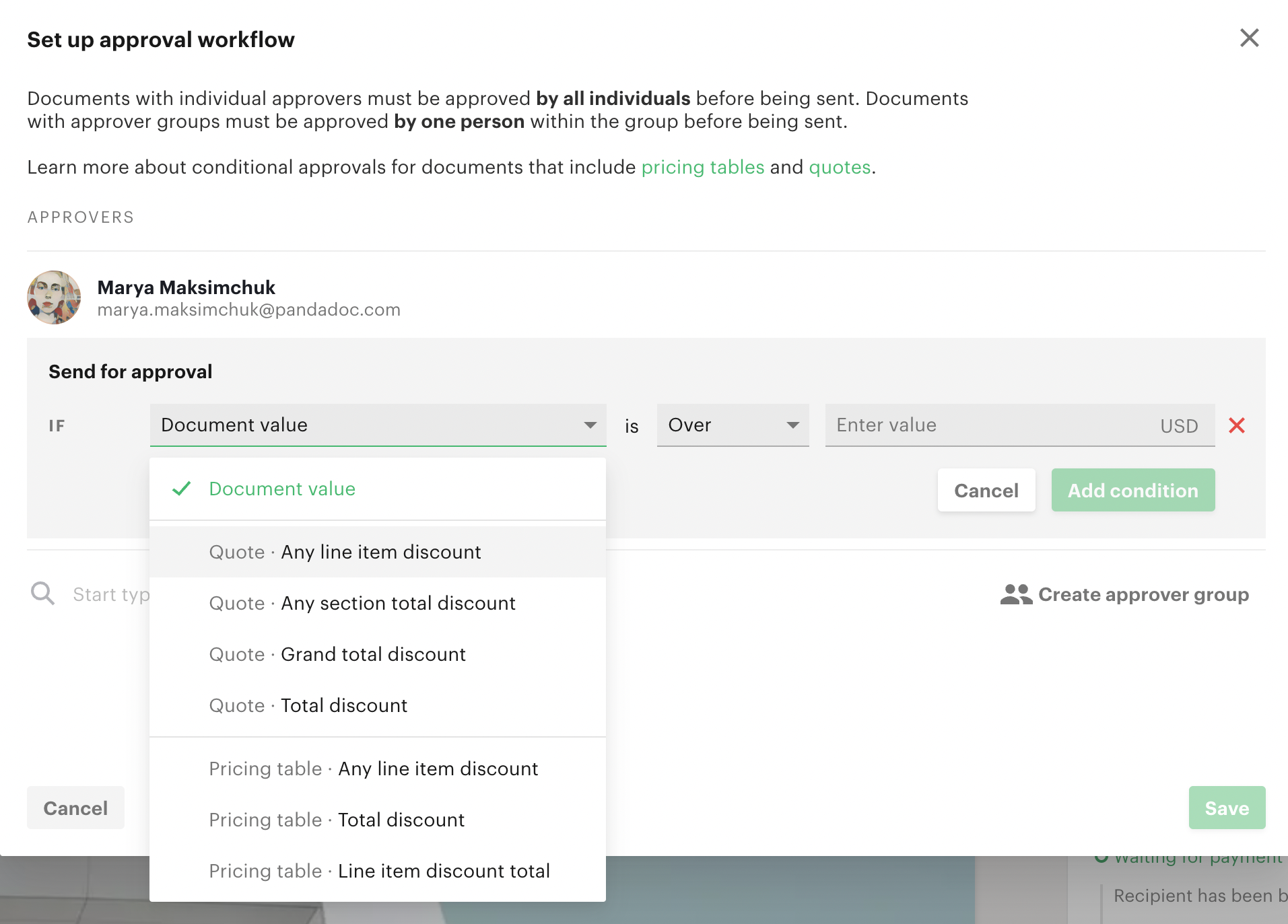
Build CPQ workflows using PandaDoc's WHEN/THEN rules engine: define pricing guardrails, bundle requirements, and conditional approvals (for example, quotes exceeding a 20% discount automatically route to a sales manager).
Map Salesforce Opportunity fields to the guided selling questionnaire so reps answer product configuration questions pre-populated with deal context.
Test by running a full cycle: configure a quote from a Salesforce Opportunity, apply pricing rules, route for approval, generate the document, send for signature, and verify that completed quote values write back to Salesforce.
Strengths: Eliminates the need for a separate CPQ tool. Requires no coding or consultants to deploy. Guided selling walks reps through product selection without memorizing the full catalog. Conditional approvals enforce pricing governance automatically.
Source: PandaDoc
The entire flow from configuration through signature and payment happens in one platform. PandaDoc reports that Salesforce CPQ users see an 80% reduction in manual field entry and 120 hours saved per month.
Limitations: Enterprise plan only (custom pricing, annual contract). Requires deeper initial setup to configure the product catalog, pricing rules, and approval chains.
Teams with very complex product configurations (thousands of SKUs with interdependent compatibility rules) may still need a dedicated enterprise CPQ platform. The rules engine uses sequential processing, so rule ordering matters and can require iteration to get right.
Best for: Mid-market sales teams selling configurable products through Salesforce who want quote-to-signature in one workflow without implementing a large CPQ platform like Salesforce Revenue Cloud.
Zapier
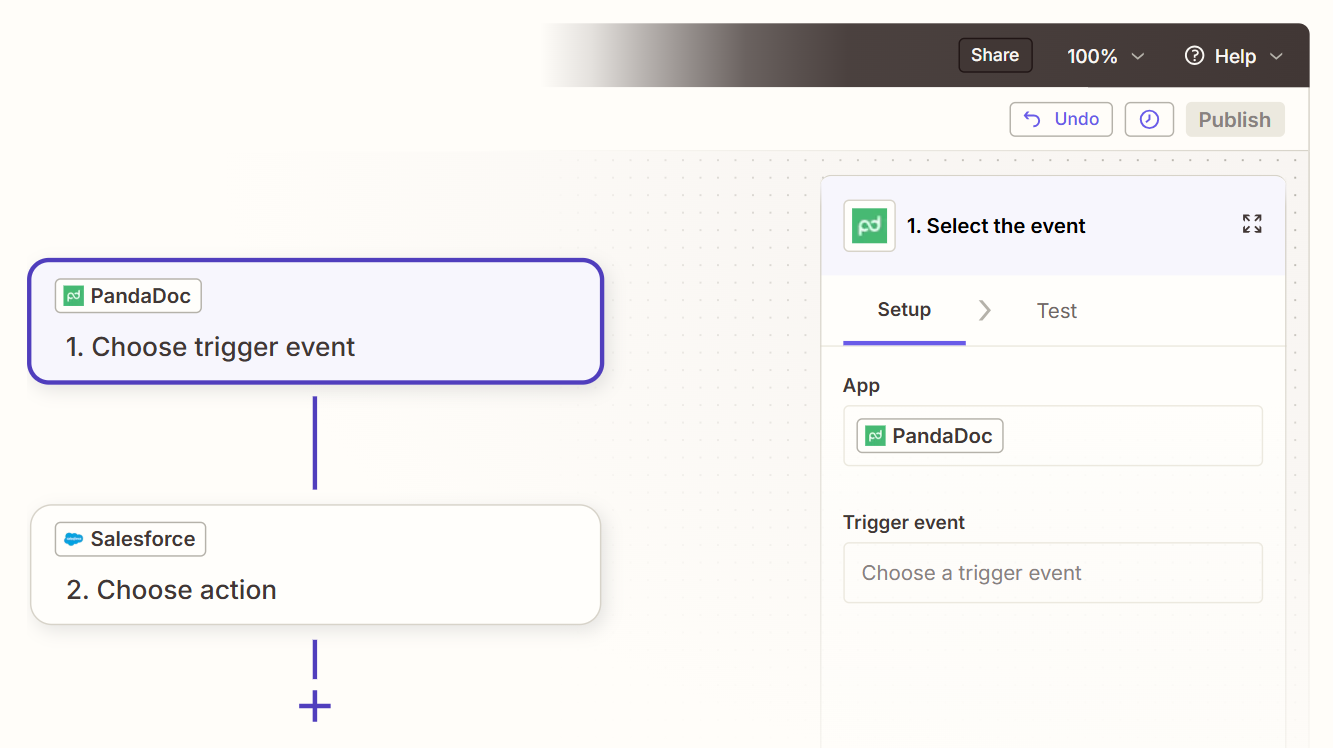
How it works: Zapier connects PandaDoc and Salesforce through event-driven automations called Zaps. Each Zap pairs a trigger (an event in one app) with one or more actions (what happens in the other). PandaDoc has a native Zapier connector, and Salesforce is among Zapier's most popular integrations.
Source: Zapier
What it syncs: Zapier can trigger on PandaDoc document status changes (created, sent, viewed, completed) and push data into Salesforce (create or update records, log activities).
In the reverse direction, Salesforce events (new lead, opportunity stage change) can trigger PandaDoc actions (create document from template). Field mapping is manual and limited to fields each app's Zapier connector exposes.
Fits: ongoing event-triggered sync for specific workflows; not a replacement for the native integration's bidirectional data flow.
Setup process:
Create a Zapier account and connect both your PandaDoc and Salesforce accounts using OAuth.
Choose PandaDoc as the trigger app and select a trigger event (e.g., "Document State Changed" with a filter for "Completed").
Choose Salesforce as the action app and select the action (e.g., "Update Record" to change Opportunity stage to Closed-Won).
Map PandaDoc trigger data (document name, recipient email, completion date) to Salesforce fields.
Test the Zap with an existing PandaDoc document to verify data flows correctly into Salesforce.
Turn the Zap on. For bidirectional sync, create a second Zap with Salesforce as the trigger and PandaDoc as the action, and add filters to prevent infinite loops.
Strengths: Available to PandaDoc teams on any paid plan (the native Salesforce integration requires Business; Zapier does not). No engineering resources required. Quick to set up for simple, single-event workflows. Zapier's filter and formatting steps allow conditional logic (e.g., only sync documents from a specific template or above a certain value).
Limitations: Each Zap handles one trigger-action pair, so covering multiple document events requires separate Zaps (each counting against Zapier's task allocation). No bidirectional data sync in a single Zap.
Does not support PandaDoc's document analytics or real-time engagement tracking. Cannot pull Salesforce data into PandaDoc templates at document creation time (the native integration handles this). Historical documents created before the Zap was activated do not sync.
Best for: Teams on PandaDoc Starter that want lightweight automation between PandaDoc and Salesforce without upgrading to Business. Organizations that need a specific, narrow integration (e.g., "when a document is signed in PandaDoc, create a Task in Salesforce") rather than full bidirectional sync.
Custom API Integration
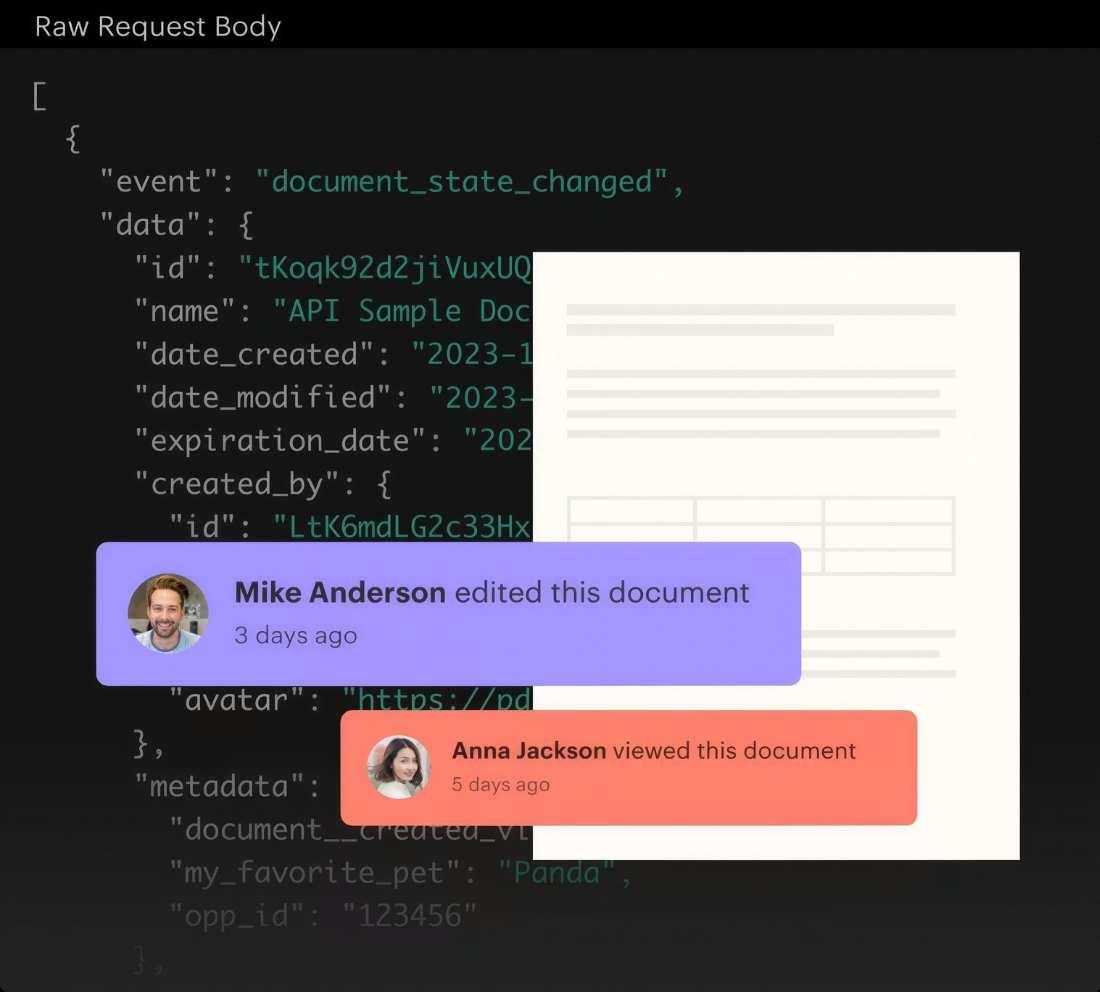
How it works: Both PandaDoc and Salesforce provide full APIs. PandaDoc's REST API covers document creation from templates, status management, field population, e-signature requests, and webhooks for real-time event notifications.
Source: PandaDoc
Salesforce's REST API covers all standard and custom objects, with Platform Events and Change Data Capture for event-driven sync. A custom integration connects these APIs directly, with your own middleware handling authentication, field mapping, transformation, and error recovery.
What it syncs: Anything both APIs expose. This is the only method that supports complex scenarios like generating documents from custom Salesforce objects, syncing PandaDoc pricing table data to custom Salesforce fields, embedding PandaDoc document experiences inside Salesforce-connected applications via the JavaScript SDK, or enforcing business logic beyond the native integration's field mapping.
Fits: either specific custom workflows or full-scale integration; the only method with no ceiling on complexity.
Setup process:
Register API credentials in both platforms: generate a PandaDoc API key from the Developer Dashboard and create a Salesforce Connected App with OAuth 2.0 credentials.
Design the data model mapping between PandaDoc documents and Salesforce objects, including which fields populate templates and which document events update CRM records.
Build the integration service: a server-side application that listens for PandaDoc webhooks (document status changes trigger HTTP POST to your endpoint) and Salesforce events, then transforms and writes data to the other platform.
Implement document creation logic: when a Salesforce event fires (e.g., an Opportunity reaches a specific stage), the integration creates a PandaDoc document from a template via the API, populating fields with Salesforce data.
Add logging, error handling, and retry logic. PandaDoc's API has per-endpoint rate limits (e.g., 500 RPM for document creation from template). Salesforce's API limits are edition-dependent.
Deploy, monitor, and maintain. PandaDoc webhook endpoints must be HTTPS and return HTTP 200 within 20 seconds.
Strengths: Full control over what syncs, when, and how. Real-time sync via webhooks on both sides. Can implement arbitrarily complex business logic. Supports scenarios the native integration cannot handle (custom objects, embedded document experiences, bulk document generation). PandaDoc's API ships with official SDKs in Python, Node.js, Java, and PHP. No per-operation fees from a third-party connector.
Limitations: Requires development resources to build and maintain. PandaDoc's API has a separate pricing tier (free tier: 60 documents/year; API Developer Plan: $40/month for 40 documents/month; Enterprise: custom). Salesforce API changes with each seasonal release. The initial build takes weeks, not hours.
Best for: Organizations with in-house development teams that need to embed PandaDoc document workflows inside custom Salesforce applications, generate documents from custom objects, or implement business logic the native integration cannot support.
Key Use Cases
1. Proposal Generation from Salesforce Opportunities
When an Opportunity reaches a proposal-ready stage, a rep creates a PandaDoc document from the Salesforce record. Contact name, company details, deal value, and product line items auto-populate from Salesforce fields into the PandaDoc template. The rep customizes the proposal, adds signature fields, and sends it to the buyer. Document status updates flow back to Salesforce automatically.
Best integration method: Native PandaDoc-Salesforce integration (bidirectional, real-time).
2. Automated Deal Stage Updates on Document Completion
When a buyer signs a contract in PandaDoc, the integration updates the Salesforce Opportunity stage to Closed-Won without manual intervention. The signed PDF attaches to the Opportunity record, and the close date updates to reflect the actual signature date. This eliminates the lag between a deal closing in PandaDoc and the CRM reflecting that status.
Best integration method: Native integration (automatic status writeback) or Zapier (event-triggered stage update for teams on lower PandaDoc plans).
3. CPQ-Driven Quoting for Configurable Products
A rep selling modular software packages uses PandaDoc CPQ embedded in Salesforce to configure the deal. The guided selling questionnaire walks through product selection, the rules engine applies volume discounts and enforces bundle requirements, and the approval workflow routes the quote to a manager if the discount exceeds the threshold.
Once approved, the buyer receives a branded quote with interactive pricing, signs it, and the final line items write back to the Salesforce Opportunity.
Best integration method: PandaDoc for Salesforce CPQ (Enterprise plan).
4. Contract Renewal Workflows
When a renewal date approaches (tracked in Salesforce), a Zapier Zap or PandaDoc automation generates a renewal contract from a template, pre-populated with the customer's details and updated pricing. The renewal document sends automatically, and its status tracks in Salesforce alongside the renewal Opportunity.
Best integration method: Native integration with PandaDoc automations, or Zapier for teams that need simpler trigger-based renewal generation.
5. Document Engagement Tracking for Sales Follow-Up
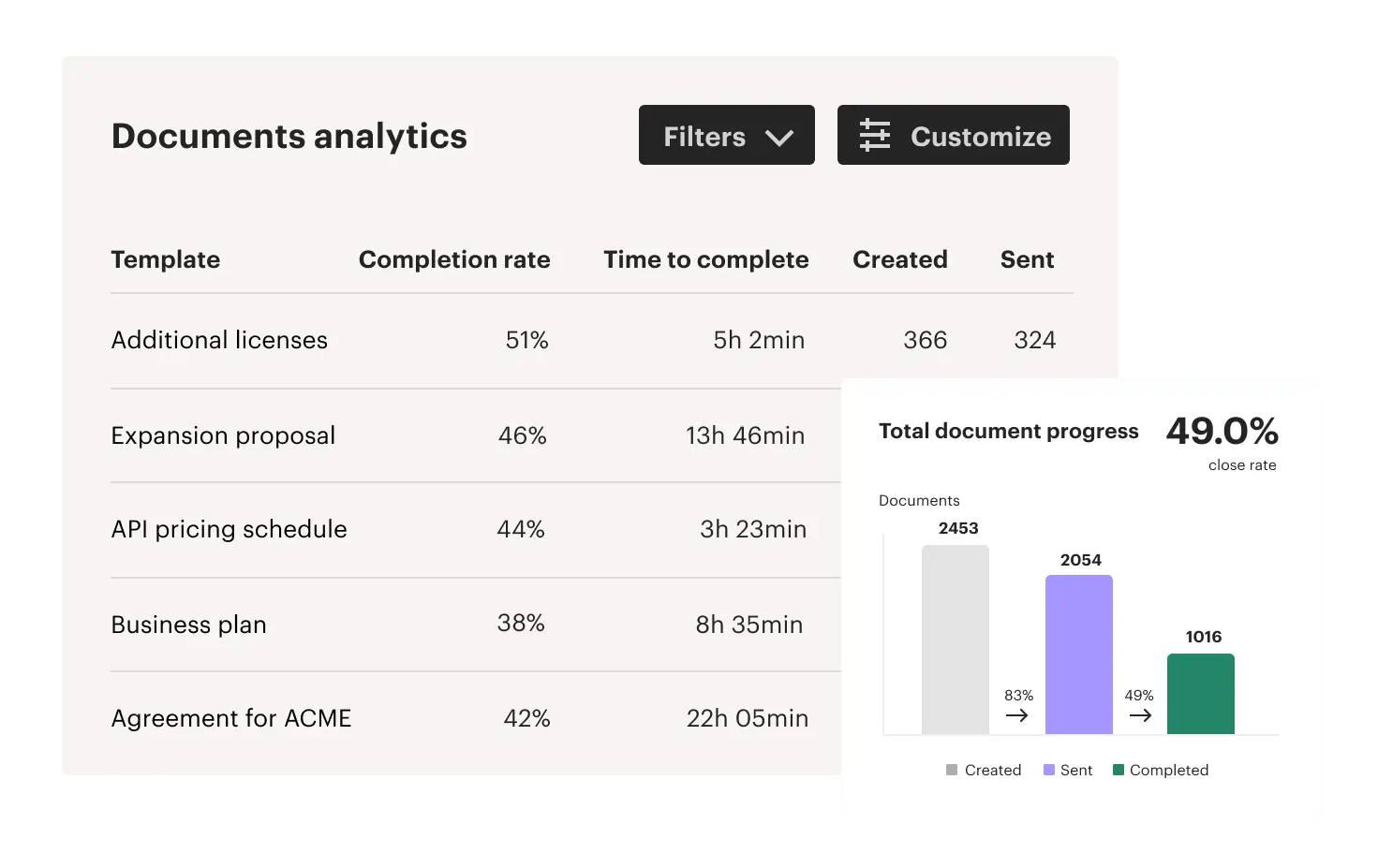
After sending a proposal, a rep monitors Salesforce for PandaDoc engagement signals. PandaDoc's document analytics track which pages the recipient viewed and how long they spent on each section. When the buyer revisits the pricing page several times, the rep knows to follow up on pricing concerns specifically, without asking the buyer to repeat what they have already reviewed.
Source: PandaDoc
Best integration method: Native PandaDoc-Salesforce integration (engagement data visible in Salesforce records).
Limitations and Considerations
Plan-Gated Integration Features
The native Salesforce integration requires PandaDoc's Business plan at $49/seat/month. CPQ for Salesforce requires the Enterprise plan with custom pricing and an annual contract. Teams on PandaDoc's Free ($0) or Starter ($19/user/month) plans cannot access the native Salesforce integration and must rely on Zapier or the API to connect the two platforms.
Field Mapping Complexity
PandaDoc uses variables and template roles to map Salesforce data into documents. Standard fields (name, email, company, deal amount) map cleanly. Complex Salesforce field types (multi-select picklists, formula fields, lookup relationships across objects, and polymorphic fields) may require intermediate transformation or custom API work to populate PandaDoc templates accurately.
Document Editing After Send
PandaDoc's most consistently cited limitation on G2 and Capterra is that editing a document after sending it typically requires creating a new version and re-sending. In negotiation-heavy deals where contract terms change after initial distribution, this creates friction the integration cannot smooth over.
Sync Conflicts
Bidirectional sync creates the possibility of conflicting updates. If a rep updates deal value in Salesforce while a buyer selects different line items in a PandaDoc quote, the systems may disagree on the final amount.
The native integration handles most status sync automatically, but pricing conflicts between PandaDoc quotes and Salesforce Opportunity line items require clear operational rules about which system holds the authoritative deal value.
API Rate Limits
PandaDoc enforces per-endpoint rate limits: 500 RPM for document creation from template, 400 RPM for sending, 600 RPM for document details, and 100 RPM for downloads.
Salesforce's API limits start at 100,000 requests per 24-hour period for Professional and Enterprise editions, plus per-license allocations. Teams generating high volumes of documents (bulk send campaigns, end-of-quarter pushes) should verify their rate limit headroom on both sides.
Permissions and Access
Setting up the native integration requires PandaDoc admin rights and Salesforce System Administrator access. If your Salesforce org uses field-level security or sharing rules, the integration user's profile must have read and write access to every object and field you intend to map. PandaDoc gates CRM integrations behind its Business plan and the Enterprise API tier for programmatic access.
What No Method Fixes: The Data Itself
Every method above moves documents and deal data between PandaDoc and Salesforce. None of them checks whether the contact records driving those documents are accurate, complete, or current.
A proposal sent to an outdated email address never gets opened. A contract addressed to someone who left the company three months ago sits unsigned. The integration ensures both systems agree on the deal; it does not ensure the people behind the deal are the right ones.
Where ZoomInfo Fits In
Every method in this guide moves data between PandaDoc and Salesforce. None of them improves the contact records that drive the documents.
When the integration is live but proposals go to dead email addresses, contracts reach contacts who changed roles, and quotes land with the wrong stakeholders because the org chart in Salesforce is six months stale, the bottleneck is no longer the connector. That is the gap ZoomInfo closes.
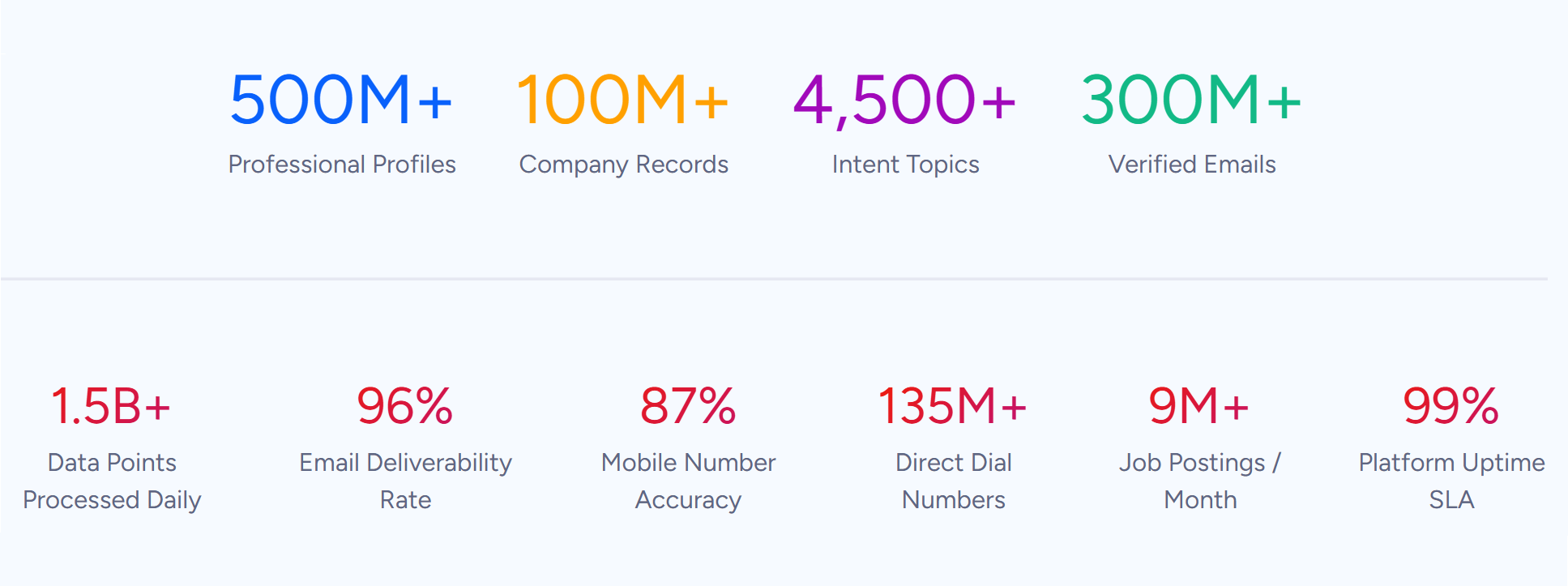
ZoomInfo is a B2B data and go-to-market platform built on 500M contacts, 100M companies, 135M+ verified phone numbers, and 200M+ verified business email addresses.
Source: ZoomInfo
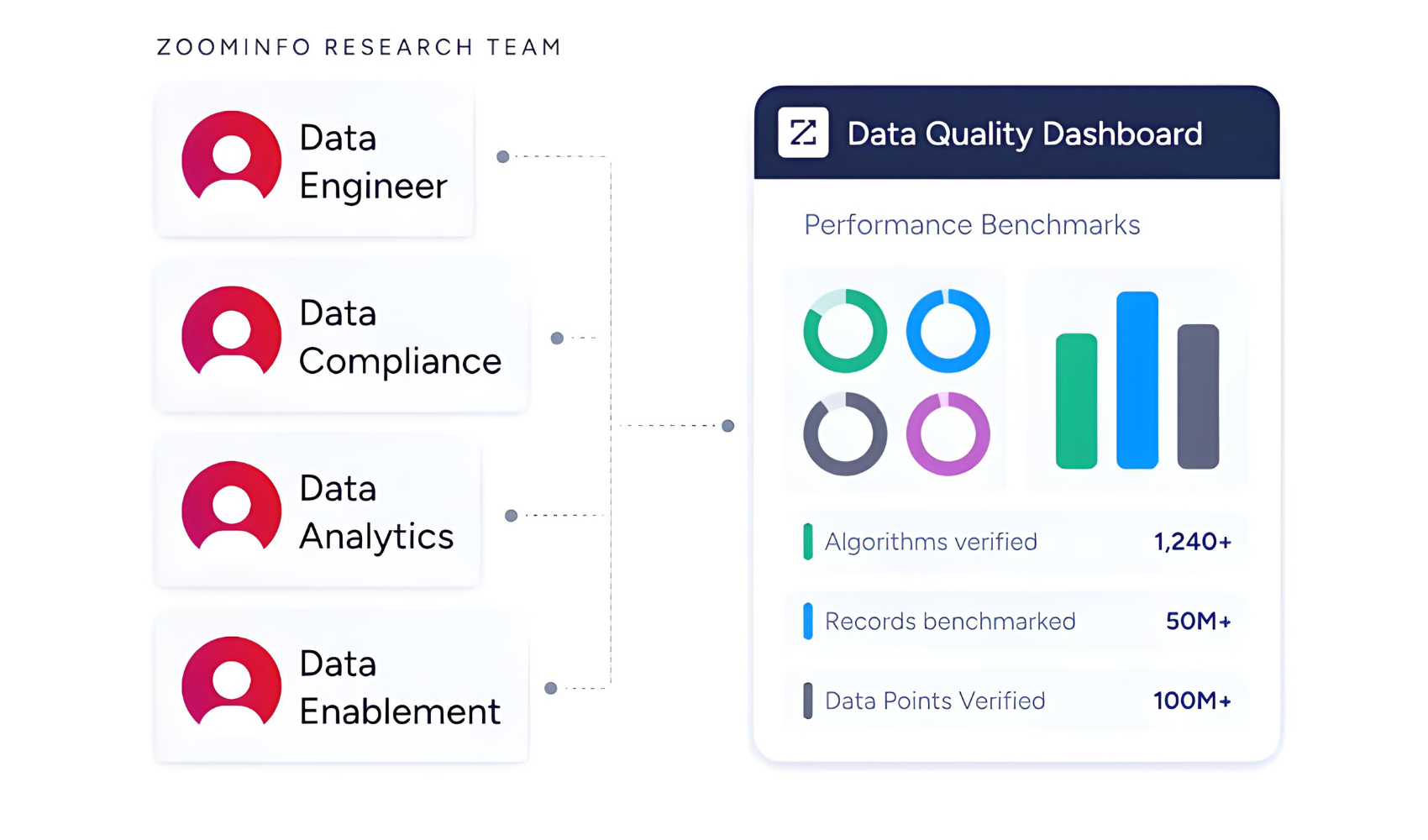
That data is verified through a multi-source pipeline backed by 300+ human researchers, reaching up to 95% accuracy on first-party data. For teams running a PandaDoc-Salesforce integration, ZoomInfo addresses the data quality layer that no document connector handles.
Source: ZoomInfo
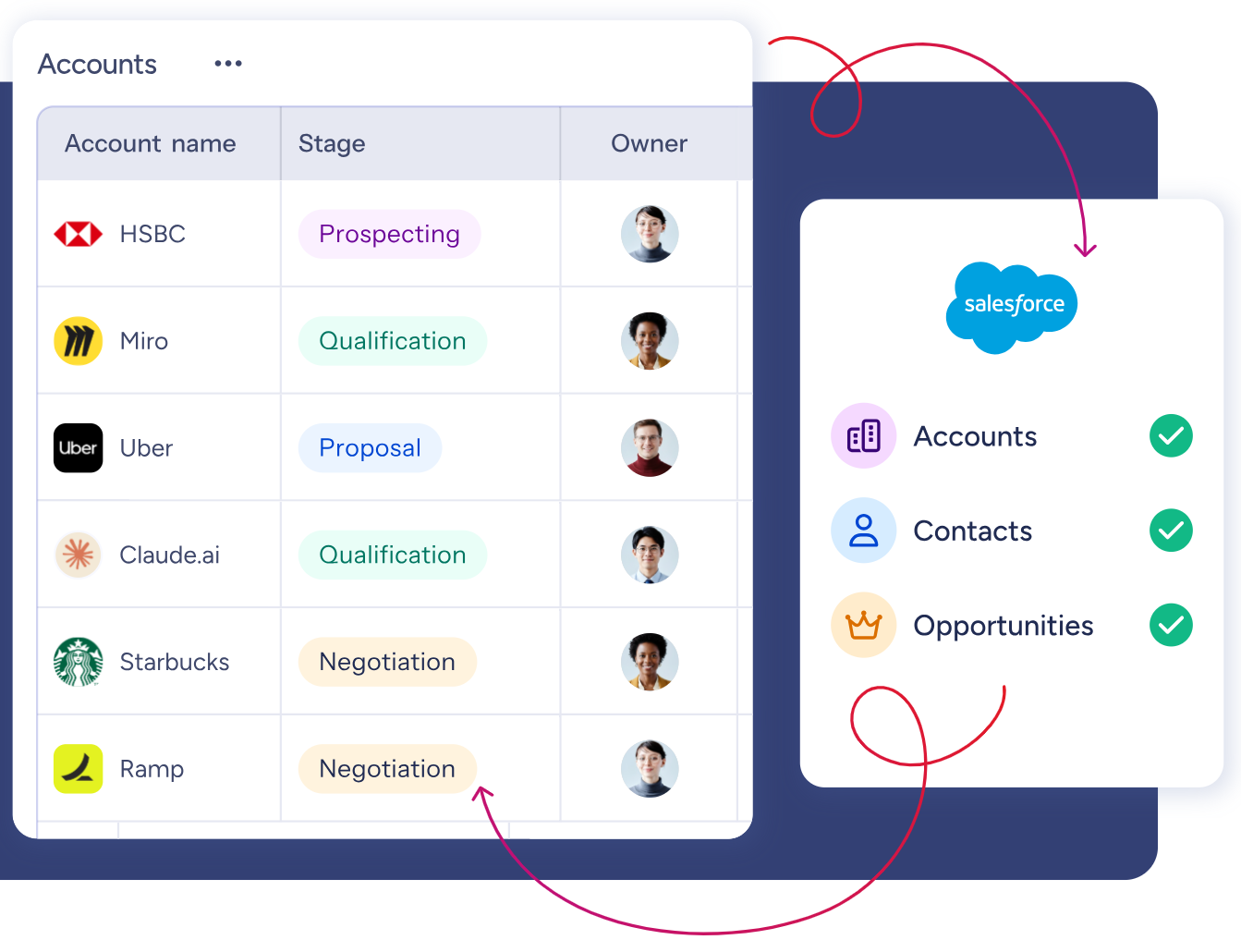
ZoomInfo integrates natively with Salesforce through the AppExchange, providing CRM enrichment, lead routing, and real-time data updates inside Salesforce records.
Source: ZoomInfo
Before a rep creates a PandaDoc proposal from a Salesforce Opportunity, ZoomInfo ensures the contact record has a verified business email (so the document actually lands), an accurate job title (so the proposal reaches the right stakeholder), and current company details (so the pricing reflects the correct account segment).
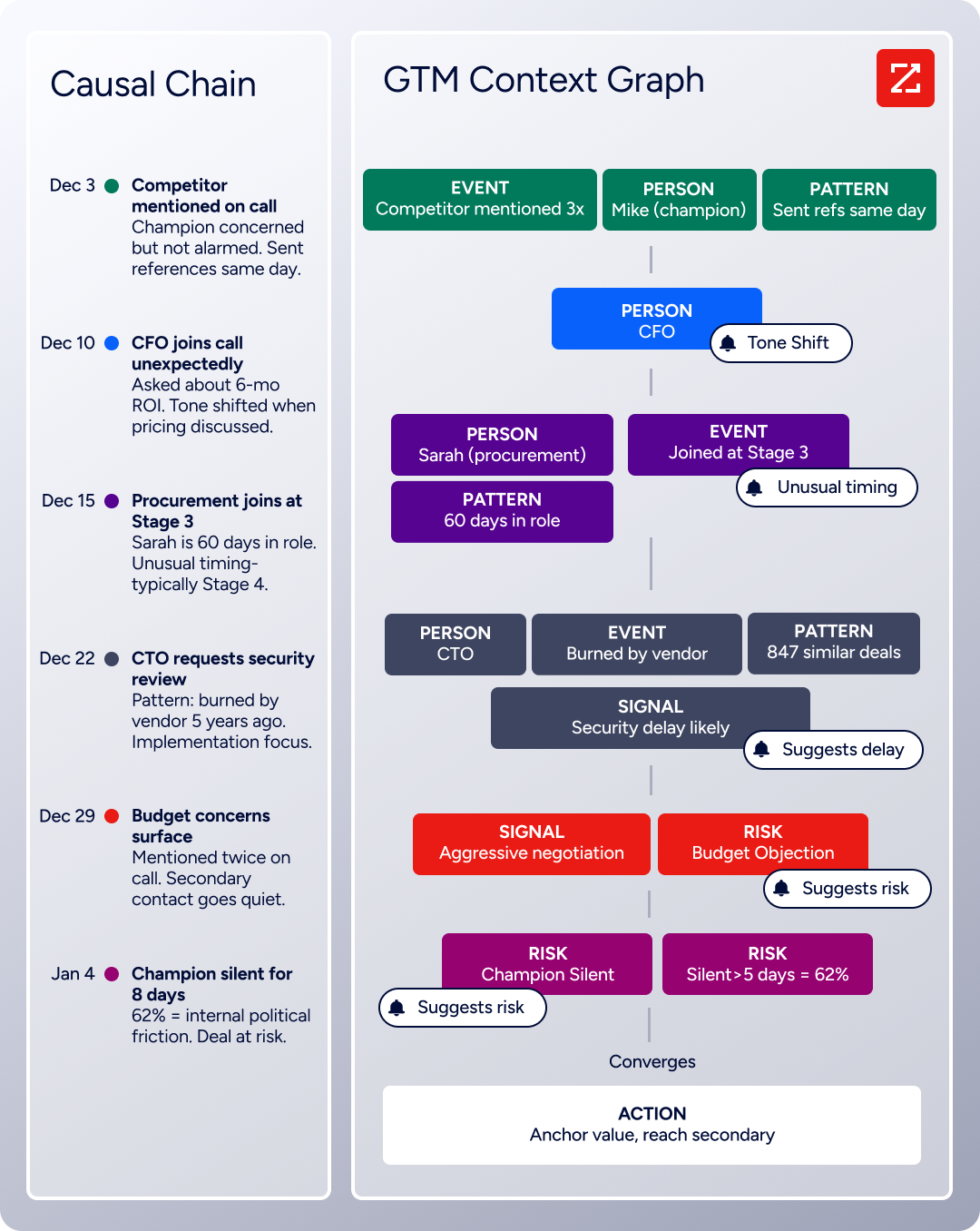
The same data feeds ZoomInfo's GTM Context Graph, which processes 1.5B + data points daily by combining third-party intelligence with CRM records, conversation transcripts, and behavioral signals to surface not just what happened in a deal, but why.
Source: ZoomInfo
For a deeper look at how Salesforce and ZoomInfo compare as go-to-market platforms, see our Salesforce vs ZoomInfo breakdown.
In practice, a team using PandaDoc for proposals and contracts through Salesforce can use ZoomInfo to enrich Salesforce records before document creation begins. Verified emails mean PandaDoc documents reach real inboxes. Accurate org charts mean proposals go to the right decision-makers, not former employees.
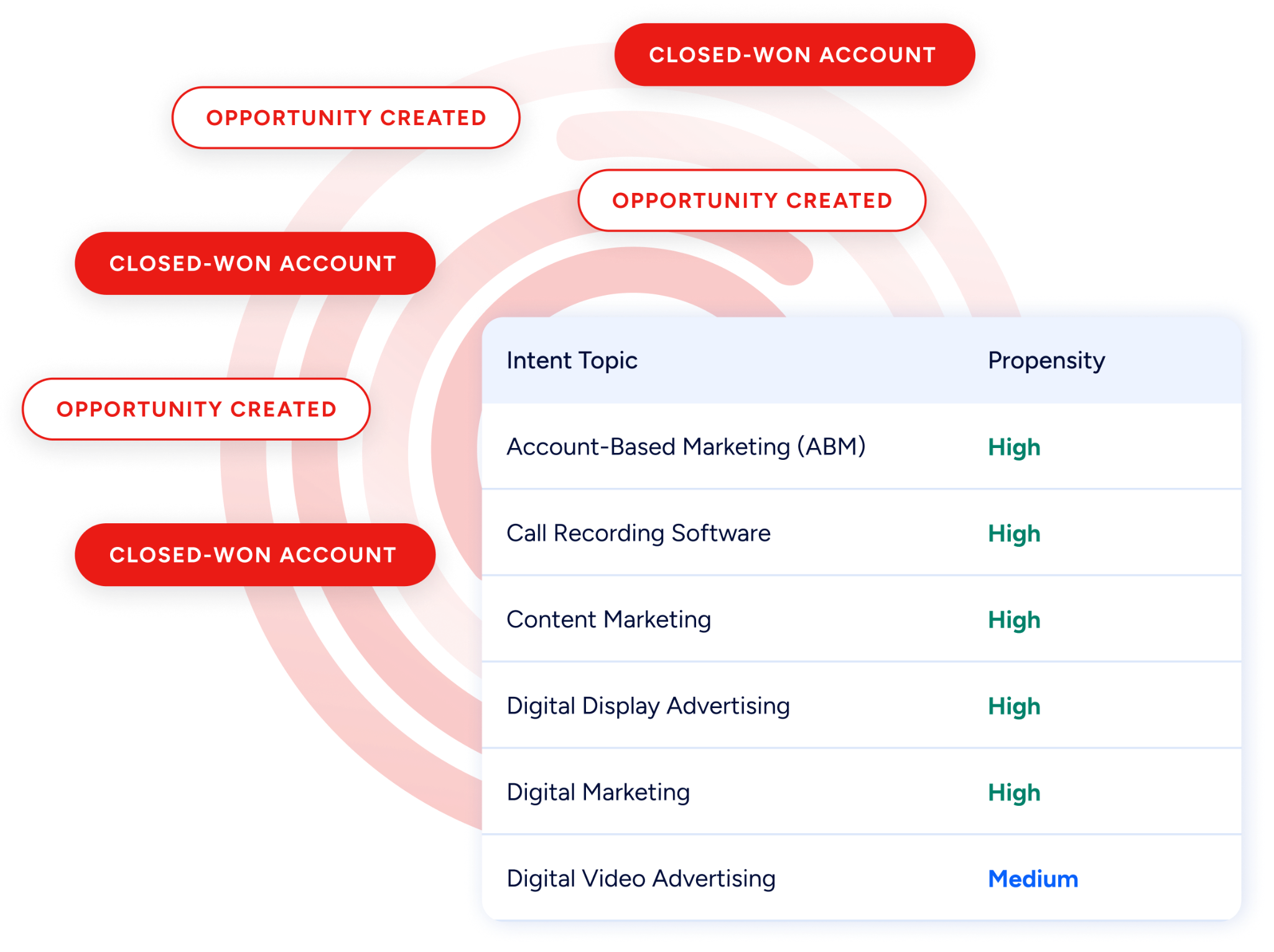
Buyer Intent data from ZoomInfo, tracking signals from 210 million IP-to-Organization pairings, can prioritize which accounts receive proposals first, so reps spend their document creation time on prospects who are actively researching relevant solutions rather than working through a stale list..
Source: ZoomInfo
Enriched records also make the PandaDoc-Salesforce integration more reliable. When Salesforce variables auto-populate a PandaDoc template, the fields they draw from are accurate and complete, reducing the manual cleanup reps do before sending. Fewer blank fields mean fewer incomplete proposals.
Consistent formatting across contact records reduces the errors that create awkward documents ("Dear null null" is not the first impression a proposal should make). And intent signals help teams decide which deals justify a custom proposal versus a templated quote, so the document workflow matches the deal's actual potential.
Seismic's sales team attributed 39% of active pipeline to opportunities identified or influenced by ZoomInfo signals, while boosting productivity by 54% and saving 11.5 hours per week. (Seismic)
Final Verdict
A native integration between PandaDoc and Salesforce exists, and it is one of PandaDoc's deepest CRM connections. For most teams, the right choice depends on PandaDoc plan tier and quoting complexity.
Sales teams on PandaDoc Business that create proposals and contracts from Salesforce Opportunities should activate the native integration. It handles bidirectional sync, document creation from Salesforce records, and automatic status updates with no third-party tool or engineering resources required.
Teams selling configurable products that need guided selling, pricing rules, and approval workflows should evaluate PandaDoc CPQ for Salesforce on the Enterprise plan. It embeds the full quote-to-signature workflow inside Salesforce without requiring a large CPQ platform.
Teams on PandaDoc Starter that want lightweight automation should start with Zapier. It covers specific event-triggered workflows (e.g., document completion updates Opportunity stage) without requiring a plan upgrade.
Organizations with custom integration requirements (bulk document generation, custom Salesforce objects, embedded document experiences) should invest in a custom API build using PandaDoc's REST API and Salesforce's APIs.
Before committing to a method, clarify what document workflow problems the integration needs to solve.
If the goal is eliminating manual data entry between the two platforms and keeping deal stages in sync with document status, the native integration on Business handles it out of the box.
If the goal is owning the entire configure-price-quote-sign-pay workflow inside Salesforce, PandaDoc CPQ on Enterprise is the path. Either way, the quality of the contact data in Salesforce determines whether PandaDoc's documents reach the right people with the right information.
ZoomInfo, with its native Salesforce integration, API, and MCP access, is the data enrichment layer that ensures the records behind every proposal, quote, and contract are accurate and complete.
FAQ
Does PandaDoc integrate natively with Salesforce?
Yes. PandaDoc offers a native Salesforce Lightning integration that embeds document creation, sending, and tracking inside Salesforce records. It supports two-way synchronization: Salesforce data populates PandaDoc templates, and document status changes write back to Salesforce Opportunities.
The integration is available on PandaDoc's Business plan ($49/seat/month) and above. A separate PandaDoc for Salesforce CPQ package, available on the Enterprise plan, adds configure-price-quote capabilities with guided selling, pricing rules, and approval workflows.
What PandaDoc plan do I need for the Salesforce integration?
The native Salesforce integration requires PandaDoc's Business plan at $49/seat/month (annual billing). CPQ for Salesforce requires the Enterprise plan, which has custom pricing and requires an annual contract. Teams on Free or Starter plans cannot use the native integration but can connect PandaDoc and Salesforce through Zapier or PandaDoc's REST API.
Can I create PandaDoc documents directly from Salesforce?
Yes. With the native integration installed, a PandaDoc panel appears inside Salesforce Opportunity, Account, and Contact records. Reps select a template, and Salesforce field data (contact name, company, deal amount, line items) auto-populates the document through variable mapping. The rep customizes the document, adds signature fields, and sends it to the buyer without leaving Salesforce.
Does document status sync back to Salesforce automatically?
Yes. The native integration writes PandaDoc document status changes (sent, viewed, completed, expired) back to the corresponding Salesforce record in near real-time. You can configure which PandaDoc statuses trigger Salesforce Opportunity stage changes (for example, "Completed" in PandaDoc moves the Opportunity to Closed-Won).
What happens if I edit a PandaDoc document after sending it?
PandaDoc allows editing sent documents in some cases, but the most common approach for substantive changes is to create a new document version and re-send. This is PandaDoc's most frequently cited limitation on review platforms. The integration tracks the latest document version, so Salesforce reflects the current state of the most recent document associated with the Opportunity.
Can I use PandaDoc CPQ instead of Salesforce Revenue Cloud?
PandaDoc CPQ for Salesforce is designed as a lighter alternative for mid-market teams that need quoting capabilities without the implementation complexity of Salesforce Revenue Cloud. It covers guided selling, pricing rules, conditional approvals, and document generation in one workflow.
Teams with very complex product configurations (thousands of interdependent SKUs, multi-currency pricing across dozens of regions) may still need a dedicated enterprise CPQ platform. For most mid-market sales teams, PandaDoc CPQ handles the job without requiring consultants or months of implementation.
How does ZoomInfo improve a PandaDoc-Salesforce workflow?
ZoomInfo solves the data quality problem upstream of document creation. Before a rep generates a PandaDoc proposal from a Salesforce Opportunity, ZoomInfo ensures the contact record has a verified business email (so the document reaches a real inbox), an accurate job title (so the proposal addresses the right stakeholder), and current company details (so pricing and positioning are relevant).
Its native Salesforce integration handles enrichment automatically, and its Buyer Intent data can prioritize which accounts should receive proposals based on active research signals. The result: PandaDoc documents reach the right people with accurate information, and the engagement data that flows back into Salesforce connects to verified, current records.
What are the API rate limits for PandaDoc and Salesforce?
PandaDoc enforces per-endpoint rate limits on a 60-second sliding window: 500 requests per minute for document creation from template, 400 for sending, 600 for document details retrieval, and 100 for downloads.
The sandbox environment is capped at 10 RPM across all endpoints. Salesforce allocates API requests per 24-hour period based on edition and license count: Professional and Enterprise editions start at 100,000 requests, with additional per-license allocations. Teams running high-volume document workflows should verify their headroom on both platforms before scaling.
Other tools that connect to Salesforce:
