
Teams that run Dialpad for calling and HubSpot as their CRM usually hit the same problems within a quarter:
Call activity lives in Dialpad while contact and deal records live in HubSpot, so reps toggle between tools to connect conversations to pipeline.
Customer context in HubSpot (deal stage, lifecycle status, past interactions) never surfaces during a Dialpad call, leaving reps without the information they need mid-conversation.
Call outcomes, transcripts, and AI-generated insights stay siloed in Dialpad rather than enriching the CRM records where the rest of the team works.
However, the two platforms ended up coexisting (a sales team adopting Dialpad while the org runs on HubSpot, a support team using Dialpad's contact center alongside HubSpot Service Hub, or separate departments choosing tools independently), the longer they operate without a connection, the more conversation data goes untracked and the harder it becomes to act on buyer signals inside the CRM.
Connecting Dialpad and HubSpot closes that gap.
Call activity logs automatically to HubSpot contacts, so reps stop entering call notes by hand. HubSpot data surfaces inside Dialpad during live calls, so reps have context without switching screens. AI transcriptions and call recordings attach to CRM records, so managers can coach from real conversations and marketing can measure which outreach drives pipeline.
Dialpad offers a native HubSpot integration available through both Dialpad's App Marketplace and HubSpot's App Marketplace. For teams that need custom workflows, third-party automation tools like Zapier can extend what the native connector handles. Custom API development is also possible, with both platforms offering documented REST APIs and webhook support. Each method differs in setup complexity, sync direction, data coverage, and cost.
One problem no connection method solves: the integration syncs call activity and customer records, but it does not verify whether the contact data in either system is accurate, complete, or current.
That is where ZoomInfo comes in. ZoomInfo integrates natively with both HubSpot and Dialpad (through its Chorus conversation intelligence platform), and offers API and MCP access that can feed verified, enriched contact data into any system. The records behind every call are accurate and complete before a rep picks up the phone.
This article covers the Dialpad-HubSpot integration landscape: which methods are available, what data each one handles, how to set them up, the use cases that justify connecting both platforms, and the limitations to plan for. It also covers how ZoomInfo fits as a data enrichment layer that strengthens the records flowing between Dialpad and HubSpot.
Let's start with an overview.
Integration Overview
Does a native integration exist?
Yes. Dialpad offers a native HubSpot integration on both platforms' marketplaces. It enables click-to-call from HubSpot, automatic call logging, real-time transcription visibility, and bidirectional contact data sync. It requires Dialpad's Pro plan or above (starting at $25/user/month billed annually).
What data can sync?
Call activity (inbound and outbound calls, duration, outcomes), voicemails, recordings, AI-generated transcriptions, and SMS messages log to HubSpot contact records. HubSpot contact and company data surfaces inside Dialpad during calls, giving reps CRM context without switching tools.
Is the sync bidirectional?
Partially. Call activity flows from Dialpad to HubSpot automatically. HubSpot contact data surfaces inside Dialpad for caller identification and context. However, changes to contact records in HubSpot do not push back to Dialpad's internal contact database. The integration enriches HubSpot records with Dialpad activity and surfaces HubSpot data inside Dialpad's calling interface, but it does not keep both databases in sync.
Is it real-time or batch?
Near real-time. Call logs, recordings, and transcriptions push to HubSpot as calls complete. Contact matching and caller identification happen during the call itself.
What are the available methods?
Native Dialpad-HubSpot integration (Pro plan and above), third-party automation (Zapier), and custom API development using both platforms' REST APIs.
Method | Setup Difficulty | Data Flow | Real-time? | Cost |
|---|---|---|---|---|
Native Integration | Low | Bidirectional (activity to HubSpot, context to Dialpad) | Near real-time | Included with Dialpad Pro ($25/user/mo) |
Zapier | Medium | One-way per Zap | Near real-time (1-15 min) | From $19.99/mo |
Custom API | High | Fully customizable | Real-time via webhooks | Developer time + hosting |
One distinction worth settling upfront: the native integration handles ongoing, automatic sync of call activity and contact context for daily sales and support workflows. Zapier handles event-triggered flows the native connector does not cover (such as routing specific call outcomes into custom HubSpot workflows). Custom API development offers the most flexibility but requires engineering resources and ongoing maintenance.
Integration Methods
Native Dialpad-HubSpot Integration
How it works: Dialpad's native HubSpot integration connects the two platforms through an OAuth-based connection configured in Dialpad's admin settings.
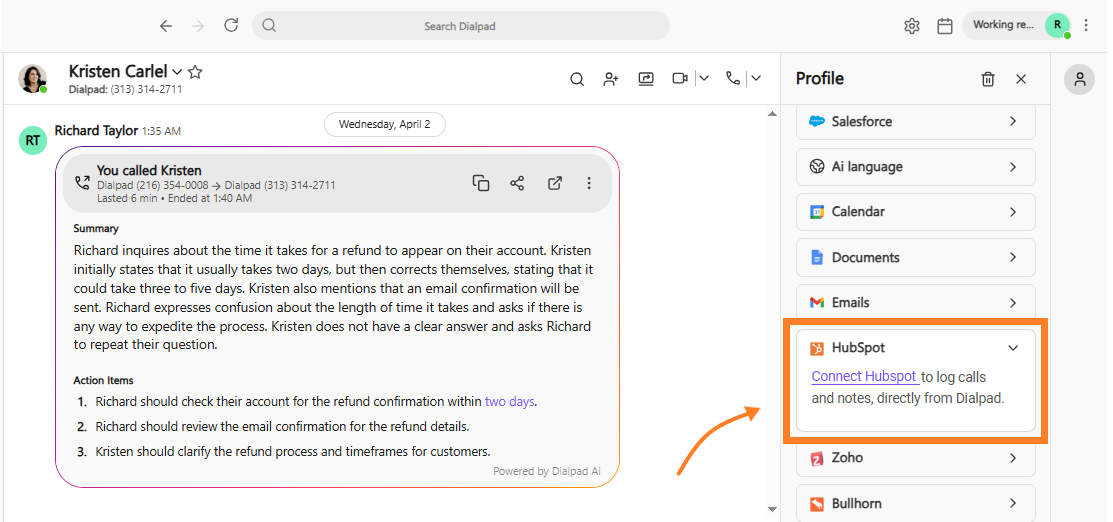
Once connected, it matches incoming and outgoing calls to HubSpot contacts by phone number, logs call activity (including recordings and AI-generated transcriptions) as HubSpot activities, and displays HubSpot contact details inside Dialpad's calling interface so reps have CRM context during conversations.
What it syncs: Inbound and outbound call logs, call recordings, voicemails, AI transcriptions, SMS messages, and call duration/outcome data flow from Dialpad into HubSpot. HubSpot contact and company details (name, company, deal stage, recent activity) surface inside Dialpad during live calls. The integration supports click-to-call from the HubSpot dashboard, letting reps start Dialpad calls without leaving the CRM.
Fits: ongoing sync of call activity and CRM context for daily sales and support workflows; not a migration tool.
Setup process:
Confirm your Dialpad workspace is on the Pro plan or above. The HubSpot integration is not available on the Standard tier.
In Dialpad, go to Admin Settings > Integrations and locate HubSpot. Click Connect and authenticate with your HubSpot account using OAuth.
Configure which call events log to HubSpot: inbound calls, outbound calls, voicemails, recordings, and transcriptions. Choose whether to log missed calls and set minimum call duration thresholds.
Set contact matching rules. Dialpad matches callers to HubSpot contacts by phone number. Configure what happens when no match is found (create a new contact, skip logging, or queue for manual review).
Enable click-to-call in HubSpot by installing the Dialpad app from HubSpot's App Marketplace and granting the necessary permissions.
Test by calling a known HubSpot contact and verifying that call activity, recording, and transcription appear on their contact timeline.
Source: Dialpad
Strengths: First-party integration maintained by Dialpad. No third-party tool to configure or pay for. Call activity, recordings, and AI transcriptions log to HubSpot automatically, eliminating manual data entry. Click-to-call from HubSpot keeps reps in one interface. HubSpot contact data surfaces inside Dialpad during calls, giving reps deal context and interaction history without switching screens.
Limitations: Requires Dialpad Pro ($25/user/month billed annually) or above. The integration focuses on call activity logging and contact context display; it does not sync custom fields, pipeline stages, or deal data between the two platforms. The AI features available in the integration (such as AI Recaps or sentiment analysis) may depend on Dialpad plan tier. Contact matching relies on phone number, so contacts without phone numbers in HubSpot will not match automatically.
Best for: Sales and support teams already on Dialpad Pro or higher that use HubSpot as their primary CRM and want call activity, recordings, and transcriptions logged automatically alongside emails, meetings, and other touchpoints.
Zapier
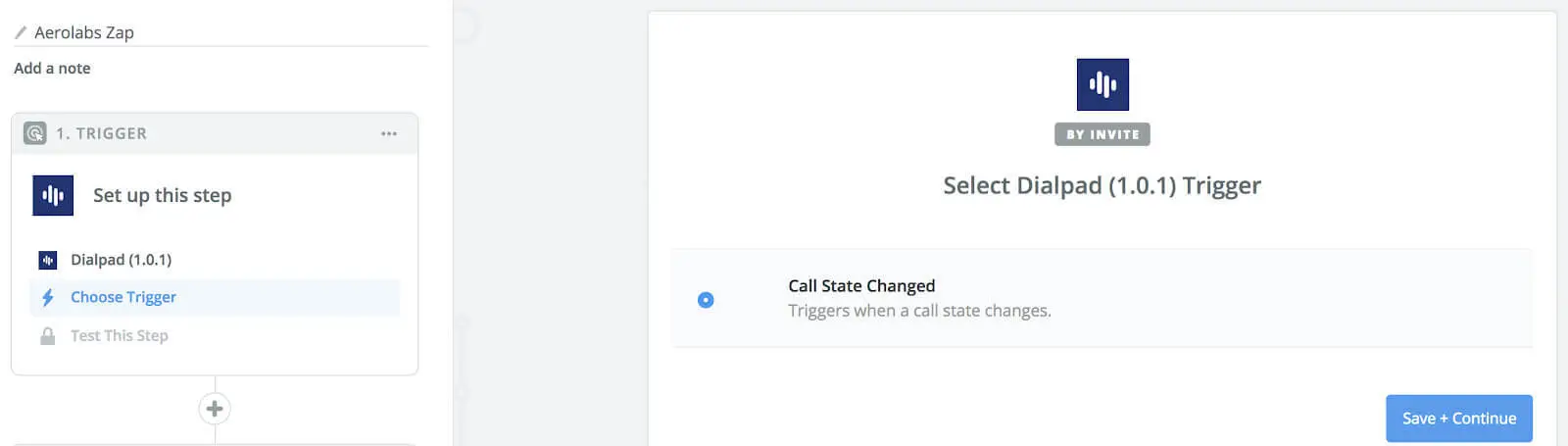
How it works: Zapier connects Dialpad and HubSpot through event-driven automations called Zaps. Each Zap pairs a trigger (an event in one app) with one or more actions (what happens in the other). Dialpad is listed in Zapier's App Marketplace, and HubSpot is one of Zapier's most popular connectors, so the available trigger-action combinations cover common CRM and communications workflows.
What it syncs: Depending on available triggers, Zapier can capture call events, SMS messages, and contact updates from Dialpad and push them into HubSpot as tasks, notes, contact updates, or deal stage changes. It can also trigger Dialpad actions from HubSpot events (such as sending an SMS when a deal reaches a specific stage). Each workflow requires its own Zap with manual field mapping.
Fits: ongoing sync for specific event-driven workflows the native integration does not cover; not a replacement for the native connector's call-logging functionality.
Setup process:
Create a Zapier account and connect both your Dialpad and HubSpot accounts using OAuth.
Choose a trigger app (e.g., Dialpad) and select the trigger event (e.g., "New Call" or "New SMS").
Choose the action app (HubSpot) and select the action (e.g., "Create Task," "Update Contact," or "Create Deal").
Map the fields from the Dialpad trigger to the corresponding HubSpot fields. Zapier displays all available fields from both sides.
Test the Zap with a sample event to verify the field mapping produces the expected result in HubSpot.
Turn the Zap on. For bidirectional workflows, create a second Zap with the trigger and action apps reversed, and add a filter to prevent infinite loops.
Source: Dialpad
Strengths: Extends the native integration with custom event-driven workflows (e.g., trigger a HubSpot workflow when a Dialpad call meets specific criteria). No engineering resources required. Zapier's filter and formatting steps add conditional logic. Useful for teams that need to connect Dialpad events to HubSpot workflows, deal stages, or custom objects the native integration does not touch.
Limitations: Does not replace the native integration's core value (automatic call logging, recordings, transcriptions, and contact context display). Each Zap handles one trigger-action pair, so complex workflows require multiple Zaps (each counting against Zapier's task allocation). No built-in deduplication. Historical events created before the Zap was activated do not sync. Zapier charges by task count, and high call volumes accumulate costs.
Best for: Teams already using the native Dialpad-HubSpot integration that need additional workflow automation for events the native connector does not handle (e.g., updating a deal stage based on call outcomes, sending follow-up SMS sequences triggered by HubSpot lifecycle changes, or routing voicemails to specific HubSpot ticket queues).
Custom API Integration
How it works: Both Dialpad and HubSpot provide REST APIs.
Dialpad's API covers calls, SMS, contacts, user management, and analytics, with webhook support for call, SMS, contact, and agent status events. HubSpot's REST API covers all standard and custom CRM objects, with webhooks for event-driven notifications. A custom integration connects these APIs directly, with your own middleware handling authentication, field mapping, transformation, and error recovery.
What it syncs: Anything both APIs expose. This is the only method that supports syncing custom objects, routing calls based on analytics (sentiment, keywords, duration), triggering multi-step workflows across both platforms, or building embedded experiences where Dialpad's calling capabilities surface inside a custom HubSpot UI extension.
Fits: both ongoing sync and specialized workflows; the only method with no ceiling on what can connect.
Setup process:
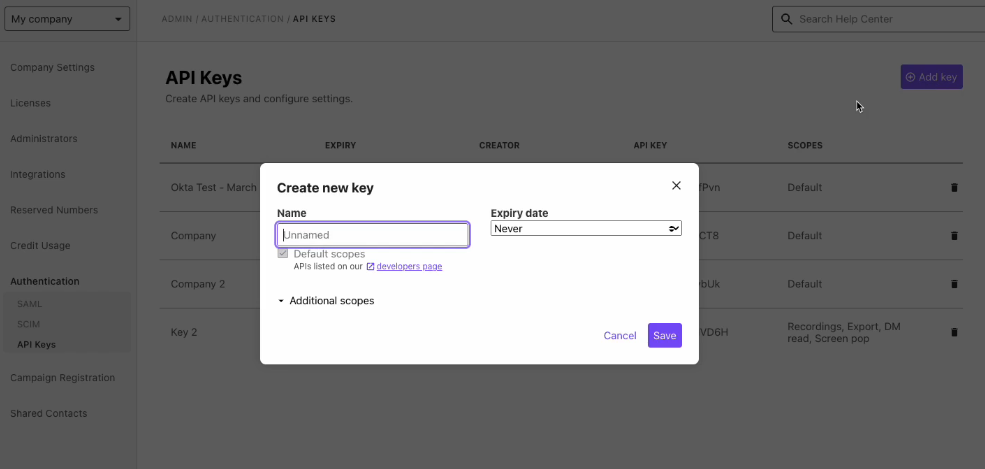
Register API credentials in both platforms: a Dialpad API key or OAuth app (from the admin portal), and a HubSpot private app or OAuth app (from HubSpot developer settings).
Design the data model mapping between Dialpad events and HubSpot objects, including which call properties map to which HubSpot activity fields and how contacts match across systems.
Build the sync service: a server-side application that subscribes to Dialpad webhooks for call and SMS events, transforms the event data, and writes to HubSpot via its API.
Implement contact matching using phone number or email as the shared identifier. Use HubSpot's search API to check for existing records before creating new ones.
Add logging, error handling, and retry logic. Dialpad enforces 20 requests/second per company with per-endpoint limits. HubSpot enforces 100-190 requests per 10 seconds depending on plan tier.
Deploy, monitor, and maintain the integration.
Source: Dialpad
Strengths: Full control over what syncs, when, and how. Can implement complex business logic (e.g., route calls with negative sentiment into HubSpot Service Hub tickets with priority escalation). Real-time sync via webhooks on both sides. No per-operation fees from a third-party connector. Can sync custom objects and fields that neither the native integration nor Zapier supports.
Limitations: Requires development resources to build and maintain. You own the infrastructure, monitoring, and error recovery. API changes on either platform require ongoing maintenance (Dialpad maintains an active changelog; HubSpot versions its API with date-based releases twice yearly). The initial build takes weeks, not hours.
Best for: Organizations with requirements that neither the native integration nor Zapier can satisfy (custom object sync, advanced routing logic, embedded UI experiences). Teams with in-house development resources and a long-term commitment to running both platforms.
Key Use Cases
1. Automatic Call Logging for Sales Activity Tracking
Sales reps make outbound calls through Dialpad and receive inbound calls from prospects. The native integration logs every call to the matching HubSpot contact record, including duration, outcome, recording, and AI-generated transcription. Managers see complete activity history (calls alongside emails, meetings, and form submissions) without reps entering notes manually, so pipeline reports reflect actual sales activity.
Best integration method: Native Dialpad-HubSpot integration.
2. Real-Time CRM Context During Calls
When an inbound call arrives, the native integration matches the caller's phone number to a HubSpot contact and surfaces their record inside Dialpad: name, company, deal stage, recent interactions, and notes from previous conversations. Reps answer already knowing who is calling and where the relationship stands, eliminating the "let me pull up your account" delay.
Best integration method: Native Dialpad-HubSpot integration.
3. AI Transcription and Coaching from CRM Records
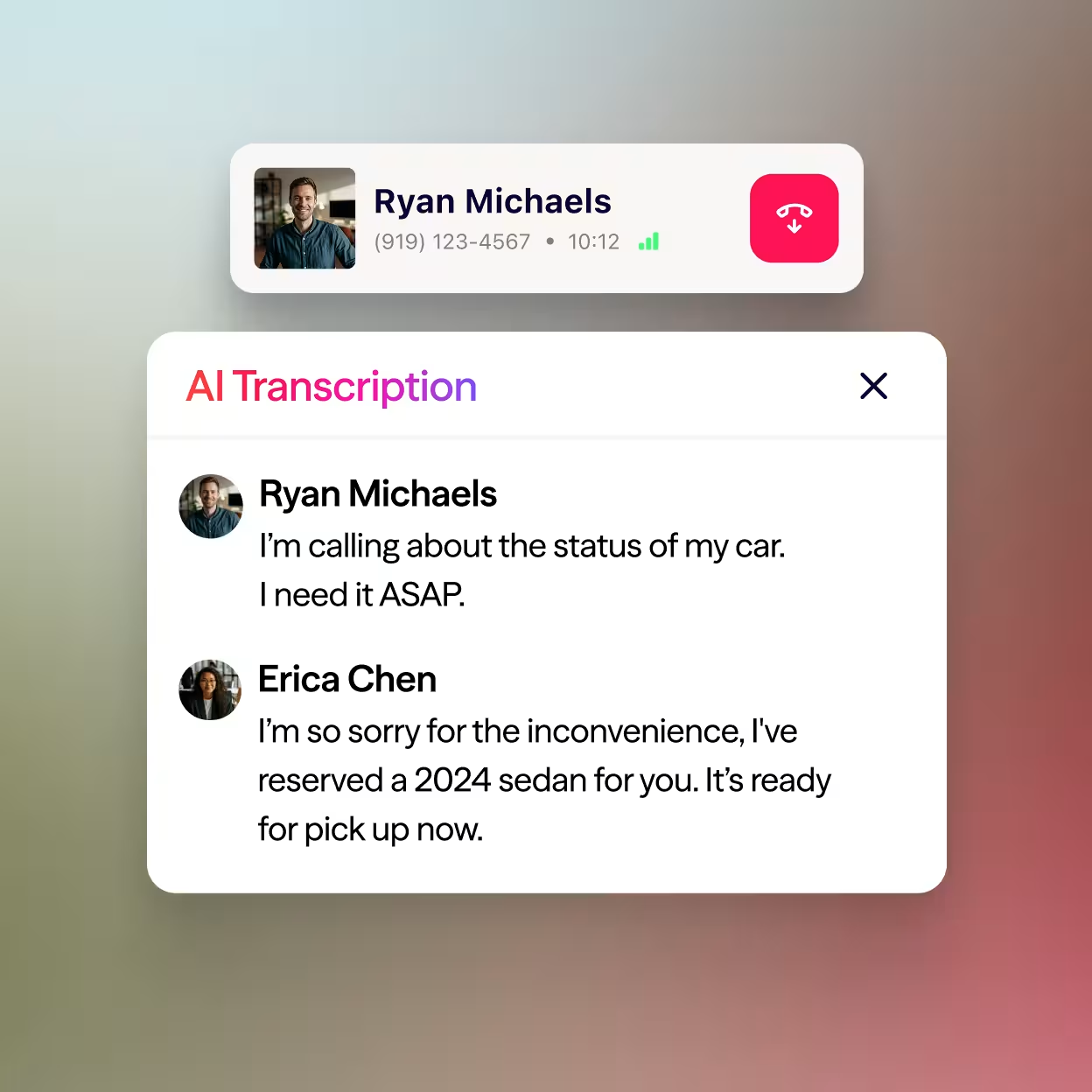
Dialpad's AI-powered transcription generates searchable transcripts of every call. When these transcripts log to HubSpot, sales managers can review recordings and transcripts from the deal record, spot coaching opportunities, and track whether reps follow prescribed talk tracks. Scattered call data becomes a structured coaching resource attached to the deals it influences.
Source: Dialpad
Best integration method: Native Dialpad-HubSpot integration.
4. Triggering HubSpot Workflows from Call Outcomes
A sales team wants to create a follow-up task in HubSpot when a Dialpad call exceeds five minutes (indicating a substantive conversation), or move a deal to the next pipeline stage when a call is marked "positive outcome." Zapier bridges this gap by triggering HubSpot workflow actions based on specific Dialpad call events and properties that the native integration logs but does not act on.
Best integration method: Zapier (extending the native integration with event-driven workflow automation).
5. Contact Center Ticket Creation from Support Calls
Support teams using Dialpad Support receive customer calls that need to become HubSpot Service Hub tickets. A custom API integration can listen for Dialpad call events tagged with support-specific metadata (queue name, wait time, call disposition), create HubSpot tickets with the call recording and transcription attached, and route them to the right support pipeline based on the customer's account tier in HubSpot.
Best integration method: Custom API integration (for complex routing logic and custom object creation).
Limitations and Considerations
Plan-Tier Gating on Dialpad
The native HubSpot integration requires Dialpad's Pro plan at minimum ($25/user/month billed annually, or $35/user/month billed monthly). Teams on the Standard plan ($15/user/month) cannot access CRM integrations, including HubSpot. Smaller teams that want CRM-connected calling but sit on Dialpad's entry-level tier face a cost jump.
Depth of AI Feature Sync
Dialpad generates several AI outputs: real-time transcriptions, AI Recaps, sentiment analysis, custom moments, and AI coaching suggestions. The native HubSpot integration logs call recordings and transcriptions, but not all AI-derived insights (sentiment scores, coaching card triggers, custom moment detections) flow into HubSpot as structured data. Teams that want to act on these signals inside HubSpot may need Zapier or a custom API integration to bridge the gap.
Contact Matching Relies on Phone Numbers
The native integration matches Dialpad callers to HubSpot contacts by phone number. If a contact's phone number is missing, outdated, or formatted differently across the two systems, the match fails and the call activity either goes unlogged or creates a duplicate record. Consistent phone number formatting across both platforms is a prerequisite for reliable matching.
One-Directional Activity Flow
The integration surfaces HubSpot contact data inside Dialpad for context during calls, but the primary data flow runs from Dialpad to HubSpot (call logs, recordings, transcriptions). Changes to contact records in HubSpot (updated phone numbers, new email addresses, lifecycle stage changes) do not automatically update Dialpad's internal records. Treat HubSpot as the system of record and use the integration to enrich it with call data, not as a bidirectional sync between two equal databases.
API Rate Limits on Both Sides
Both platforms impose rate limits that affect custom integrations. Dialpad enforces 20 requests/second per company with stricter per-endpoint limits (e.g., 5 initiated calls/minute per user, 100 SMS/minute). HubSpot enforces 100-190 requests per 10 seconds for private apps depending on plan tier, with daily limits of 250,000 to 1,000,000 requests. High-volume contact centers may need throttling and batching to stay within these limits.
Maintenance
Both platforms evolve independently. Dialpad ships updates on the first Thursday of every month and maintains an API changelog. HubSpot versions its API with date-based releases twice per year, supporting each version for at least 18 months. Custom integrations require periodic reviews to stay compatible. Even the native integration may need reconfiguration after major platform updates.
What No Method Fixes: The Data Itself
Every method above moves call activity from Dialpad into HubSpot and surfaces HubSpot context inside Dialpad. None checks whether the contact records in either system are accurate, current, or complete.
A rep calls a number disconnected two months ago. A prospect who changed companies still sits in the pipeline under the old account. A contact record missing a direct dial means the rep never reaches the decision-maker through Dialpad in the first place. The integration faithfully logs calls to records that may have been wrong before the phone ever rang.
Where ZoomInfo Fits In
Every method in this guide moves call data between Dialpad and HubSpot and surfaces CRM context during calls. None improves the contact data that determines whether a Dialpad call reaches the right person or whether the HubSpot record the call logs to is accurate.
When the integration is live but outbound calls go unanswered because the direct dial is dead, the prospect left the company a quarter ago, or the contact record is missing the decision-maker, the bottleneck is no longer the connector.
That is the gap ZoomInfo closes.
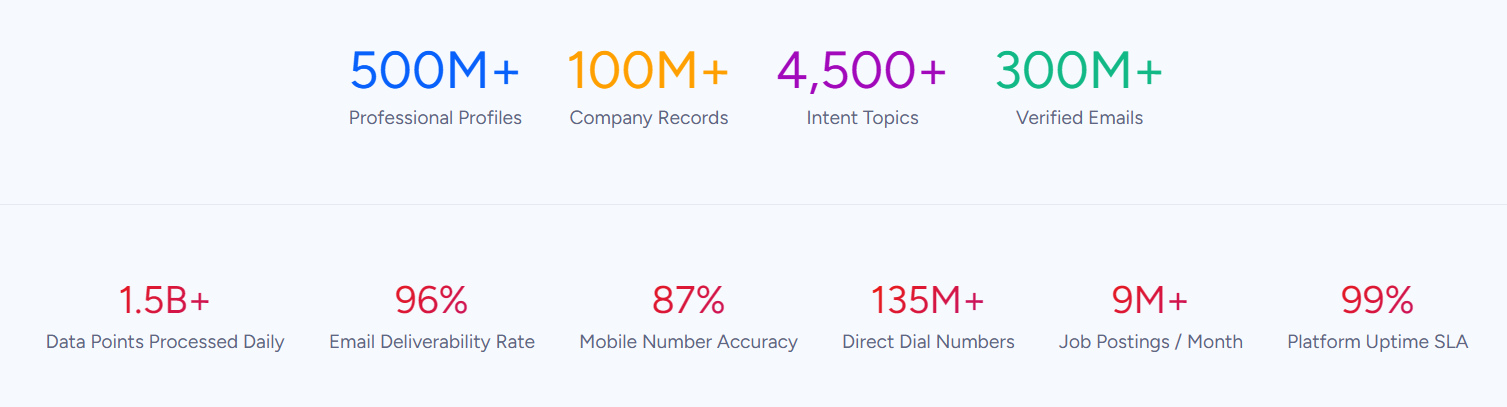
ZoomInfo is a B2B data and go-to-market platform covering 500M contacts, 100M companies, 135M+ verified phone numbers, and 200M+ verified business email addresses. That data is verified through a multi-source process backed by 300+ human researchers, reaching up to 95% accuracy on first-party data. For teams running Dialpad calls through HubSpot, ZoomInfo addresses the data quality layer that no call-logging connector handles.
Source: ZoomInfo
ZoomInfo integrates natively with HubSpot through its marketplace, providing CRM enrichment, automated lead enrichment, and bidirectional data sync. Before a rep picks up the phone in Dialpad, ZoomInfo ensures the HubSpot contact record has a verified direct dial (so the call connects), an accurate job title (so the conversation is relevant), and current company details (so the rep is not pitching someone who left).
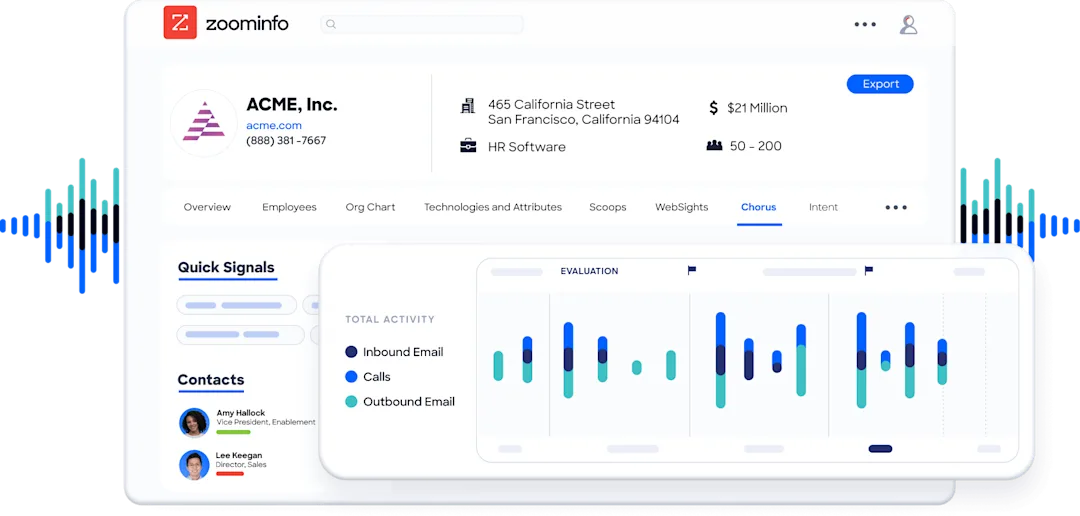
ZoomInfo also connects to Dialpad through its Chorus conversation intelligence platform, which imports Dialpad calls for analysis with transcription, theme detection, and AI insights.
Source: ZoomInfo
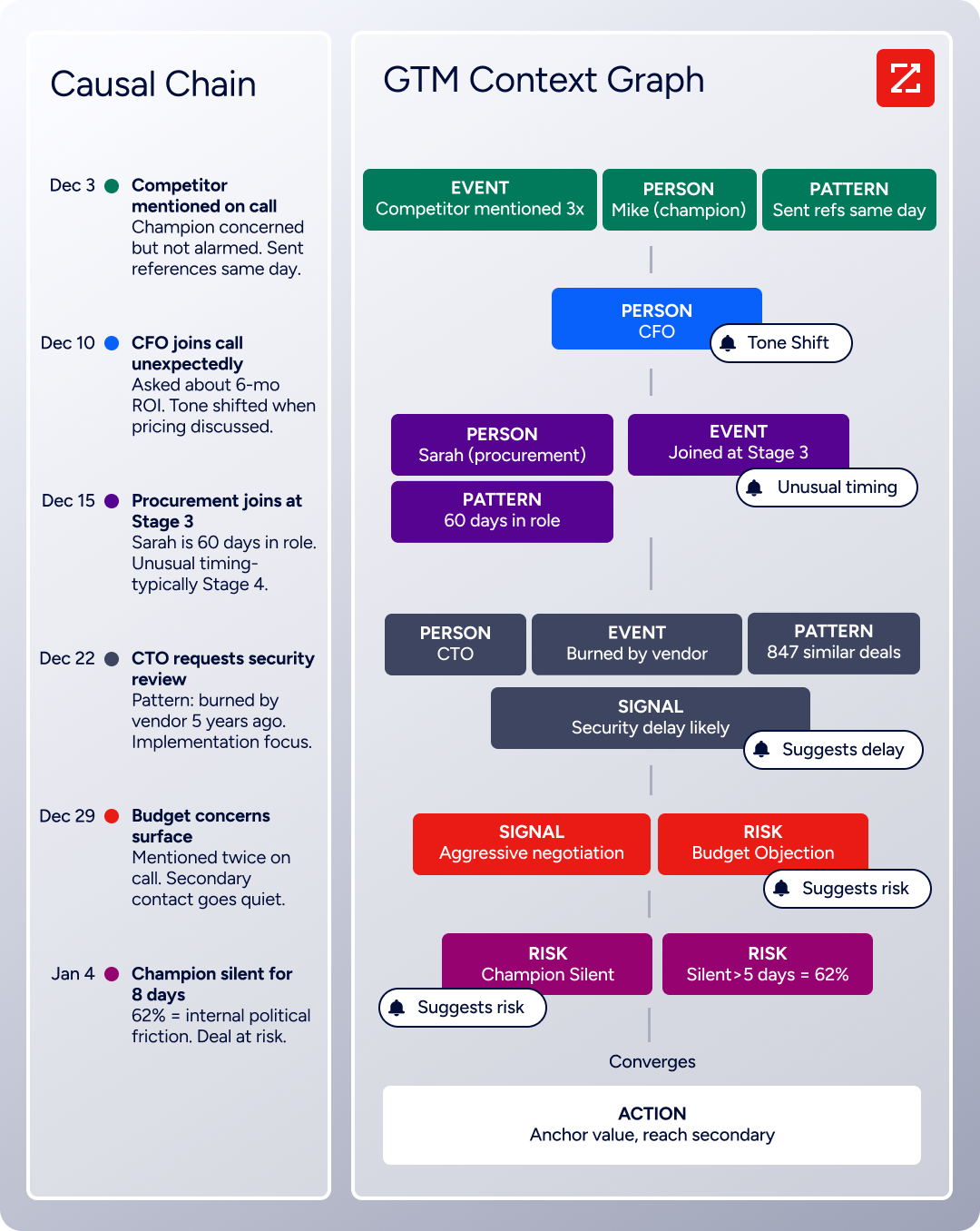
The same data feeds ZoomInfo's GTM Context Graph, which processes 1.5B+ data points daily and combines ZoomInfo's B2B data with your CRM records, conversation transcripts, and behavioral signals to surface not just what happened in a deal, but why.
Buyer Intent data from ZoomInfo, tracking signals from 210 million IP-to-Organization pairings, can prioritize which contacts receive outbound calls through Dialpad, so reps spend talk time on prospects actively researching relevant solutions rather than cold-calling a stale list.
Source: ZoomInfo
In practice, a team using Dialpad for calling and HubSpot as their CRM can use ZoomInfo to enrich HubSpot records with verified direct dials, business emails, company data, and technographic profiles before any outbound campaign begins.
Enriched records mean Dialpad calls connect to real, reachable people. Accurate titles and org charts mean reps can target the right stakeholders. When call activity from Dialpad logs to HubSpot, it attaches to records that are complete and current, so conversation data connects to a correctly identified buyer. Without that data quality layer, call logs sit on stale records, and the insight becomes noise.
Seismic's sales team attributed 39% of active pipeline to opportunities identified or influenced by ZoomInfo signals, while boosting productivity by 54% and saving 11.5 hours per week. (Seismic)
Final Verdict
A native Dialpad-HubSpot integration exists and covers the core use case well: automatic call logging, recordings, transcriptions, and CRM context during calls. Zapier extends the native connector with event-driven workflow automation. Custom API development handles edge cases neither method covers.
For most teams, the right choice depends on how deeply call data and CRM workflows need to interact.
Sales teams on Dialpad Pro or above that use HubSpot as their primary CRM should activate the native integration now. It handles call logging, recording sync, and contact context display with no third-party tool or engineering resources, and it eliminates the manual data entry that kills CRM adoption.
Teams that need to trigger specific HubSpot workflows from call events (deal stage changes, task creation, ticket routing) should layer Zapier on top of the native integration for those automations.
Organizations with complex requirements (custom object sync, advanced routing logic, contact center integrations with HubSpot Service Hub) should invest in a custom API integration using both platforms' REST APIs and webhook systems.
Before investing in the integration, clarify what signal you need from it.
If the goal is ensuring every call is logged and every rep has CRM context when the phone rings, the native integration delivers that out of the box. If the goal is using call analytics (sentiment, keywords, duration) to drive CRM workflows, Zapier or a custom build is necessary. Either way, the quality of contact data in HubSpot determines whether calls reach the right people.
ZoomInfo, with its native HubSpot integration, Dialpad connection through Chorus, and API and MCP access, is the data enrichment layer that ensures reps call contacts who are verified, current, and reachable.
FAQ
Does Dialpad integrate natively with HubSpot?
Yes. Dialpad offers a native HubSpot integration through both Dialpad's App Marketplace and HubSpot's App Marketplace. It enables click-to-call from HubSpot, automatic call logging (including recordings and AI transcriptions), and HubSpot contact context display inside Dialpad during calls. It requires Dialpad's Pro plan or above.
Can I use the Dialpad-HubSpot integration on Dialpad's Standard plan?
No. CRM integrations, including HubSpot, require Dialpad's Pro plan ($25/user/month billed annually) or higher. The Standard plan ($15/user/month) includes core calling features and Google Workspace integration, but Salesforce, HubSpot, and other CRM integrations are not available at that tier.
What call data syncs from Dialpad to HubSpot?
The native integration logs inbound and outbound call activity, call duration, recordings, voicemails, AI-generated transcriptions, and SMS messages to HubSpot contact timelines. It matches calls to HubSpot contacts by phone number. If no matching contact exists, you can configure the integration to create a new contact or skip the record.
Does HubSpot data flow back into Dialpad?
Partially. HubSpot contact and company details (name, company, deal stage, recent interactions) surface inside Dialpad's calling interface during live calls, giving reps CRM context without switching screens. This is a read-only display; changes to HubSpot contact records do not automatically update Dialpad's internal contact database.
Can I connect Dialpad and HubSpot through Zapier?
Yes. Zapier supports both Dialpad and HubSpot as connector apps. It is most useful for extending the native integration with event-driven workflows the native connector does not handle, such as triggering HubSpot deal stage changes from specific Dialpad call outcomes or creating HubSpot tasks from voicemail events. It does not replace the native integration's call-logging and contact-context functionality.
What permissions are needed to set up the integration?
On the Dialpad side, you need admin access to configure the HubSpot integration in Dialpad's admin settings. On the HubSpot side, you need permissions to install apps from the HubSpot App Marketplace and grant OAuth access to Dialpad. If your HubSpot account uses field-level security or custom permissions, make sure the connected user has write access to the objects and fields where call activity will log.
How does ZoomInfo improve a Dialpad-HubSpot workflow?
ZoomInfo solves the data quality problem upstream of the calling workflow.
Before a rep makes an outbound call through Dialpad, ZoomInfo ensures the HubSpot contact record has a verified direct dial (so the call connects), an accurate job title (so the conversation is relevant), and current employment details (so the rep is not calling someone who left). ZoomInfo's native HubSpot integration handles enrichment automatically, its Chorus platform connects to Dialpad for conversation intelligence, and its Buyer Intent data can prioritize which contacts receive outbound calls based on active research signals.
The result: Dialpad calls reach the right people, and the activity data that flows back into HubSpot connects to accurate, actionable records.
Does the native integration support Dialpad's contact center features?
The native HubSpot integration covers Dialpad Connect (business communications) and Dialpad Sell (sales dialer). For teams using Dialpad Support (contact center), the depth of integration with HubSpot Service Hub depends on configuration and plan tier. Complex contact center workflows (skill-based ticket routing, queue-specific logging, SLA-triggered escalations) may require a custom API integration or Zapier automation layered on top of the native connector.
See what else plugs into HubSpot:
