
Teams that run Google Forms for data collection and HubSpot as their CRM usually hit the same problems within a quarter:
form submissions pile up in Google Sheets while the CRM stays empty, forcing someone to copy-paste leads by hand,
contacts created from form responses arrive in HubSpot with only the fields the respondent filled in, leaving records incomplete,
and by the time a sales rep sees a new lead, the prospect has already moved on to a competitor who responded faster.
However, the two platforms ended up coexisting (a marketing team using Google Forms for its simplicity and zero cost while sales runs on HubSpot, or an ops team collecting internal data through Forms while customer records live in the CRM), the longer both run independently, the wider the gap between data collection and action.
Connecting Google Forms and HubSpot eliminates that gap.
Form submissions flow into HubSpot as new contacts or updated properties, so leads enter the CRM the moment they hit submit. HubSpot workflows can trigger nurture sequences, assign owners, and create deals based on form responses, shrinking the time between submission and follow-up from hours to seconds. Marketing teams get closed-loop reporting on which forms generate pipeline, because the data lives in the same system that tracks deals.
There is no native, first-party integration between Google Forms and HubSpot. Google has not built a direct connector to HubSpot, and HubSpot does not ship a native Google Forms integration. Teams connecting them choose between third-party marketplace apps (such as Form to HubSpot), automation platforms like Zapier, or custom development using the Google Forms API and HubSpot API. Each method differs in setup complexity, sync direction, data coverage, and cost.
There is also one problem no connection method solves: the integration delivers form responses into HubSpot, but it does not verify, complete, or enrich the data the respondent submitted.
That is where ZoomInfo comes in. ZoomInfo integrates natively with HubSpot through multiple connectors (including Inbound Enrich, which enriches new contacts in real time), and its Enterprise API and MCP server can feed verified, enriched data into any workflow. Form submissions that arrive with only a name and email leave the CRM with verified phone numbers, job titles, company data, and intent signals attached.
This article covers the full landscape of the Google Forms-HubSpot integration: which methods exist, what data each one handles, how to set them up, the use cases that justify connecting both platforms, and the limitations to plan for. It also covers how ZoomInfo fits in as an enrichment layer that turns thin form submissions into complete, actionable CRM records.
Let's start with an overview of the integration.
Integration Overview
Does a native integration exist?
No. Google Forms does not include a built-in HubSpot connector, and HubSpot does not ship a native Google Forms integration. Google Forms' only first-party data destination is Google Sheets. Every integration method requires a third-party app, an automation platform, or custom development.
What data can sync?
Form response fields (name, email, phone, company, and any custom question responses) can map to HubSpot contact properties, creating new contacts or updating existing ones on each submission. Which fields sync depends on the questions in the form and the field mapping configured in the integration tool.
Is the sync bidirectional?
No. Data flows one direction: Google Forms to HubSpot. Form submissions push into HubSpot as contact records or property updates. HubSpot data does not flow back into Google Forms, and there is no mechanism to update a form response based on CRM changes.
Is it real-time or batch?
Third-party marketplace apps and Zapier both operate in near real-time, processing submissions within seconds to minutes of form completion. Custom API integrations using Google Forms' Cloud Pub/Sub push notifications can achieve near real-time sync as well.
What are the available methods?
Third-party marketplace apps (Form to HubSpot), automation platforms (Zapier, Make), and custom API development using the Google Forms API and HubSpot API.
Method | Setup Difficulty | Data Flow | Real-time? | Cost |
|---|---|---|---|---|
Form to HubSpot (marketplace app) | Low | Google Forms to HubSpot | Near real-time | Free tier available; paid from $9.99/mo |
Zapier | Low-Medium | One-way per Zap | Near real-time (1-15 min) | From $19.99/mo |
Make (Integromat) | Medium | Configurable per scenario | Near real-time or scheduled | From $10.59/mo |
Custom API | High | Custom | Near real-time via Pub/Sub | Developer time + hosting |
One distinction worth settling upfront: marketplace apps and Zapier sync new submissions as they arrive. Custom API development is the only method that handles both ongoing sync and historical data migration (pulling past responses from the Google Forms API and pushing them into HubSpot in bulk).
Integration Methods
Form to HubSpot (Marketplace App)
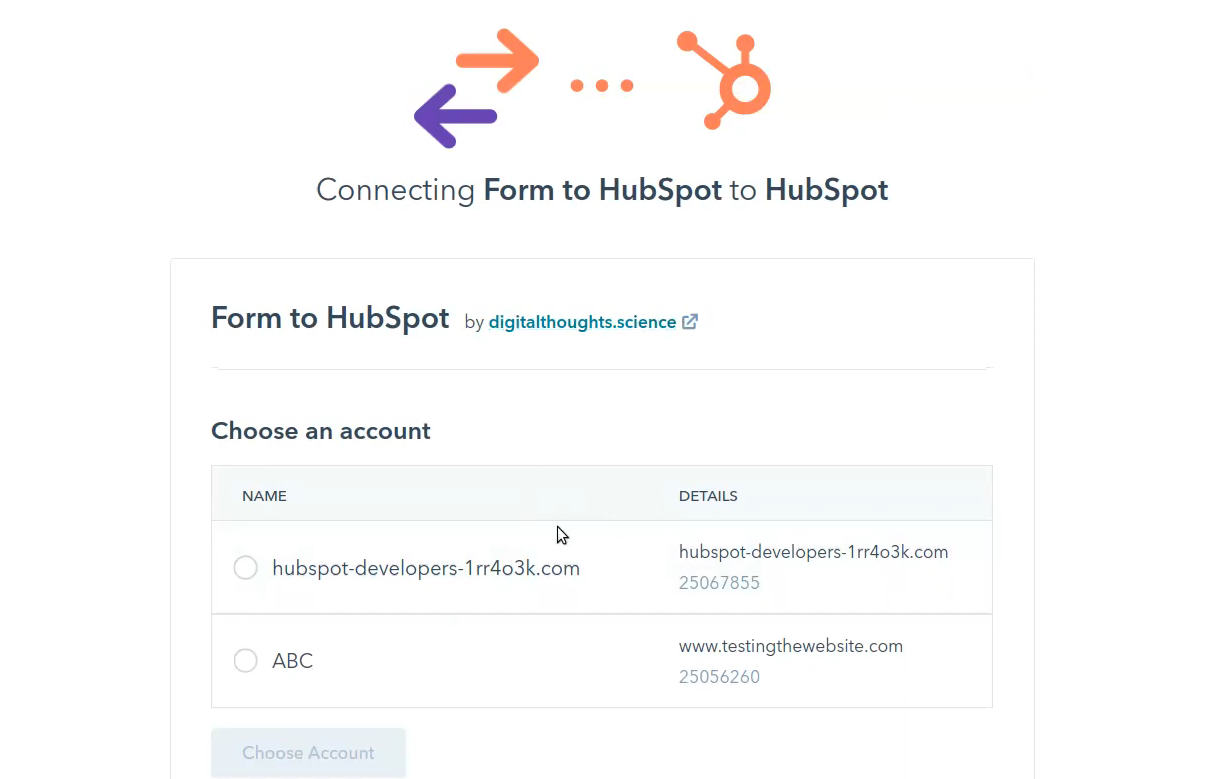
How it works: Form to HubSpot is a connector built by Digital Thoughts, available on both the HubSpot Marketplace and the Google Workspace Marketplace. It connects a Google Form to a HubSpot account so each new submission creates or updates a contact in HubSpot. The app handles authentication, field mapping, and data transfer without code or a third-party automation platform.
Source: Google Workspace
What it syncs: All form response fields can map to HubSpot contact properties. The app supports standard fields (name, email, phone, company) and custom fields. Each Google Forms question maps to a corresponding HubSpot contact property through the app's settings interface.
Fits: ongoing sync of new form submissions; not a migration tool for historical responses.
Setup process:
Install the Form to HubSpot app from either the HubSpot Marketplace or the Google Workspace Marketplace. Authorize the app to access both your Google Forms account and your HubSpot portal.
Open the Google Form you want to connect and launch the Form to HubSpot add-on from the Extensions menu.
Select your HubSpot portal and choose whether new submissions should create new contacts, update existing contacts (matched by email), or both.
Map each Google Forms question to the corresponding HubSpot contact property. The email field must be mapped, as it serves as the unique identifier for contact matching.
Test the connection by submitting a test response and verifying the contact appears (or updates) in HubSpot.
Activate the integration. Every new form submission will push data to HubSpot.
Strengths: Built for this exact use case, so setup is faster than configuring a general-purpose automation tool. Available on both marketplaces. No coding required. The free tier covers basic use cases.
Limitations: Limited to the Google Forms-to-HubSpot direction. Does not support syncing to other HubSpot objects (deals, tickets, companies) beyond contacts. Conditional field mapping and data transformation are more limited than general-purpose automation platforms. The app's feature set and reliability depend on a third-party developer (Digital Thoughts), not Google or HubSpot.
Best for: Teams that need a fast, simple connection between a specific Google Form and HubSpot without configuring a broader automation platform. Marketing teams running lead capture forms, event registration forms, or feedback surveys in Google Forms that need responses flowing into HubSpot automatically.
Zapier
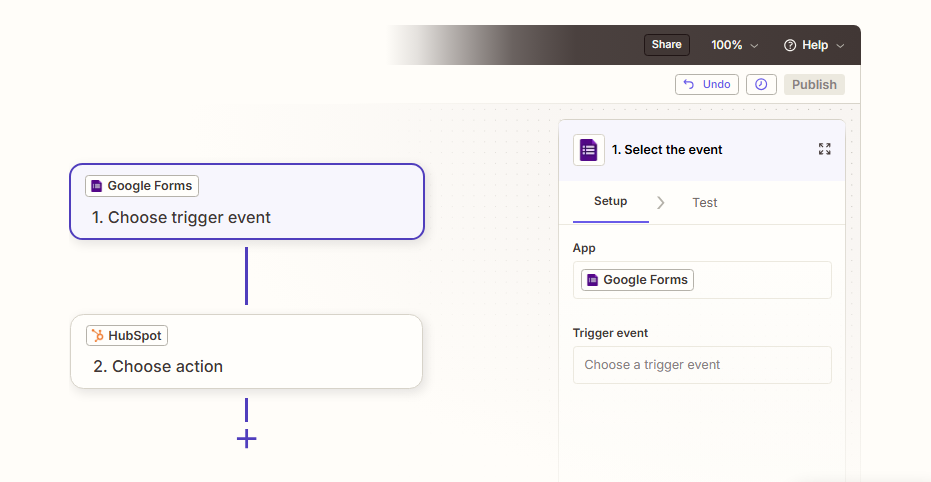
How it works: Zapier connects Google Forms and HubSpot through event-driven automations called Zaps.
Each Zap pairs a trigger (a new or updated form response in Google Forms) with one or more actions (creating or updating a contact in HubSpot, adding a contact to a list, creating a deal, or triggering a workflow). Both platforms are well-supported Zapier connectors with broad trigger and action coverage.
Source: Zapier
What it syncs: Any field from a Google Forms response can map to any HubSpot contact, company, or deal property. Zapier supports multi-step Zaps, so a single form submission can create a contact, associate it with a company, and create a deal in one flow. Custom fields on both sides can be mapped manually in the Zap setup.
Fits: ongoing sync of new submissions; not a migration tool for historical responses.
Setup process:
Create a Zapier account and connect both your Google account (for Google Forms access) and your HubSpot account using OAuth.
Create a new Zap. Choose Google Forms as the trigger app and select "New Response in Spreadsheet" or "New Form Response" as the trigger event.
Select the specific Google Form you want to connect.
Choose HubSpot as the action app and select the action (e.g., "Create or Update Contact," "Create Deal," or "Add Contact to List").
Map the form response fields to HubSpot properties. Zapier displays all available fields from the trigger and lets you place them into the action fields. Use the email field as the deduplication key when choosing "Create or Update Contact."
Test the Zap with a sample response, verify the data appears correctly in HubSpot, then turn the Zap on.
Strengths: Mature platform with a large template library for Google Forms-HubSpot workflows. Multi-step Zaps let one form submission trigger multiple HubSpot actions (create contact, add to list, create deal). Filter and formatter steps enable conditional logic and data transformation. No engineering resources required.
Limitations: Each Zap handles one trigger-action chain, so complex workflows with multiple independent form-to-HubSpot flows require multiple Zaps (each counting against the plan's task allocation). Historical form responses submitted before the Zap was activated do not sync. Zapier charges by task count: each form submission processed counts as a task, and high-volume forms can accumulate costs. The Google Forms trigger relies on responses being linked to a Google Sheet, which is the default behavior but must be confirmed.
Best for: Teams that need more flexibility than a dedicated marketplace app, such as conditional routing of form responses to different HubSpot lists or deal pipelines based on specific answers. Teams already using Zapier for other integrations who want to consolidate their Google Forms-HubSpot connection into the same platform.
Make (Formerly Integromat)
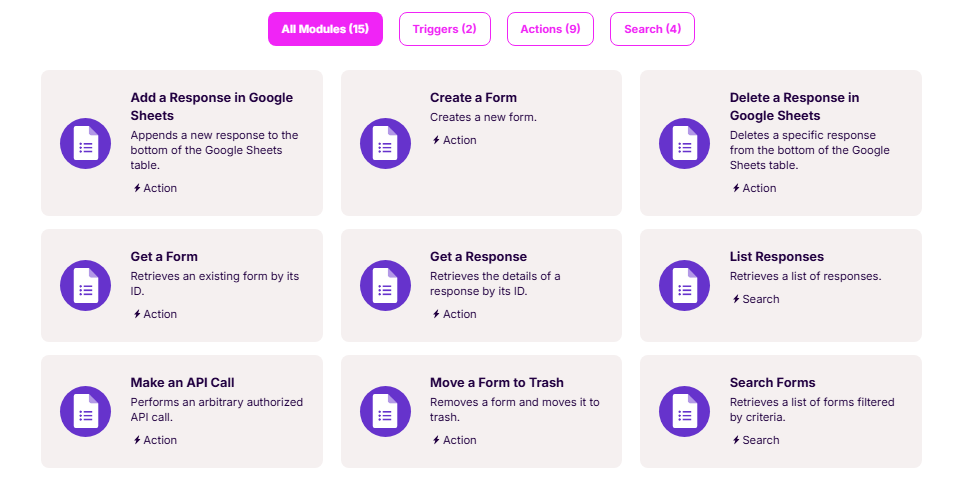
How it works: Make connects Google Forms and HubSpot through visual scenarios where modules (app actions) connect in a flowchart.
Each module represents a step: watch for a new form response, transform or filter data, create or update a HubSpot record. Scenarios can branch, loop, and handle errors, giving more control over data transformation than Zapier's linear structure.
Source: Make
What it syncs: The same data as Zapier (form response fields mapped to HubSpot contact, company, or deal properties), with more flexibility in how data is transformed between platforms. Make supports iterators for processing multi-value fields, routers for conditional paths, and text/number parsers for reformatting data before it reaches HubSpot.
Fits: ongoing sync with conditional logic or data transformation needs; not a migration tool.
Setup process:
Create a Make account and add Google Forms and HubSpot as connections via OAuth.
Build a new scenario. Add a Google Forms module as the trigger (e.g., "Watch Responses").
Add a HubSpot CRM module as the action (e.g., "Create or Update a Contact").
Connect the two modules and map fields. Use Make's built-in functions to transform data between platforms (e.g., splitting a "Full Name" field from Google Forms into separate "First Name" and "Last Name" properties in HubSpot).
Add error-handling modules to catch failures (e.g., log errors to a spreadsheet or send a Slack notification if a submission fails to create a contact).
Set the scenario to run on every trigger event or on a scheduled interval, then activate it.
Strengths: Fine-grained control over data transformation and conditional routing. The visual builder makes complex workflows easier to follow than code. Per-operation pricing is lower than Zapier at higher volumes. Error handling and retry logic are built into the scenario builder.
Limitations: Steeper learning curve than Zapier's guided setup. The Google Forms module in Make may require the form to be linked to a Google Sheet for reliable triggering. Both the Google Forms API and HubSpot API impose rate limits that high-volume scenarios must respect.
Best for: Teams with data transformation requirements (e.g., parsing multi-select checkbox responses into separate HubSpot properties, or routing form submissions to different HubSpot pipelines based on answers). Mid-size teams whose form volume makes Zapier's per-task pricing expensive.
Custom API Integration
How it works: Both Google Forms and HubSpot provide APIs that can connect through custom middleware.
The Google Forms REST API (v1) supports reading form structure and responses, with Cloud Pub/Sub push notifications that fire when new responses arrive. HubSpot's CRM API supports creating and updating contacts, companies, deals, and custom objects. A custom integration connects these APIs directly, with your server handling authentication, field mapping, data transformation, and error recovery.
What it syncs: Anything both APIs expose. This is the only method that can pull historical form responses (via the Google Forms API's responses.list endpoint), handle complex data transformations, enforce custom business rules, or write to HubSpot objects beyond contacts (custom objects, deals with specific pipeline assignments, tickets).
Fits: both one-time migration of historical responses and ongoing real-time sync; the only method with no ceiling on either.
Setup process:
Register API credentials on both sides: configure an OAuth consent screen in Google Cloud Console for the Google Forms API, and create a private app in HubSpot with the necessary CRM scopes.
Set up a Cloud Pub/Sub topic and create a Google Forms watch subscription using the forms.watches.create endpoint to receive notifications when new responses arrive. Grant the Forms notifications service account publish permission on the topic.
Build a server-side application that listens for Pub/Sub notifications, fetches the new response from the Google Forms API, transforms the data to match HubSpot's property schema, and writes the contact (or other object) to HubSpot via the CRM API.
Implement deduplication logic using email as the matching key and HubSpot's search or upsert capabilities to avoid creating duplicate contacts.
Add logging, error handling, and retry logic. Google Forms API rate limits cap at 975 read requests per minute per project; HubSpot's private app limits are 100-190 requests per 10 seconds depending on plan tier.
Deploy, monitor, and maintain. Google Forms watches expire after 7 days and must be renewed programmatically before expiry.
Strengths: Full control over what data syncs, when, and how. Near real-time sync via Cloud Pub/Sub. Can handle complex business logic (scoring form responses, routing to different HubSpot objects based on answers, enriching data mid-flow). Can migrate historical responses, not just new ones. No per-record fees from a third-party connector.
Limitations: Requires development resources to build and maintain. Google Forms watches expire every 7 days and must be renewed, adding operational complexity. The Google Forms API does not expose the form's visual structure in a way that makes automatic field mapping easy; the developer must manually map question IDs to HubSpot properties. API changes on either side require ongoing maintenance.
Best for: Teams with technical requirements that no off-the-shelf tool can satisfy, such as writing form responses to HubSpot custom objects, enforcing complex routing logic, or migrating thousands of historical form responses into the CRM. Organizations with in-house development resources and a long-term commitment to the Google Forms-HubSpot workflow.
Key Use Cases
1. Lead Capture from Landing Page Forms
Marketing teams embed Google Forms on landing pages or share them in email campaigns to capture prospect information. A Zapier Zap or Form to HubSpot connection pushes each submission into HubSpot as a new contact, triggering a nurture email sequence or assigning the lead to a sales rep based on form responses. The sales team sees the new lead in their pipeline within minutes instead of waiting for someone to transfer it from a spreadsheet.
Best integration method: Form to HubSpot marketplace app or Zapier (one-directional, event-triggered).
2. Event Registration with CRM Tracking
Event coordinators collect registrations through Google Forms (using its free tier and simple setup), then sync registrant data to HubSpot so marketing can segment attendees, send pre-event communications through HubSpot's email tools, and track which registrants became customers. A Make scenario can route registrations to different HubSpot lists based on the session or ticket type selected.
Best integration method: Zapier or Make (one-directional with conditional routing based on form answers).
3. Customer Feedback Flowing into Service Records
Customer success teams send post-interaction satisfaction surveys through Google Forms. Responses sync to HubSpot and update the corresponding contact's properties (satisfaction score, feedback notes). If a response indicates dissatisfaction (e.g., a rating below 3), a HubSpot workflow creates a service ticket and alerts the account owner. The feedback data lives alongside the full customer record rather than sitting in an isolated spreadsheet.
Best integration method: Zapier or Make (one-directional with conditional logic to trigger HubSpot workflows based on response values).
4. Internal Data Collection Feeding CRM Operations
Operations teams use Google Forms for internal processes (partner onboarding questionnaires, vendor intake forms, internal request forms) where the collected data needs to update or create records in HubSpot. A custom API integration can parse complex form responses, apply validation rules, and write to HubSpot custom objects that marketplace apps and Zapier do not support.
Best integration method: Custom API (one-directional with complex data transformation and custom object support).
5. Multi-Step Qualification Forms
Sales teams use Google Forms as lightweight qualification questionnaires sent to inbound leads. Based on the responses (company size, budget, timeline), a Zapier Zap or Make scenario scores the lead and updates the HubSpot contact with qualification data, moves the lead to the appropriate pipeline stage, and notifies the assigned rep. This replaces manual qualification calls for initial screening.
Best integration method: Zapier or Make (one-directional with multi-step logic: score, update properties, assign owner, notify).
Limitations and Considerations
Data That Doesn't Sync
Google Forms and HubSpot model data differently.
Google Forms stores responses as flat rows in a linked Google Sheet, with each question mapping to a column. HubSpot structures data across objects (contacts, companies, deals) with associations between them. Marketplace apps and Zapier typically write only to the contact object; creating associated company records, deals, or custom objects from a single form submission requires multi-step automation or custom development.
File uploads in Google Forms (which store files in the form owner's Google Drive) do not transfer to HubSpot. The integration passes text-based response data, not attached files. If a form collects resumes, documents, or images, those files remain in Google Drive and must be accessed separately.
No Bidirectional Sync
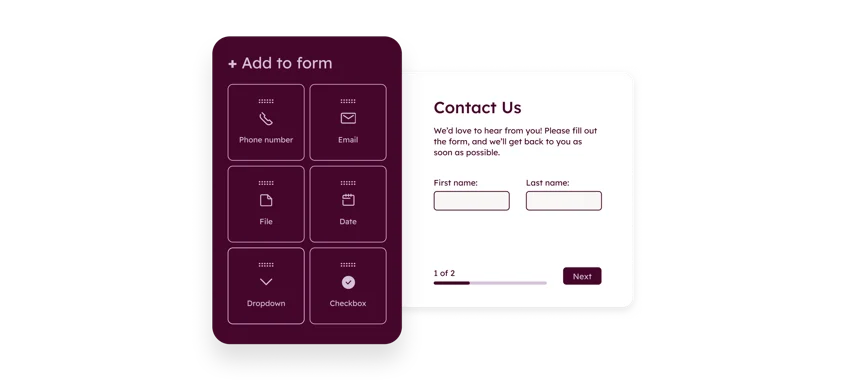
Every integration method flows one direction: Google Forms to HubSpot. There is no mechanism to push HubSpot data back into a Google Form response or update the linked Google Sheet based on CRM changes. Teams that need round-trip data flow between a form and CRM records should consider HubSpot's native form builder, which captures responses directly into the CRM with bidirectional support.
Source: HubSpot
Pricing Implications
Google Forms is free, but the integration layer carries costs. Zapier plans start at $19.99/month for 750 tasks, where each form submission counts as one task. Make starts at $10.59/month for 10,000 operations. The Form to HubSpot marketplace app offers a free tier, with paid plans from $9.99/month for higher volume or additional features. Custom API integrations have no per-submission fees but require developer time and ongoing hosting costs.
On the HubSpot side, the free CRM tier supports the integration (contacts can be created and updated via API or third-party apps at no extra charge), but automation features like workflows, lead scoring, and sequences require HubSpot Marketing Hub or Sales Hub at paid tiers.
Permissions and Access
Setting up the integration requires admin-level access on both sides.
In Google Forms, the user must own the form or have editor access to install add-ons and authorize third-party connections. In HubSpot, the user needs permissions to create contacts, manage integrations, and (for custom API builds) create private apps. If Google Forms are shared within a Google Workspace domain, access-control settings may restrict which external services can receive form data.
Maintenance
Google Forms watches (used by the API for push notifications) expire after 7 days and must be renewed programmatically. Marketplace apps and Zapier handle this internally, but custom API builds need explicit renewal logic.
New questions added to a Google Form after the integration is configured will not map to HubSpot properties automatically; the field mapping must be updated manually in whatever tool manages the connection. HubSpot and Google both update their APIs periodically, which may affect third-party connectors.
What No Method Fixes: The Data Itself
Every method above delivers form responses into HubSpot. None of them checks whether those responses are accurate, complete, or actionable.
A lead who fills in a personal email instead of a business email arrives in HubSpot without company context. A prospect who enters a generic job title like "Manager" gives the sales team nothing to work with for personalization. The integration moves whatever the respondent typed into the CRM, but it does not verify, correct, or enrich that data.
Where ZoomInfo Fits In
Every method in this guide moves form responses from Google Forms into HubSpot. None of them improves the data being moved. When the integration is live but sales reps are still working leads that have only a name and email (no phone number, no company data, no title verification, no buying signals), the bottleneck is no longer the connector.
That is the gap ZoomInfo closes.
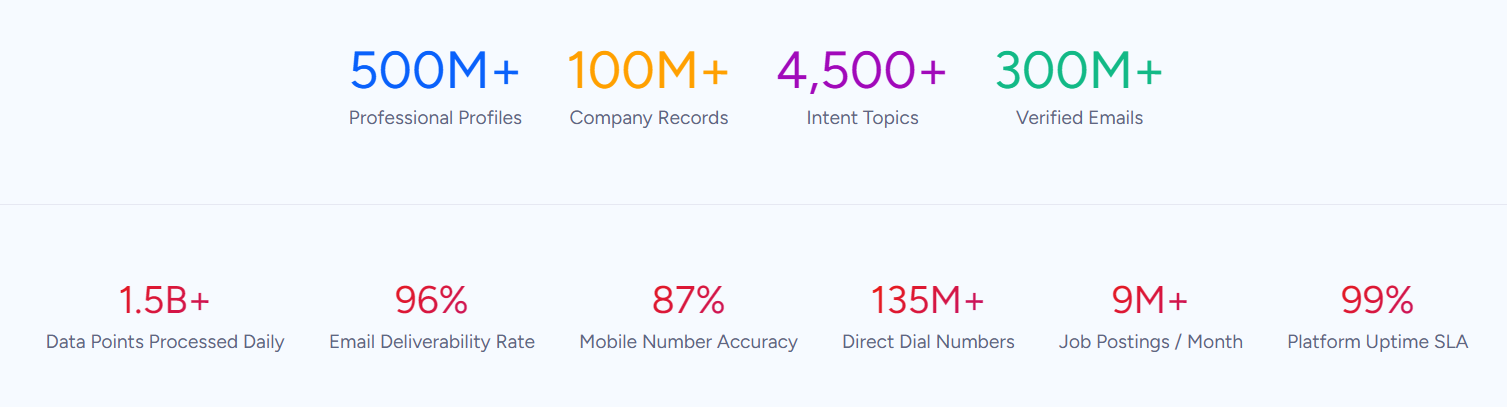
ZoomInfo is an AI-powered GTM platform built on B2B data covering 500M contacts, 100M companies, 135M+ verified phone numbers, and 200M+ verified business emails. That data is verified through a multi-source pipeline backed by 300+ human researchers and reaching up to 95% accuracy on first-party data. For teams routing Google Forms submissions into HubSpot, ZoomInfo handles the data quality layer that no form-to-CRM connector touches.
Source: ZoomInfo
ZoomInfo integrates natively with HubSpot through multiple connectors, including Inbound Enrich, which enriches new contacts as they enter the CRM. When a Google Forms submission creates a contact in HubSpot with only a name and email, ZoomInfo's enrichment layer appends verified direct-dial phone numbers, accurate job titles, company data, technographic profiles, and org chart context to that record in real time.
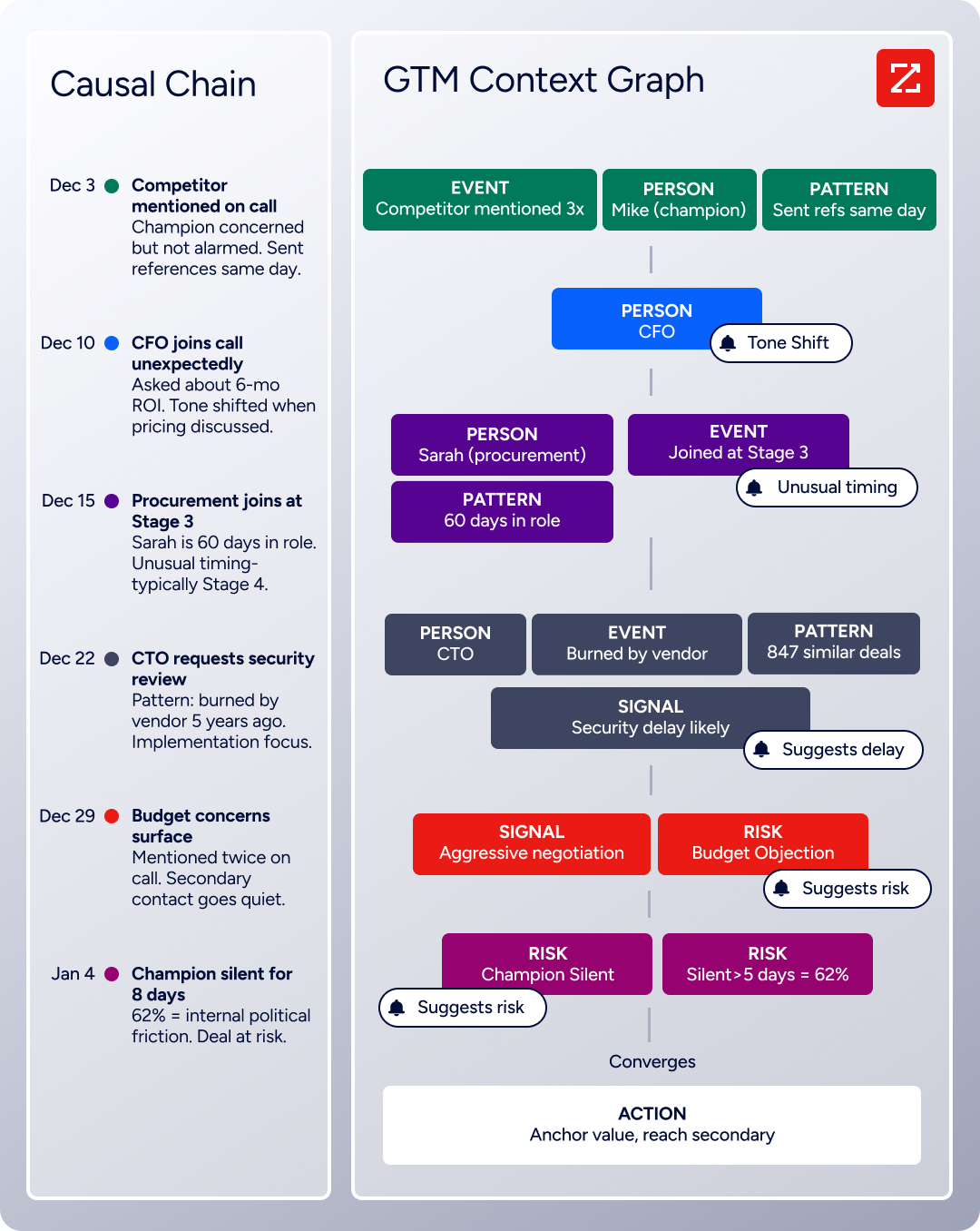
The same data feeds ZoomInfo's GTM Context Graph, which processes 1.5B+ data points daily by fusing ZoomInfo's B2B data with your CRM records, conversation transcripts, and behavioral signals to surface not just what happened in a deal, but why.
Source: ZoomInfo
In practice, a team running lead capture through Google Forms can use the integration to get form responses into HubSpot, then rely on ZoomInfo's native HubSpot enrichment to complete those records. A form submission that arrives with "Jane Smith, jane@acme.com" leaves the CRM with a verified phone number, the title "VP of Marketing," company revenue and headcount data, the technologies Acme runs, and whether the account is researching solutions in your category.
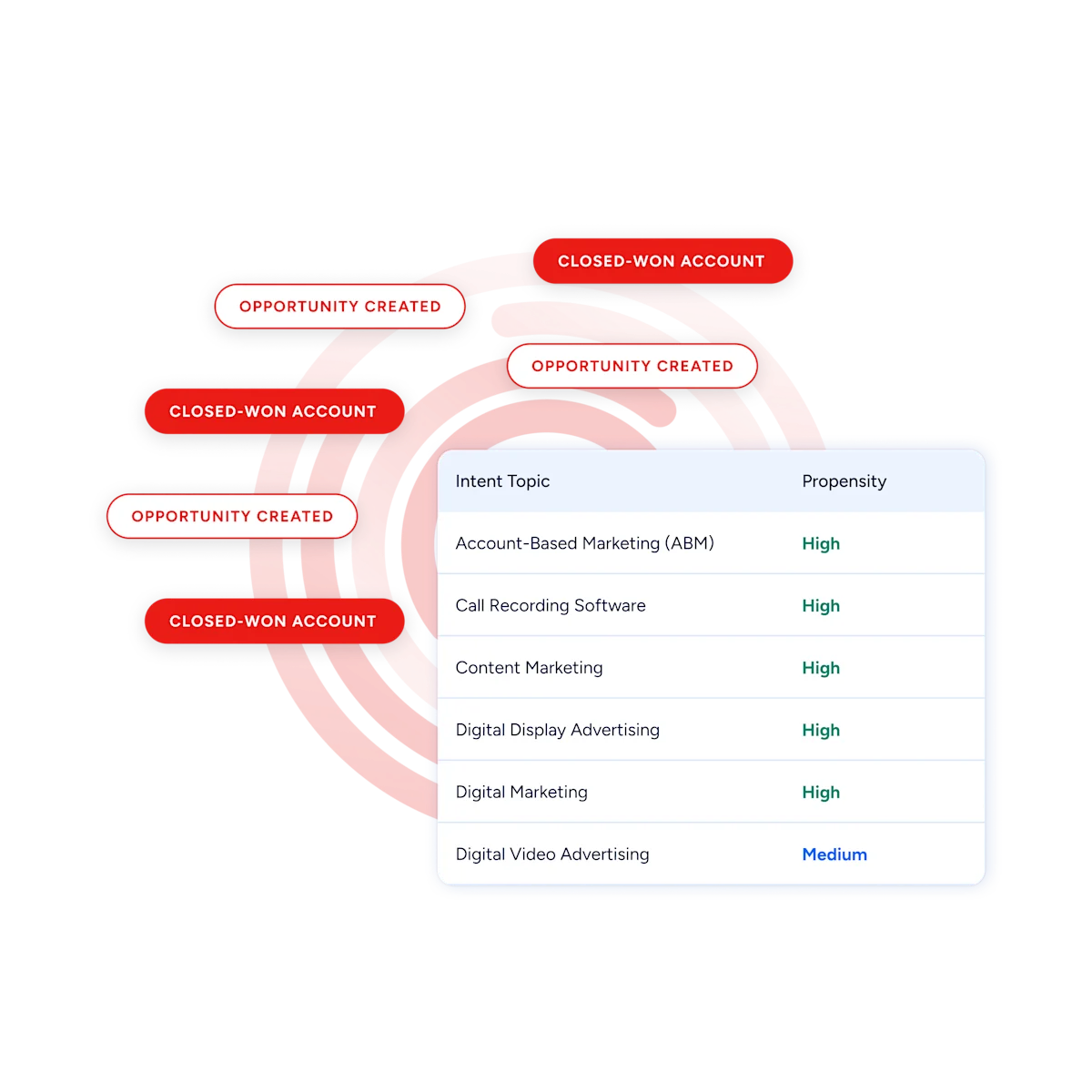
Buyer Intent data from ZoomInfo, tracking signals from 210 million IP-to-Organization pairings, can prioritize which form-submitted leads deserve immediate outreach versus standard nurture, so reps act on the leads most likely to convert rather than working the list in submission order.
Source: ZoomInfo
Enriched records also make downstream HubSpot automation more effective. Lead scoring rules that depend on company size, industry, or seniority work when those fields are populated. Workflow branching based on company criteria routes leads accurately. And deduplication logic catches existing contacts more reliably when records carry complete, standardized data rather than whatever shorthand the respondent typed into a form.
Seismic's sales team attributed 39% of active pipeline to opportunities identified or influenced by ZoomInfo signals, while becoming 54% more productive. (Seismic)
Final Verdict
There is no native integration between Google Forms and HubSpot. Every connection method runs through a third-party app, an automation platform, or custom development. For most teams, the right choice depends on form volume and how much logic the data needs between submission and CRM entry.
Small teams running a few lead capture or event registration forms should start with the Form to HubSpot marketplace app. It is the fastest setup, requires no automation platform, and handles the core use case (form submission creates or updates a HubSpot contact) with minimal configuration.
Teams that need conditional routing, multi-step workflows, or data transformation should use Zapier or Make. Both support filter logic, field formatting, and multi-action flows that a simple connector cannot handle.
Organizations with complex requirements (writing to HubSpot custom objects, migrating historical form responses, enforcing business rules during sync) should invest in a custom API integration using the Google Forms API and HubSpot CRM API.
Before committing to a method, clarify whether Google Forms is the right data collection tool for the long term.
If the team uses Google Forms because it is free and familiar but plans to grow into more sophisticated lead capture, HubSpot's native form builder eliminates the integration entirely by capturing responses directly into the CRM. If Google Forms is the right tool (internal data collection, surveys, quizzes, or use cases where the free tier and Google Workspace integration matter), any of the methods above will keep form data flowing into HubSpot reliably. Either way, the quality of the data behind each form submission determines whether reps can act on it.
ZoomInfo, with its native HubSpot integration and API and MCP access, is the enrichment layer that turns thin form responses into complete, actionable CRM records.
FAQ
Can I connect Google Forms to HubSpot without writing code?
Yes. The Form to HubSpot marketplace app (available on both the HubSpot Marketplace and Google Workspace Marketplace) and Zapier both offer no-code connectors. Basic workflows (new form submission creates a HubSpot contact) can be configured through visual interfaces. Make provides a similar no-code option with more flexibility for data transformation and conditional routing.
Does Google Forms or HubSpot offer a built-in connector to the other?
No. Google Forms' only native data destination is Google Sheets. HubSpot does not include a native Google Forms connector. HubSpot offers its own form builder (available on free and paid plans) that captures responses directly into the CRM, which is worth considering if eliminating the integration layer is an option.
Can I sync historical Google Forms responses into HubSpot?
Marketplace apps and Zapier only process responses submitted after the integration is activated. For historical data, use a custom script that reads past responses from the Google Forms API (via the responses.list endpoint) and writes them to HubSpot through the CRM API.
Alternatively, export responses from the linked Google Sheet as a CSV and import them into HubSpot using the built-in contact import tool, though this is a one-time manual process rather than an automated sync.
What happens if someone submits a form with an email that already exists in HubSpot?
The behavior depends on the integration method and its configuration. Zapier's "Create or Update Contact" action checks for an existing contact by email and updates it rather than creating a duplicate. The Form to HubSpot app offers similar deduplication logic. Custom API integrations should use HubSpot's search or upsert endpoints with email as the matching key to avoid duplicates.
Does the integration support HubSpot objects beyond contacts?
The Form to HubSpot marketplace app is limited to contacts. Zapier supports multi-step Zaps that can create contacts, deals, tickets, and company records from a single form submission, though each object creation is a separate action step. Make offers similar multi-object support. Custom API integrations can write to any HubSpot object type, including custom objects.
Why not just use HubSpot's built-in forms instead of Google Forms?
HubSpot's native forms capture data directly into the CRM with no integration required, and they support progressive profiling, conditional fields, and automatic contact creation. Google Forms is often chosen because it is free for any Google account (no HubSpot plan required), integrated with Google Sheets for non-CRM analysis, familiar to teams already using Google Workspace, and flexible for use cases beyond lead capture (quizzes, internal surveys, event registration).
The choice depends on whether the primary consumer of the form data is the CRM or a broader audience.
How does ZoomInfo improve a Google Forms-to-HubSpot workflow?
ZoomInfo solves the data completeness problem that no form-to-CRM connector addresses.
Form respondents submit only what the form asks for, typically a name, email, and a few qualifying questions. ZoomInfo's native HubSpot integration (Inbound Enrich) appends verified phone numbers, job titles, company data, technographic profiles, and buying intent signals to every new contact that enters HubSpot.
Leads from Google Forms arrive in the CRM with enough data for accurate scoring, routing, and personalized outreach, without requiring the rep to research each lead manually.
What does a Google Forms-HubSpot integration cost?
The Form to HubSpot marketplace app offers a free tier, with paid plans from $9.99/month. Zapier plans start at $19.99/month for 750 tasks (each form submission counts as one task). Make starts at $10.59/month for 10,000 operations.
Custom API integrations have no platform fees but require developer time (typically days to weeks for a production-grade build) plus ongoing hosting and maintenance costs. Google Forms is free, and HubSpot's free CRM tier supports contact creation via API and third-party apps at no additional charge.
See what else plugs into HubSpot:
