

Teams that run Jotform for data collection and Salesforce as their CRM usually discover the same problems within a quarter:
leads captured through web forms sit idle until someone copies them into Salesforce,
form responses and CRM records drift apart because updates happen in one system but never reach the other,
and sales reps miss follow-up windows because a form submission from an hour ago is still sitting in someone's inbox as an email notification.
However the two platforms ended up coexisting (Jotform adopted by marketing for its form builder, Salesforce established as the CRM of record, or different teams choosing tools independently), the longer both run without a connection, the more form data goes unworked and the harder it becomes to act on leads while they're still warm.
Connecting Jotform and Salesforce eliminates that gap.
Form submissions flow into Salesforce as Leads, Contacts, Cases, or custom object records so reps can act on them within minutes. Registration data, support requests, and payment details captured through Jotform populate CRM fields automatically, so Salesforce automation (assignment rules, nurture sequences, case routing) fires the moment a form is submitted rather than hours later after manual entry.
Jotform offers a native Salesforce integration that maps form fields to Salesforce objects, and a Jotform for Salesforce app on the AppExchange.
For teams needing different routing logic or multi-step automation, third-party tools like Zapier and Make bridge the two platforms with more flexibility. Custom API development is also possible, connecting Jotform's REST API to Salesforce's REST API. Each method differs in setup complexity, sync direction, data coverage, and cost.
There is also one problem no connection method solves: the integration moves form data into the CRM, but it does not verify whether the records already sitting in Salesforce are accurate, current, or complete.
And that is where ZoomInfo comes in. ZoomInfo integrates natively with Salesforce and offers API and MCP access that can feed verified, enriched data into any CRM workflow, so the Salesforce records that Jotform submissions map to are accurate and complete before follow-up begins.
This article covers the Jotform-Salesforce integration: which methods are available, what data each one handles, how to set them up, the use cases that justify connecting both platforms, and the limitations to plan for. It also covers how ZoomInfo fits as a data enrichment layer that strengthens the records flowing between Jotform and Salesforce.
Let's start with an overview of the integration.
Integration Overview
Source: Jotform
Does a native integration exist?
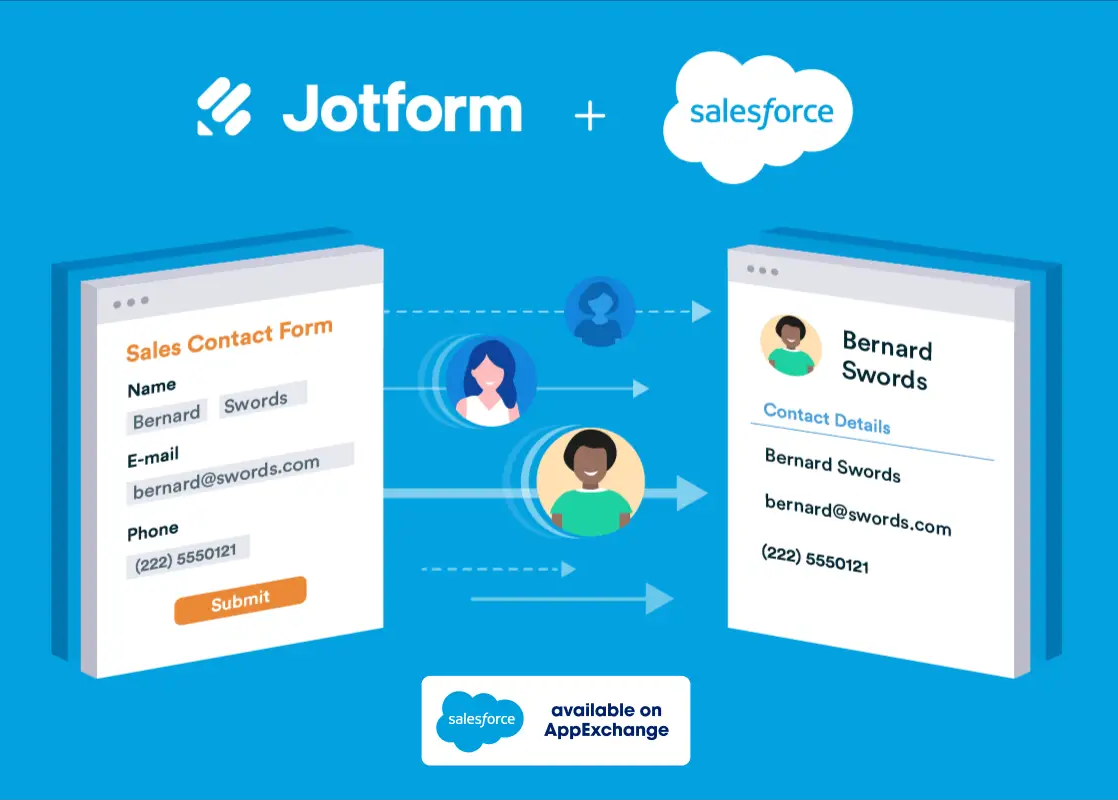
Yes. Jotform offers a native Salesforce integration that maps form fields to Salesforce objects and creates records on each submission. Jotform is also available as a Salesforce AppExchange app, letting users build and manage forms from within Salesforce itself. The two platforms have offered this integration for over a decade.
What data can sync?
Form submissions map to standard and custom Salesforce objects: Leads, Contacts, Accounts, Cases, and custom objects. Text fields, dropdowns, checkboxes, dates, file uploads, and payment data captured through Jotform can be mapped to corresponding Salesforce fields. The fields available depend on the Salesforce object type and your org's field configuration.
Is the sync bidirectional?
Not by default. The native integration flows one direction: Jotform to Salesforce. Form submissions push data into Salesforce records on each submission. Salesforce data can be pulled back into Jotform in limited ways (prefilling form fields via URL parameters or API calls), but continuous bidirectional sync requires custom development or middleware.
Is it real-time or batch?
The native integration fires on form submission, making it event-driven and near real-time. Each submission creates or updates a Salesforce record within seconds. Third-party tools like Zapier trigger within 1 to 15 minutes depending on plan tier.
What are the available methods?
Native Jotform-Salesforce integration, third-party automation (Zapier, Make), and custom API development.
Method | Setup Difficulty | Data Flow | Real-time? | Cost |
|---|---|---|---|---|
Native (Jotform) | Low | Jotform to Salesforce | Yes (on submission) | Included with Jotform plans |
Zapier | Medium | One-way per Zap | Near real-time (1-15 min) | From $19.99/mo |
Make | Medium | Configurable per scenario | Near real-time or scheduled | From $10.59/mo |
Custom API | High | Fully customizable | Real-time via webhooks | Developer time + hosting |
One distinction worth settling upfront: the native integration and Zapier/Make handle ongoing sync, where every new form submission triggers a Salesforce action. Custom API development is the only method that supports both ongoing sync and bulk operations like migrating historical submissions or building bidirectional workflows.
Integration Methods
Native Jotform-Salesforce Integration
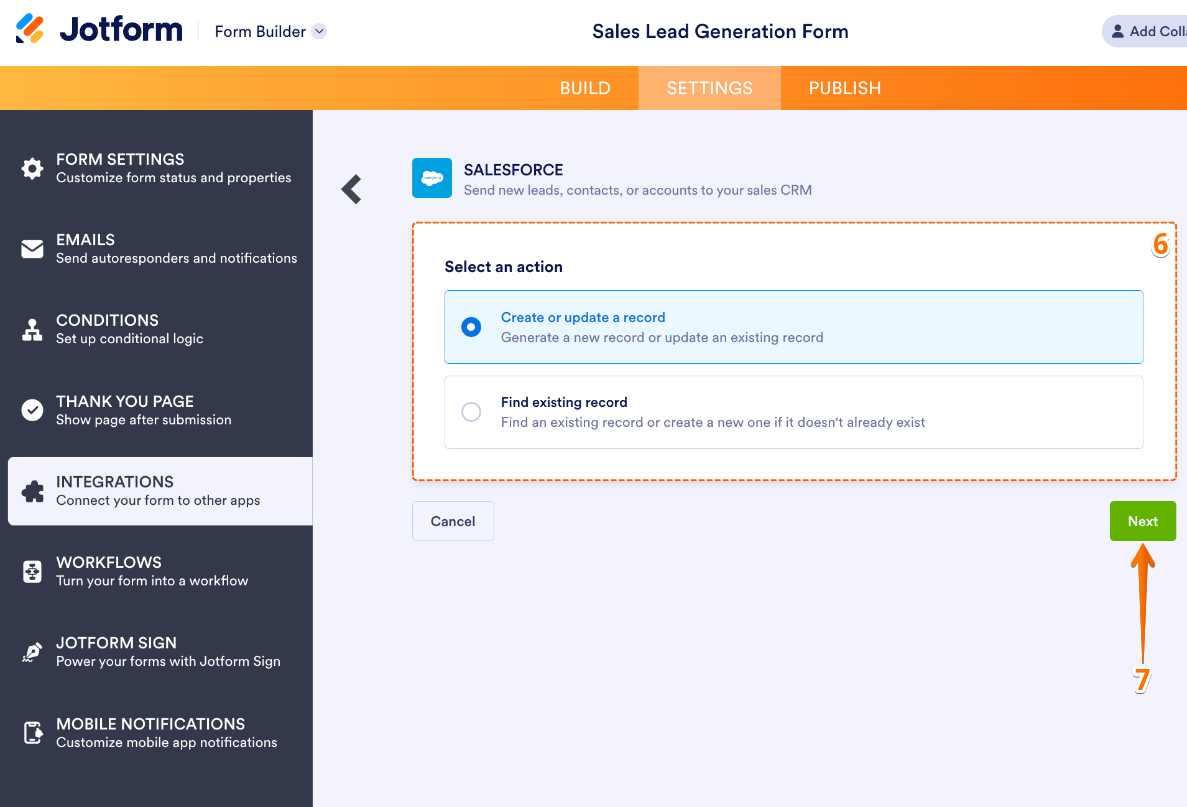
How it works: Jotform's native Salesforce integration connects a Jotform form to a Salesforce org. When a respondent submits the form, the integration maps form field values to Salesforce object fields and creates (or updates) a record in the specified object. You configure the integration per form from Jotform's integrations panel using OAuth to authenticate with Salesforce.
Source: Jotform
A Jotform for Salesforce app on the AppExchange extends this by letting teams create and manage Jotform forms from within the Salesforce interface.
What it syncs: Form submissions map to standard Salesforce objects (Leads, Contacts, Accounts, Cases, and custom objects). Text inputs, dropdowns, checkboxes, date fields, file uploads, and other form field types map to their corresponding Salesforce field types. Custom Salesforce fields are accessible for mapping.
Jotform's conditional logic determines which data the form collects, and the integration carries whatever the respondent submits into the mapped Salesforce fields.

Source: Jotform
Fits: ongoing sync of new form submissions into Salesforce; not a migration tool for historical data.
Setup process:
Open your form in Jotform's Form Builder and navigate to Settings > Integrations. Search for Salesforce.
Click "Connect" and authenticate with your Salesforce account using OAuth. Grant Jotform permission to create and update records in your org.
Select the Salesforce object type you want to populate (Lead, Contact, Account, Case, or a custom object).
Map each Jotform form field to its corresponding Salesforce field. Jotform displays both sides and lets you match them with dropdown selectors.
Test the integration by submitting a sample form response and verifying the record appears correctly in Salesforce with all mapped fields populated.
Activate. Every future form submission creates a new record in Salesforce automatically.
Strengths: Fastest setup, no third-party tools or coding required. Direct connection maintained by Jotform with long-standing Salesforce support. Supports standard and custom Salesforce objects, covering most CRM use cases. Available across Jotform's plan tiers including the free Starter plan (subject to submission limits). The AppExchange app lets Salesforce admins manage forms without leaving the CRM.
Limitations: The sync is one-directional (Jotform to Salesforce only). Data flows on form submission; changes made to a Salesforce record after creation do not propagate back to Jotform. Each form requires its own integration configuration.
Complex mapping scenarios (e.g., creating a Contact and linking it to an existing Account in the same submission) may require workarounds or a different method. Historical submissions from before the integration was configured do not sync retroactively.
Best for: Teams that need form submissions flowing into Salesforce records with minimal setup. Marketing teams capturing leads, support teams routing case requests, and HR teams collecting employee data through forms.
Zapier
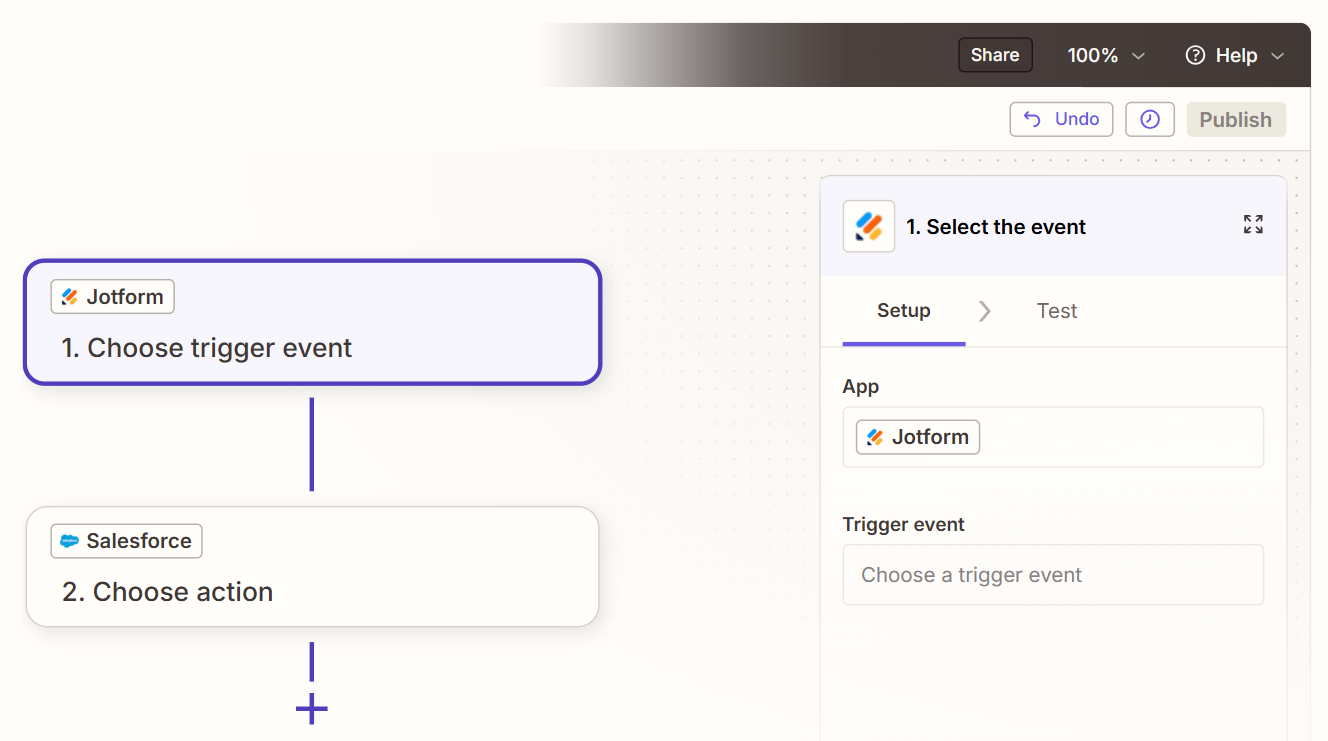
How it works: Zapier connects Jotform and Salesforce through event-driven automations called Zaps. Each Zap pairs a trigger (an event in one app) with one or more actions (what happens in the other). Both platforms are well-supported Zapier connectors, and Jotform connects to 8,000+ apps through Zapier.
Source: Zapier
What it syncs: Form submission data from Jotform can create or update Leads, Contacts, Opportunities, Cases, and other standard or custom objects in Salesforce.
In the reverse direction, Salesforce events (new records, field changes) can trigger actions in Jotform, though this is less common. Custom fields can be mapped in the Zap setup flow. Zapier's formatter and filter steps allow data transformation between platforms.
Fits: ongoing sync with conditional logic and multi-step workflows; not a migration tool for historical data.
Setup process:
Create a Zapier account and connect both your Jotform and Salesforce accounts using OAuth.
Choose Jotform as the trigger app and select "New Submission" as the trigger event. Pick the specific form you want to connect.
Choose Salesforce as the action app and select the action (e.g., "Create Lead," "Create Contact," or "Create Record").
Map Jotform form fields to Salesforce object fields. Zapier displays all available fields from both sides and lets you pull submission data into the Salesforce action fields.
Test the Zap with a sample submission to verify the field mapping produces the expected Salesforce record.
Turn the Zap on. For additional routing (e.g., creating a Contact and an Opportunity from the same submission), add multi-step actions to the Zap.
Strengths: Adds conditional logic, filtering, and multi-step actions the native integration does not support. A Zap can check whether a Salesforce record already exists before creating a duplicate (using a "Find Record" step). It can chain multiple Salesforce actions from a single form submission (e.g., create a Contact, then create an Opportunity linked to that Contact).
Zapier's broad app ecosystem lets you add steps to other tools in the same workflow (e.g., send a Slack notification after the Salesforce record is created).
Limitations: Each Zap handles one trigger-action chain. Zapier charges by task count, and each synced record (plus any intermediate search or formatting steps) counts against the plan's allocation. Near real-time (1 to 15 minutes depending on plan tier), not instant. Historical form submissions created before the Zap was activated do not sync.
Best for: Teams needing conditional routing (e.g., route form submissions to different Salesforce objects based on a form field value), deduplication logic before record creation, or multi-step workflows that chain Jotform submissions to actions across Salesforce and other tools.
Make (Formerly Integromat)
How it works: Make uses a visual scenario builder where modules connect in a flowchart. Each module represents an app action: watch for a Jotform submission, transform data, search Salesforce for an existing record, create or update a record. Scenarios can branch, filter, loop, and handle errors, giving you more control than Zapier's linear structure.
What it syncs: The same objects as Zapier (Leads, Contacts, Opportunities, Cases, custom objects), with more flexibility in how data transforms between platforms. Make supports iterators for processing multiple items from a single submission, routers for conditional paths, and aggregators for combining data before writing to Salesforce.
Fits: ongoing sync with conditional logic and complex data transformation; not a migration tool.
Setup process:
Create a Make account and add Jotform and Salesforce as connections via OAuth.
Build a new scenario. Drag the Jotform module onto the canvas and select "Watch Submissions" as the trigger.
Add a Salesforce module and select an action (e.g., "Create a Record" or "Update a Record").
Connect the modules and map fields. Make provides functions for transforming data between platforms (e.g., formatting phone numbers, splitting full names into first and last name fields, converting Jotform dropdown values to Salesforce picklist values).
Add error-handling modules to catch failures (e.g., log to a spreadsheet or send a notification if the Salesforce create fails).
Set the scenario to run on every trigger event or on a scheduled interval.
Strengths: Fine control over data transformation and conditional routing. The visual builder makes complex multi-step workflows easier to follow than code. Error handling is built in. Per-operation pricing is more economical than Zapier at higher volumes.
Routers can split a single form submission into multiple Salesforce actions based on field values (e.g., create a Lead if the form field "Type" is "New" and update an existing Contact if "Type" is "Existing").
Limitations: Steeper learning curve than both the native integration and Zapier's guided setup. Both the Jotform and Salesforce APIs impose rate limits that high-volume scenarios need to account for. Historical submissions do not sync retroactively.
Best for: Teams with complex mapping requirements (e.g., splitting a single form submission across multiple Salesforce objects with conditional logic) or high-volume scenarios where Zapier's per-task pricing becomes expensive.
Custom API Integration
How it works: Both Jotform and Salesforce provide full APIs. Jotform's REST API exposes forms, submissions, and user data, with webhook support that fires on new form submissions. Salesforce's REST API covers all standard and custom objects, with Platform Events and Change Data Capture for event-driven sync.
Source: Jotform
A custom integration connects these APIs directly, with your own middleware handling authentication, field mapping, transformation, and error recovery.
What it syncs: Anything both APIs expose. This is the only method that supports complex scenarios like mapping a single form submission to multiple related Salesforce objects in a single transaction, syncing historical submissions in bulk, pulling Salesforce data back into Jotform for form prefilling, or enforcing business rules that go beyond field mapping.
Fits: either one-time migration of historical data or ongoing sync; the only method with no ceiling on either.
Setup process:
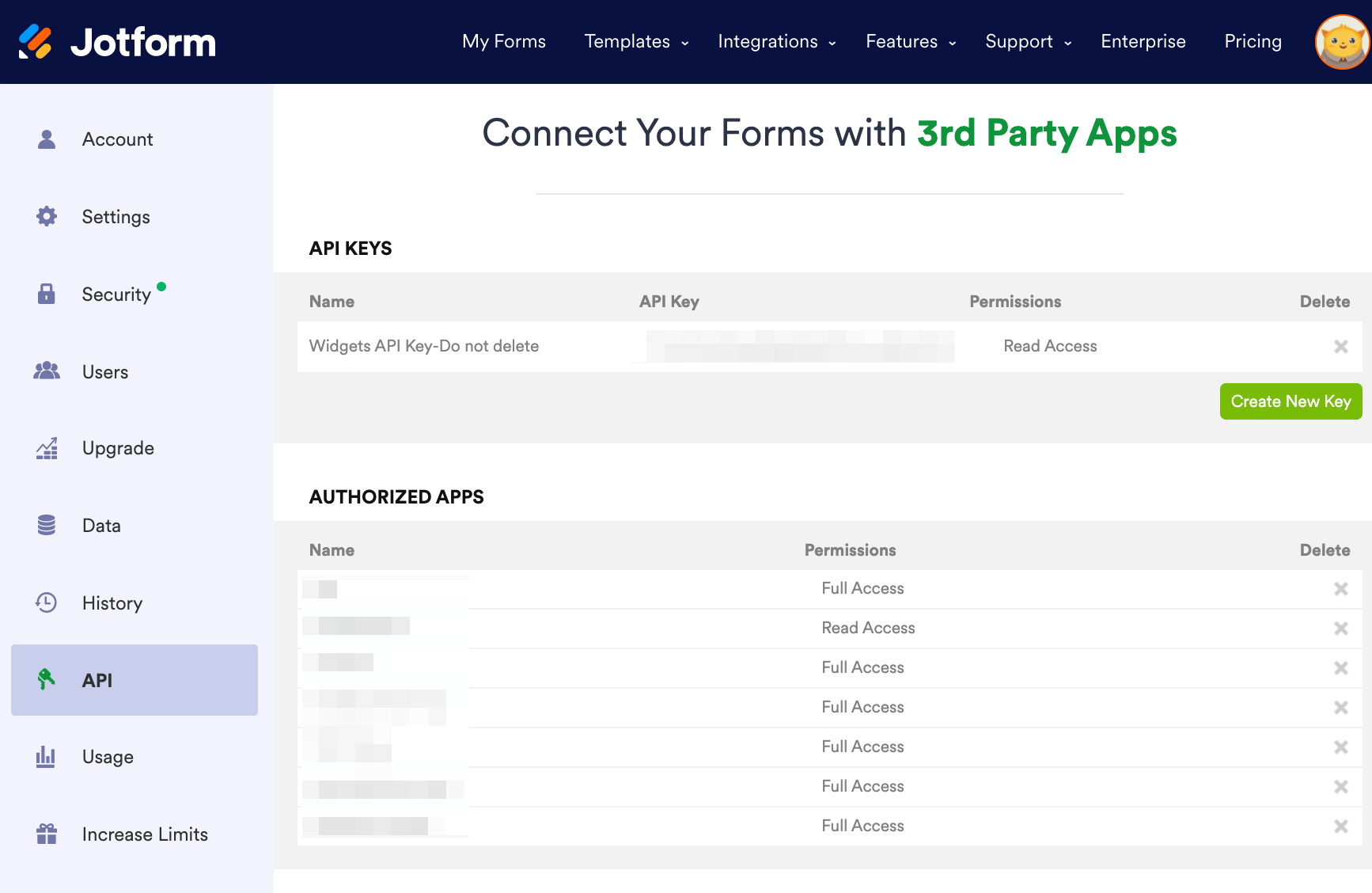
Generate a Jotform API key from My Account > API and create a Salesforce Connected App with OAuth 2.0 credentials.
Register a Jotform webhook on each form to send submission data to your middleware endpoint as a POST request on every new submission.
Build the middleware service: a server-side application that receives Jotform webhook payloads, transforms the data according to your field mapping rules, and writes records to Salesforce via the REST API.
Implement lookup and deduplication logic: before creating a Salesforce record, query for existing matches by email, phone, or another unique identifier to prevent duplicates.
Add logging, error handling, and retry logic. Jotform's API has daily rate limits that vary by plan (1,000/day on Starter, 10,000/day on Bronze). Salesforce's daily API request allocation starts at 100,000 requests per 24 hours for Professional and Enterprise editions, plus per-license allocations.
Deploy, monitor, and maintain the integration over time.
Strengths: Full control over what syncs, when, and how. Real-time sync via Jotform webhooks. Can implement arbitrarily complex business logic (e.g., create a Contact, link it to an Account found by domain matching, then create an Opportunity, all from a single form submission). Can process historical submissions via the Jotform API's GET endpoints. No per-record fees from a third-party connector.
Limitations: Requires development resources to build and maintain. You own the infrastructure, monitoring, and error recovery. API changes on either platform require ongoing maintenance (Salesforce versions its API with each seasonal release; Jotform's API may evolve as the platform grows). The initial build takes days to weeks depending on complexity.
Best for: Organizations with complex data mapping requirements that no off-the-shelf tool satisfies. Teams needing to sync historical form data or build bidirectional workflows. Companies with in-house development resources and integration requirements that will evolve over time.
Key Use Cases
1. Lead Capture and Immediate CRM Routing
Marketing teams embed Jotform lead capture forms on landing pages, blog posts, and campaign microsites. When a prospect fills out the form, the native integration creates a Salesforce Lead with the captured contact details, company name, and campaign source.
Salesforce assignment rules route the lead to the right rep, and nurture sequences trigger without any manual handoff. Jotform's conditional logic can qualify leads at the form level (asking budget range or timeline questions), so higher-intent leads route to different Salesforce queues than general inquiries.
Best integration method: Native Jotform-Salesforce integration (direct, no middleware needed).
2. Event Registration with Salesforce Campaign Tracking
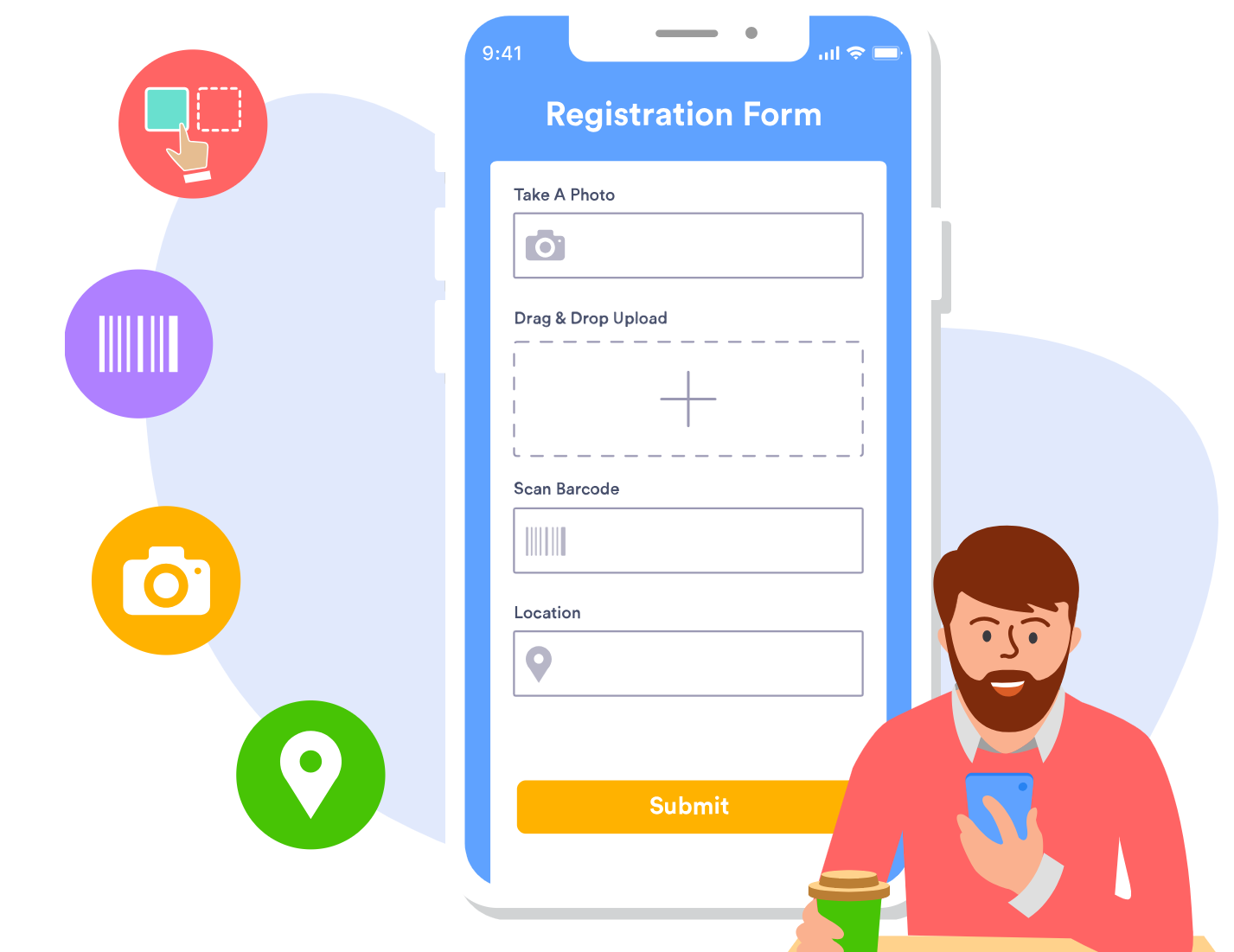
Event teams use Jotform to build registration forms with payment collection (via Stripe, PayPal, or Square) for conferences, webinars, or workshops. Each registration creates a Salesforce Contact (or matches to an existing one) and adds the registrant as a Campaign Member on the corresponding Salesforce Campaign. This connects event attendance to pipeline attribution without manual list imports.
Source: Jotform
Best integration method: Zapier or Make (multi-step workflow: create or find Contact, then add as Campaign Member).
3. Customer Support Case Creation
Support teams use Jotform to build support request forms with file upload fields for screenshots, conditional logic to route by issue type, and dropdown selections for product area. Each submission creates a Salesforce Case with the right priority, category, and description fields populated. Salesforce case assignment rules then route the case to the correct support queue based on the mapped fields.
Best integration method: Native Jotform-Salesforce integration (mapping to the Case object).
4. Employee Onboarding Data Collection
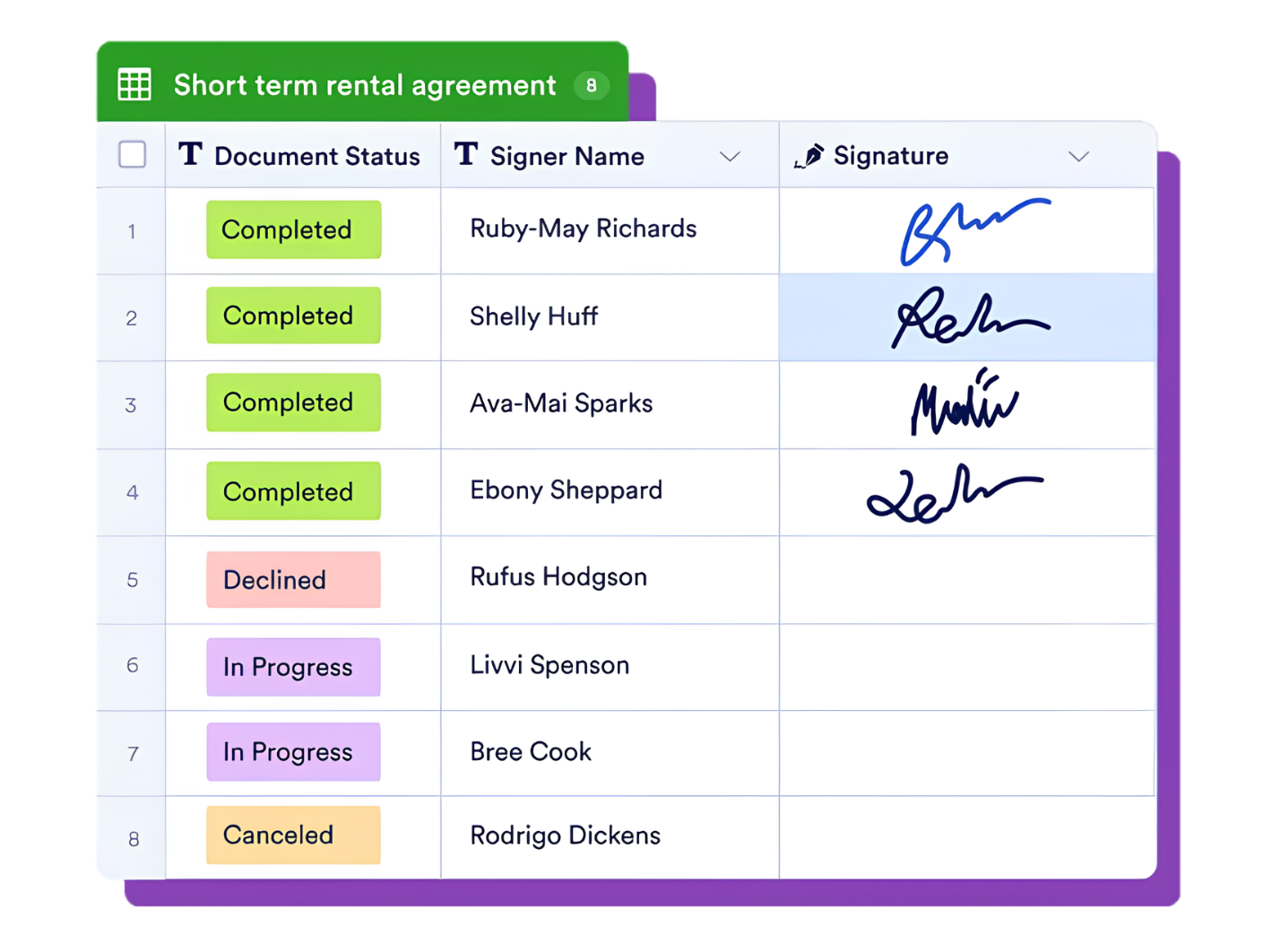
HR teams send new hires a Jotform form collecting emergency contacts, tax information, equipment preferences, and signed policy acknowledgments (via Jotform Sign). The form submission creates or updates a Salesforce record on a custom Employee object, populating fields that HR workflows depend on.
Source: Jotform
Jotform's offline forms let new hires complete paperwork on a tablet during in-person orientation, syncing to Salesforce when reconnected.
Best integration method: Native integration for simple mapping, or Zapier/Make for multi-object creation (e.g., creating both an Employee record and a related Onboarding Task).
5. Partner or Vendor Application Processing
Channel teams publish a partner application form using Jotform, collecting company details, revenue data, and references. Each submission creates a Salesforce Account or Lead record in a partner pipeline.
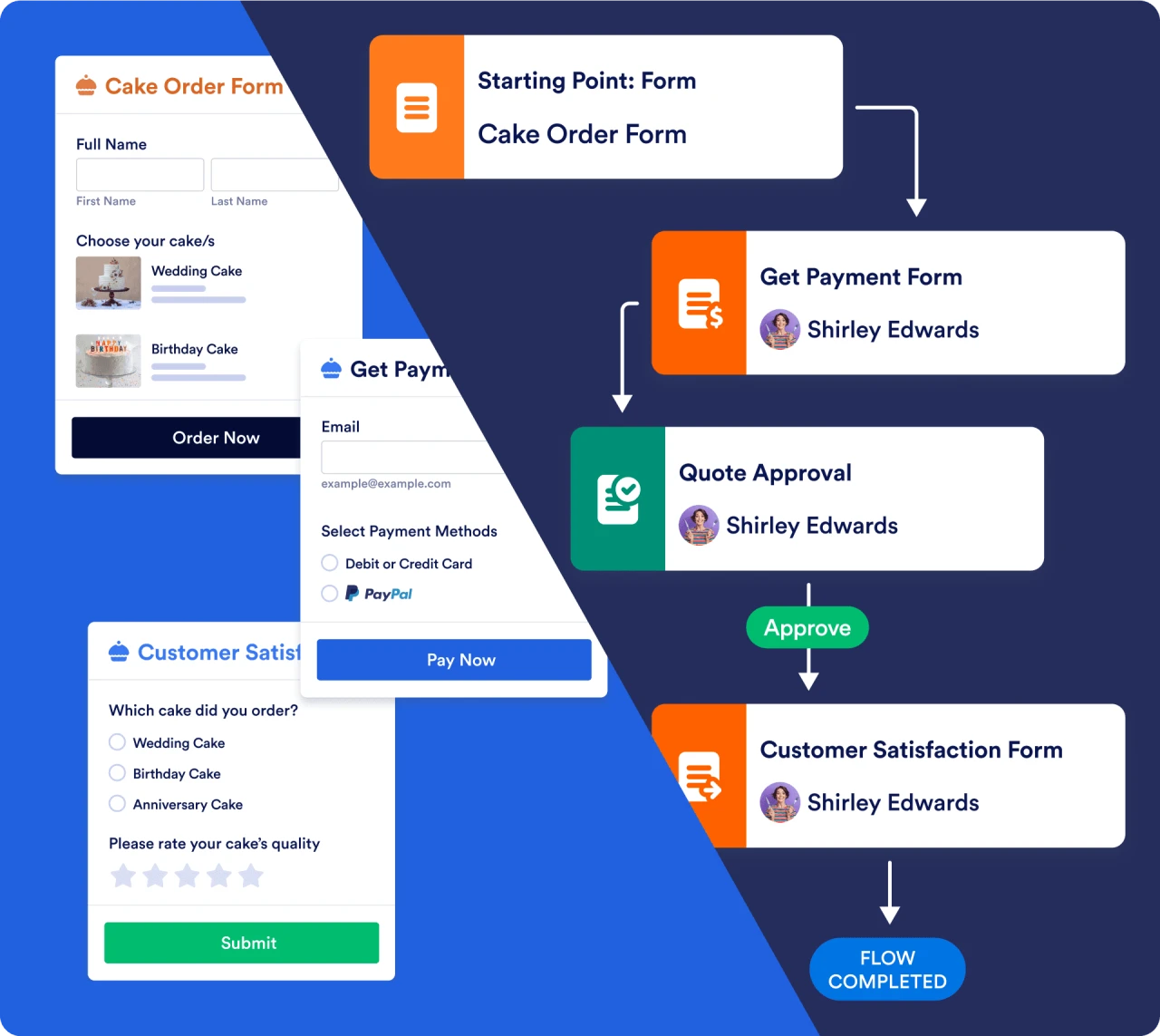
A Jotform Workflow can route the application through internal approvals before the Salesforce record is created, so only approved applications reach the CRM. Make scenarios can add conditional logic to check approval status before triggering the Salesforce create step.
Source: Jotform
Best integration method: Make or custom API (conditional creation based on Jotform Workflow approval status).
Limitations and Considerations
Data That Doesn't Sync
The native integration carries form submission data into Salesforce. It does not sync Jotform metadata (form analytics, submission counts, or A/B test variants) or Jotform-specific features (approval workflow status, full payment processing details beyond the transaction ID, or Jotform Tables data).
On the Salesforce side, record updates made after the initial submission do not flow back to Jotform. If a rep corrects a phone number in Salesforce, the original Jotform submission still shows the old value.
File uploads from Jotform forms can be attached to Salesforce records through the native integration, but large file volumes may run into Salesforce's file storage limits, which vary by edition and license count.
Sync Conflicts
Because the native integration is one-directional (Jotform to Salesforce), sync conflicts in the traditional sense are uncommon. The primary risk is duplicate records: if the same person submits a form twice, the integration creates two Salesforce records unless deduplication logic is in place. The native integration does not include built-in deduplication.
Zapier offers a "Find Record" step to check for existing matches before creating a new record. Custom API builds can use Salesforce's upsert operations (matching on email or an external ID) to update existing records instead of creating duplicates.
Pricing Implications
Jotform's native Salesforce integration is included across all plan tiers, but submission limits apply:
Starter (free): 100 monthly submissions
Bronze ($34/month billed annually): 1,000 monthly submissions
Silver ($39/month billed annually): 2,500 monthly submissions
Gold ($99/month billed annually): 10,000 monthly submissions
Enterprise (custom pricing): unlimited submissions
Teams processing high volumes may need a higher Jotform tier or Jotform Enterprise to avoid hitting submission caps.
On the Salesforce side, API limits apply when using third-party or custom integrations. Salesforce's daily API request allocation starts at 100,000 requests per 24 hours for Professional and Enterprise editions, plus per-license allocations. The native Jotform integration accesses Salesforce through its own connector layer, but Zapier, Make, and custom API integrations consume Salesforce API calls directly.
Third-party tools carry their own costs. Zapier plans start at $19.99/month for 750 tasks. Make starts at $10.59/month for 10,000 operations.
Permissions and Access
Setting up the native integration requires admin-level access on both sides. In Jotform, the form owner or a user with integration permissions must configure the Salesforce connection. In Salesforce, the authenticating user needs API access and permission to create records on the target object.
If your Salesforce org uses field-level security or sharing rules, the integration user's profile must have write access to every field you intend to map. Installing the Jotform for Salesforce AppExchange app requires Salesforce System Administrator access.
Maintenance
Jotform forms evolve as teams add, remove, or reorder fields. When a mapped field is deleted or renamed in either Jotform or Salesforce, the integration may fail silently (creating records with blank fields) or throw errors.
Changes to Salesforce validation rules, required fields, or picklist values can break integrations that were configured before the change. Review the integration's field mapping and error logs periodically, especially after form redesigns or Salesforce metadata changes.
Salesforce versions its API with each seasonal release (the current version is Summer '26, API version 67.0). Custom API integrations must account for versioning and deprecation. Third-party tools like Zapier and Make handle API version management on their end, reducing this maintenance burden.
What No Method Fixes: The Data Itself
Every method above moves form submission data from Jotform into Salesforce. None of them checks whether the data the respondent entered is accurate, or whether the existing CRM records are current and complete.
A lead form with a misspelled company name creates a Salesforce record with a misspelled company name. A respondent who enters a personal email instead of a work email becomes a Lead with no company context. The integration delivers what it receives. It does not enrich, verify, or complete the data along the way.
Where ZoomInfo Fits In
Every method in this guide moves form data from Jotform into Salesforce. None of them improves the data being moved or the records already in the CRM. When the integration is live but Salesforce leads are missing direct dials, carry outdated job titles, or lack company context (size, industry, revenue, tech stack), the bottleneck is no longer the connector. That is the gap ZoomInfo closes.
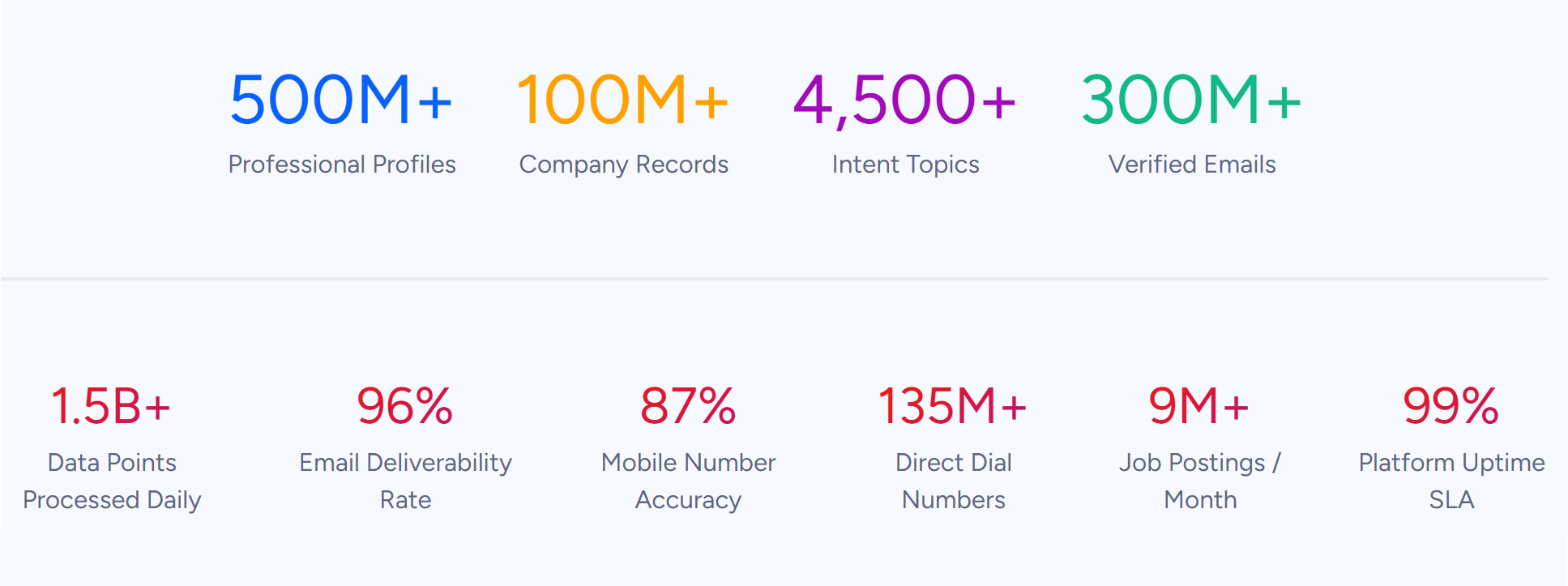
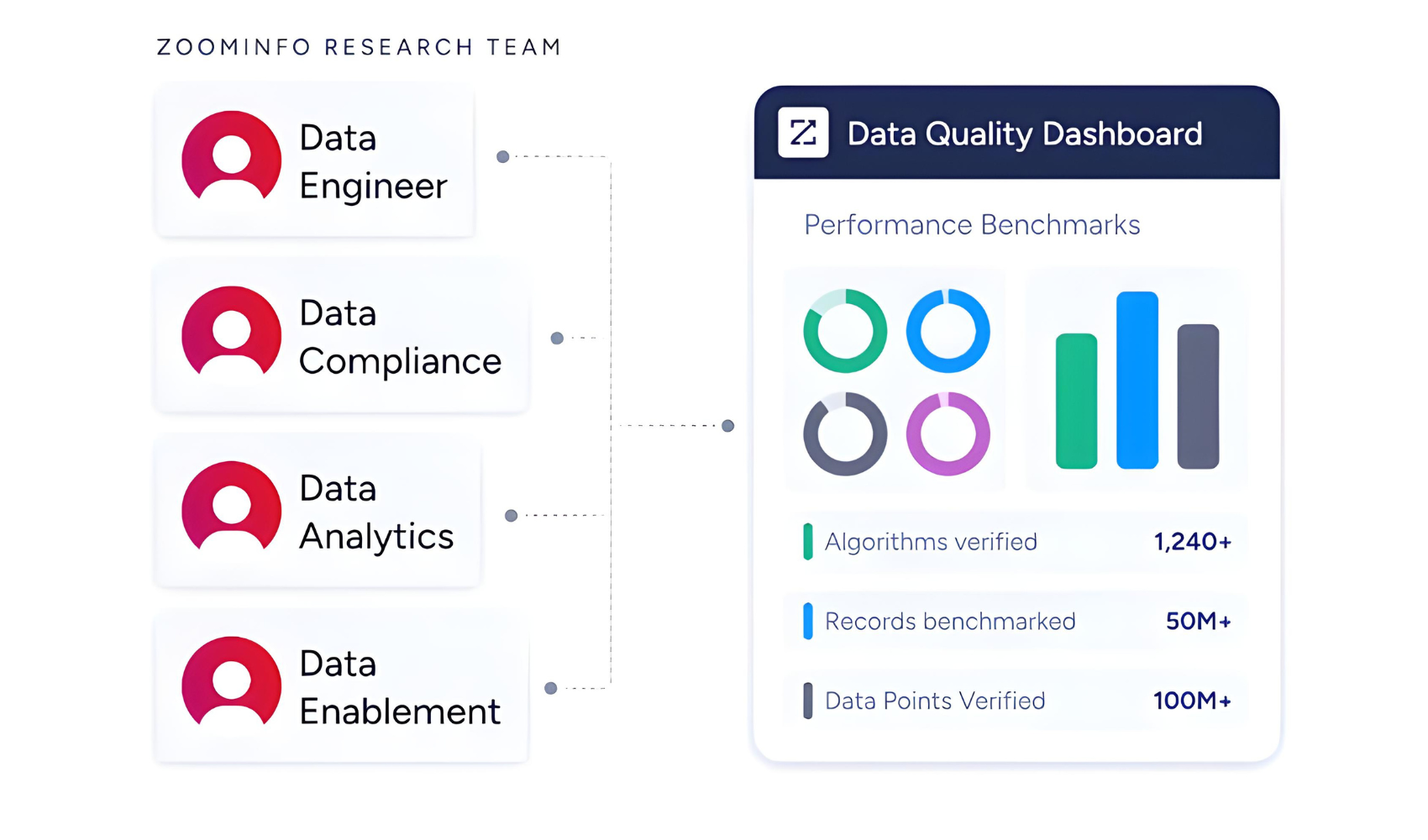
ZoomInfo is a B2B data and go-to-market platform built on 500M contacts, 100M companies, 135M+ verified phone numbers, and 200M+ verified business emails.
Source: ZoomInfo
That data is verified through a multi-source pipeline backed by 300+ human researchers, reaching up to 95% accuracy on first-party data. For teams running a Jotform-Salesforce integration, ZoomInfo covers the data quality layer that no form connector handles.
Source: ZoomInfo
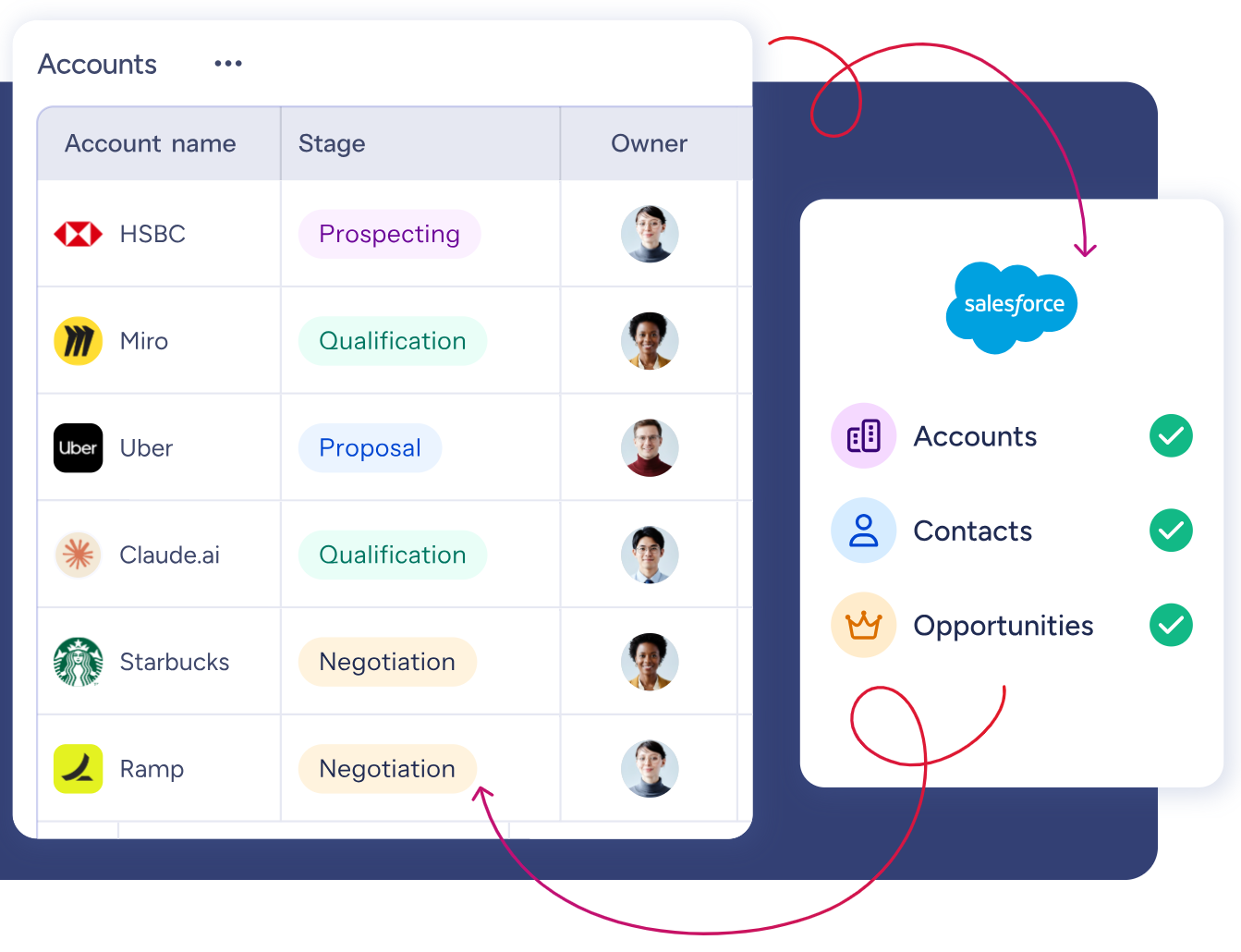
ZoomInfo integrates natively with Salesforce, providing CRM enrichment, lead routing, and real-time data updates inside Salesforce records. When a Jotform submission creates a new Lead in Salesforce with just a name and email, ZoomInfo can enrich that record with the contact's verified job title, direct dial phone number, company attributes (size, industry, revenue), technographic profile, and org chart context.
Source: ZoomInfo
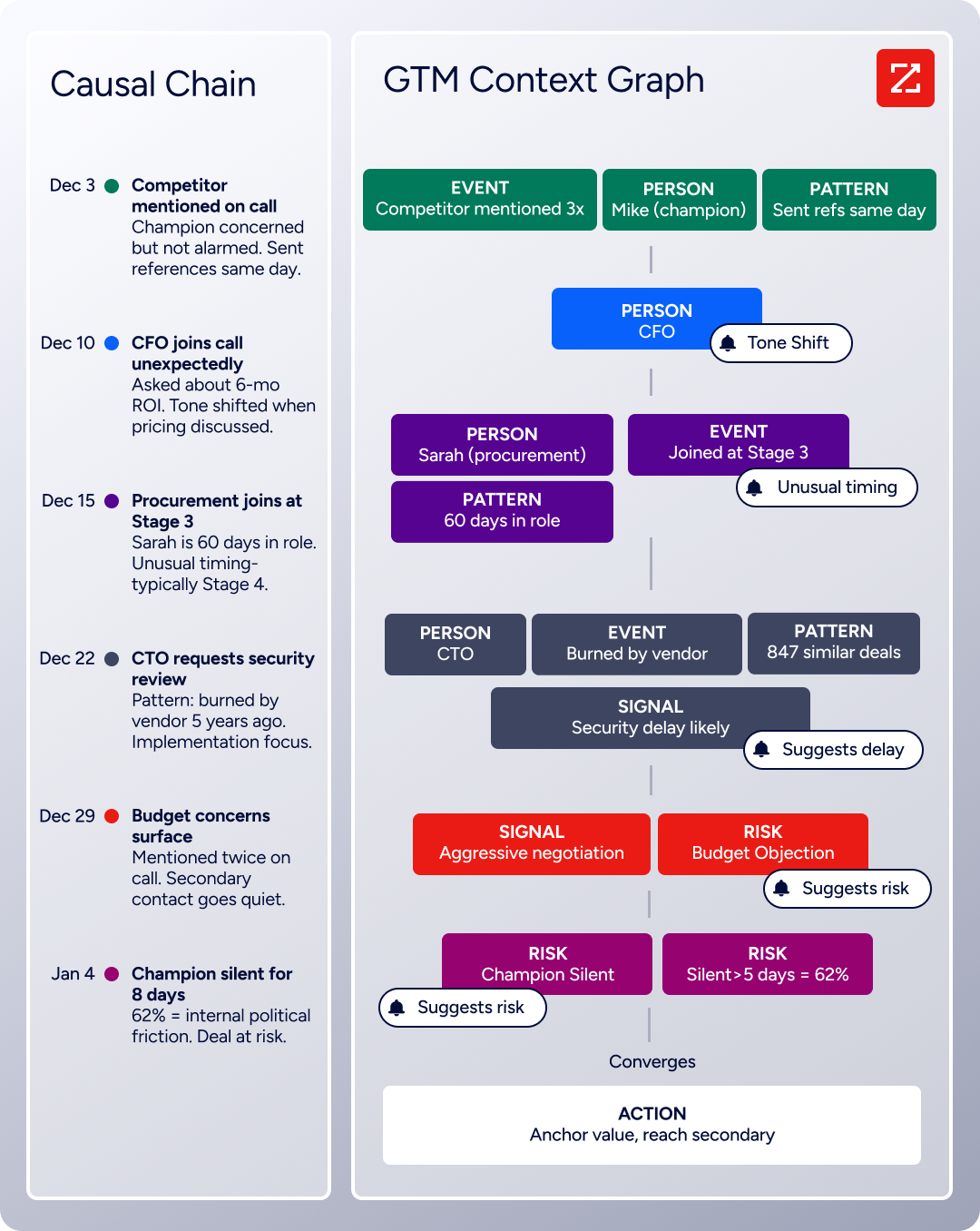
The same data feeds ZoomInfo's GTM Context Graph, which processes 1.5B + data points daily and unifies B2B data with CRM records, conversation transcripts, and behavioral signals to surface not just what happened in a deal, but why.
Source: ZoomInfo
In practice, the workflow looks like this: a prospect fills out a Jotform lead capture form with their name, email, and company. The native integration creates a Salesforce Lead. ZoomInfo's Salesforce connector enriches that Lead with verified contact details, company revenue, employee count, technology stack, and org chart position.
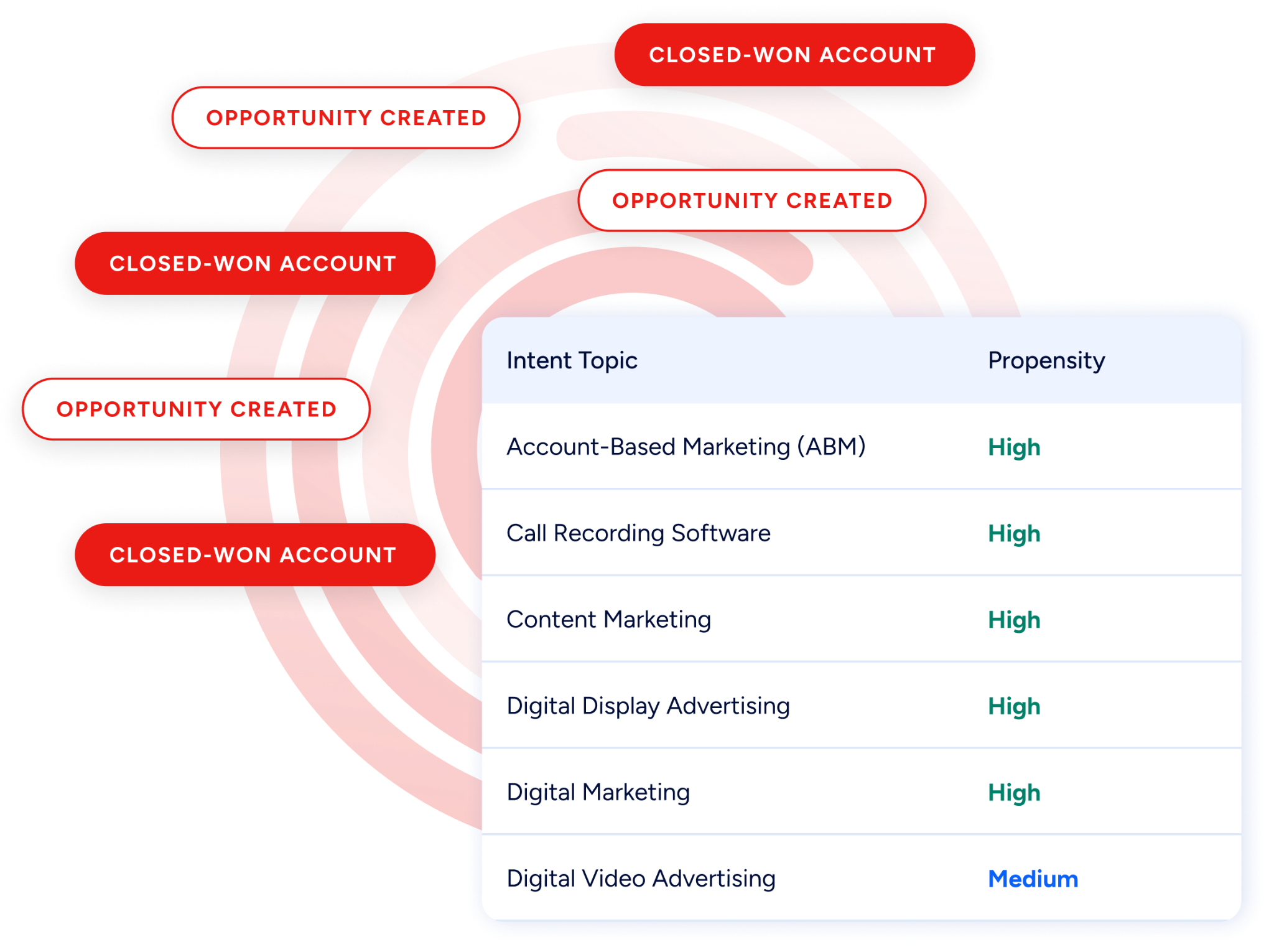
Buyer Intent data from ZoomInfo, tracking signals from 210 million IP-to-Organization pairings, can further prioritize which leads to work first based on whether their company is actively researching relevant solutions.
Source: ZoomInfo
Enriched records also make the Jotform-Salesforce integration more effective. A Lead with a verified direct dial gets a faster first call. A Contact with accurate company attributes routes to the right sales team through Salesforce assignment rules. Deduplication becomes more reliable when records carry standardized company names and verified emails rather than whatever the respondent typed into a form field.
Seismic's sales team attributed 39% of active pipeline to opportunities identified or influenced by ZoomInfo signals, while boosting productivity by 54% and saving 11.5 hours per week. (Seismic)
Final Verdict
A native Jotform-Salesforce integration exists, is straightforward to set up, and covers the primary use case: pushing form submissions into CRM records. For most teams, the right choice depends on the complexity of the data mapping and the volume of submissions.
Small teams capturing leads or support requests through forms should start with the native Jotform-Salesforce integration. It requires no third-party tools, no code, and no ongoing fees beyond existing Jotform and Salesforce subscriptions.
Teams needing conditional routing, deduplication, or multi-step workflows should use Zapier or Make. Both add logic the native integration does not support: checking for existing records before creating new ones, routing to different objects based on form field values, and chaining actions across multiple apps.
Organizations with complex data models, high-volume submission processing, or bidirectional sync requirements should invest in a custom API integration using Jotform's REST API and Salesforce's REST API.
Before committing to a method, clarify what happens after the form data reaches Salesforce.
If the goal is getting form submissions into the CRM so they are not lost, the native integration handles that today. If the goal is building a workflow where form data triggers assignment, nurture, scoring, and follow-up, the connection method matters less than the quality of the data inside Salesforce once it arrives.
ZoomInfo, with its native Salesforce integration and API and MCP access, is the data enrichment layer that ensures every form-captured lead enters the CRM with verified, actionable details rather than just what the respondent chose to type.
FAQ
Does Jotform offer a native Salesforce integration?
Yes. Jotform provides a native Salesforce integration configurable from the Form Builder's Settings > Integrations panel. It maps form fields to Salesforce objects (Leads, Contacts, Accounts, Cases, and custom objects) and creates records on submission.
Jotform is also available as a Salesforce AppExchange app for creating and managing forms within Salesforce. The two platforms have offered this integration for nearly a decade.
Can I connect Jotform and Salesforce without writing code?
Yes. The native integration requires no code and takes minutes to configure. Zapier and Make offer no-code and low-code alternatives with additional routing and transformation capabilities. All three options use visual, guided setups accessible to non-technical users.
Which Jotform plans include the Salesforce integration?
The Salesforce integration is available across Jotform's plan tiers. The constraint is submission volume, not integration access. The free Starter plan allows 100 monthly submissions, Bronze allows 1,000, Silver allows 2,500, Gold allows 10,000, and Enterprise offers unlimited submissions. Teams processing high volumes will need a paid plan to avoid hitting submission caps.
Can I sync historical Jotform submissions to Salesforce?
The native integration and third-party tools (Zapier, Make) only process new submissions created after the integration is activated.
For historical data, use a custom script that reads existing submissions from Jotform's REST API (GET /form/{formID}/submissions) and creates corresponding records in Salesforce via the Salesforce REST API. Salesforce's Bulk API 2.0 is recommended for loading large numbers of records.
How do I prevent duplicate Salesforce records from form submissions?
The native integration does not include built-in deduplication. To prevent duplicates, use Zapier (add a "Find Record" step that searches Salesforce by email before creating a new record) or Make (use a Salesforce search module before the create module).
Custom API integrations should use Salesforce's upsert operation, which matches on a specified field (such as email) and updates the existing record if found or creates a new one if not.
Does the integration support Jotform's payment and e-signature features?
Payment data captured through Jotform (transaction IDs, amounts, payment status) can be mapped to Salesforce fields through the integration. The full payment processing details remain in Jotform and the connected payment processor.
E-signatures collected via Jotform Sign can trigger a form submission that creates a Salesforce record, but the signed document itself does not transfer into Salesforce as an attachment through the native integration. Custom development or a third-party connector may be needed to attach signed PDFs to Salesforce records.
What happens if the integration fails on a submission?
If the Salesforce record creation fails (due to a validation rule, a missing required field, or an authentication error), the form submission is still saved in Jotform.
The respondent's data is not lost. Jotform logs integration errors in the form's submission history. Teams should periodically check for failed submissions and reprocess them through the API or manually. Zapier and Make provide their own error logs and retry mechanisms.
How does ZoomInfo improve a Jotform-Salesforce workflow?
ZoomInfo solves the data quality problem that no form connector addresses. A respondent fills out a lead form with a name, email, and company. The integration creates a Salesforce Lead. ZoomInfo's native Salesforce integration then enriches that record with the contact's verified job title, direct dial phone number, company size, industry, technology stack, and org chart position.
Reps follow up on leads with complete, verified data rather than working from whatever the respondent typed into a form. Intent signals from ZoomInfo can also prioritize which leads to call first based on whether the company is actively researching relevant solutions.
Other tools that connect to Salesforce:
